
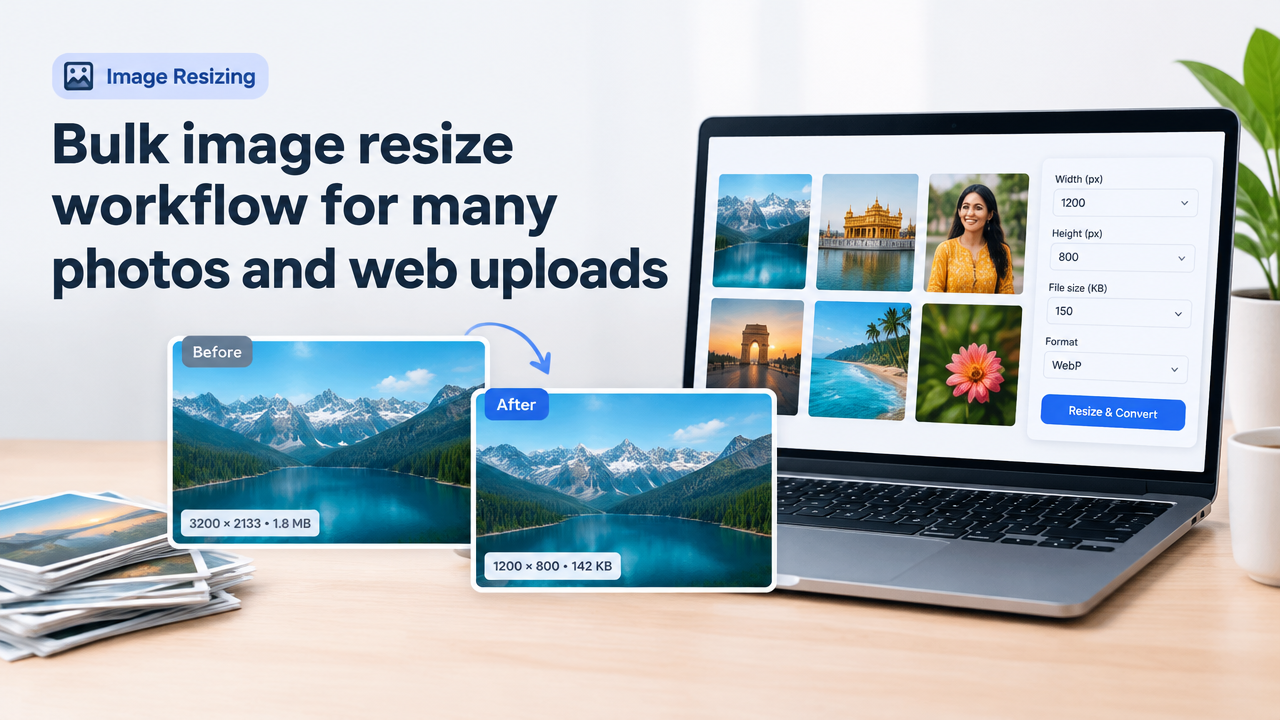
Bulk image resize workflow for many photos and web uploads
Quick answer: Decide target dimensions and file-size (KB) for each image role (hero, content, thumbnail), resize images first, then compress/convert (prefer WebP for web), apply consistent filenames and alt text, batch-process with a reliable tool or script, test on mobile, and keep originals. Follow the steps below for a fast, repeatable workflow.
Who this guide is for
This guide is for web editors, photographers, developers and creators in India (and globally) who must process many photos for websites, e-commerce listings or CMS uploads. It balances visual quality, page-speed, and content management practices so images look good and load fast.
Quick checklist (one-page view)
| Task | Why | Quick target |
|---|---|---|
| Decide image roles | Different pages need different sizes | Hero / Content / Thumbnail |
| Set pixel dimensions | Match CSS/display size | Hero 1200–2000px, Content 800–1200px, Thumb 150–400px |
| Set file-size targets | Improve loading speed | Hero 150–400 KB, Content 80–200 KB, Thumb 10–50 KB |
| Choose format | Quality vs compatibility | WebP for web, JPG for photos, PNG for transparency |
| Batch process | Save time and ensure consistency | Use online or ImageMagick/Photoshop batch |
| Name & alt text | SEO & accessibility | descriptive-keywords.jpg; alt=”Short description” |
| Test & backup | Quality assurance | Check mobile / desktop; keep originals |
Understanding pixel dimensions vs KB vs visual quality
Resizing and compressing are related but different actions:
- Pixel dimensions (width × height in px) determine how large an image can display without upscaling. Always match or slightly exceed the largest display size you’ll show on the site. Scaling down reduces the pixel count, which reduces file size and often sharpness.
- File size (KB) is how much bandwidth an image uses. It depends on pixel count, format, compression level and image detail. Lower KB = faster loads but too low causes visible artifacts.
- Quality is visual fidelity. Compression strategies (lossy vs lossless) adjust quality; lossy formats like JPG/WebP can keep visual quality at smaller sizes if tuned correctly.
Rule: Resize first (reduce pixels), then compress/convert. That gets the best size-to-quality ratio.
Step-by-step bulk workflow
- Inventory & grouping
Collect the photos and group them by role: hero banners, article images, gallery thumbnails, product images, avatars, etc. Each group needs its own target size and quality settings.
- Choose target dimensions
Match the maximum CSS display size. For responsive sites, export a few widths (for example: 1600px, 1200px, 800px) and serve the appropriate one via srcset. Use the table below for common targets.
- Decide file-size targets
Set acceptable file-size ranges for each group (see checklist). For content images, 80–200 KB is common; for thumbnails aim lower. Larger hero images can be 150–400 KB if visually important.
- Pick format
WebP gives best compression for web. Use JPG for broad compatibility where WebP isn’t supported, PNG for images that need transparency, and AVIF/WebP for best compression when supported. Always keep an option for fallback formats if your CMS or audience requires it.
- Batch process
Use a batch tool or script. Online tools can be quickest for non-technical users; command-line tools (ImageMagick) or desktop apps (Photoshop actions, Affinity) give more control. If you prefer a simple online tool, try Smart Image Resize: Smart Image Resizer, Converter & Compressor.
- Name files and add metadata
Rename files to descriptive, hyphen-separated names (example: delhi-market-food-photography.jpg). Remove or edit unnecessary EXIF if privacy is a concern. Add alt text in the CMS, not inside the file.
- Quality check and test
Open a sample of each group on desktop and mobile. Check sharpness, artifacts and loading speed. Use browser dev tools to simulate slow networks.
- Backup originals
Keep full-resolution originals offline or in cloud storage. Your compressed assets should be reproducible from originals if you keep a record of the exact export settings.
Common target sizes & recommended file-size ranges
Use these as starting points—adjust for your design and image content.
| Role | Pixel width (px) | Typical KB | Format |
|---|---|---|---|
| Hero / full-width banner | 1600–2000 | 150–400 | WebP / JPG |
| Article / content image | 800–1200 | 80–200 | WebP / JPG |
| Gallery medium | 600–900 | 50–150 | WebP / JPG |
| Thumbnail / listing | 150–400 | 10–50 | WebP / JPG |
| Icon / avatar | 64–200 | 5–20 | WebP / PNG |
Tools and automation options
Pick what fits your skill level and privacy needs.
- Online batch tools — Fast and UI-driven. Useful for one-off or small projects. See Smart Image Resize for an easy online option: Smart Image Resizer, Converter & Compressor. When using online tools, check the site’s privacy policy for file retention practices: Privacy Policy.
- ImageMagick (command line) — Great for automation on servers or dev machines. Example commands:
magick mogrify -path output/ -resize 1200x -quality 85 -format webp *.jpg

# Or convert and compress keeping original in a separate folder
magick convert input.jpg -resize 1200x -quality 80 output.webp
Use -strip to remove EXIF:
-strip. - Photoshop / Affinity — Use batch actions or export presets for fine control and visual checks.
- Node/Python scripts — Use sharp (Node.js) or Pillow (Python) to build a repeatable pipeline if you manage many daily uploads.
Naming, metadata and Image SEO
Good file names and metadata help SEO and site organization:
- Use hyphen-separated, descriptive filenames with keywords but avoid stuffing. Example: mumbai-street-food-pani-puri.webp.
- Add concise alt text in your CMS describing the image for accessibility and search.
- Remove sensitive EXIF or GPS data for privacy using
-strip(ImageMagick) or via your batch tool. - Use srcset / responsive images to serve the right pixel width to each device rather than relying on a single large file.
Common mistakes and how to avoid them
- Uploading full-resolution originals — Costly in bandwidth and slows pages. Always resize for web unless you need full-resolution downloads.
- Compressing before resizing — Leads to larger files or extra artifacts. Resize first.
- No backups — Keep originals so you can re-export for new targets later.
- Using only one size for all devices — Increases load time on mobile. Use responsive srcset or multiple size exports.
- Over-compressing — Don’t chase tiny KB numbers at the expense of visible quality. Test with real users or devices.
- Forgetting SEO and accessibility — File name plus alt text matter for search and users using assistive tech.
Practical tips for faster, reliable results
- Start with a small test batch (10–20 images) and review results before processing thousands.
- Keep a documented export profile: pixel width, quality %, format and whether EXIF is removed. This ensures repeatability.
- Automate common tasks: renaming, resizing, converting and placing files into folder structure via scripts or actions.
- When possible, use lossless WebP for images that must maintain exact detail; otherwise use lossy WebP tuned for perceived quality.
- Use caching and a CDN to serve images globally after resizing to reduce load times further.
Conclusion
Bulk image resizing for web uploads is mainly about planning, consistency and testing. Group your images, choose sensible pixel and KB targets, resize before compressing, use the right formats (WebP for the web), keep originals and automate where possible. This workflow keeps visual quality high, saves bandwidth and speeds up publishing.
Frequently Asked Questions
Need a quick online tool to try batch resizing and conversion? Start here: Smart Image Resizer, Converter & Compressor. For policies and editorial info, see Privacy Policy and About Us.
Try the matching Smart Image Resize tool
Use the closest live SmartImageResize tool for the task in this guide. For government or platform uploads, verify the latest official requirement before final submission.
Open Signature Resizer Online – Resize Photos for Sarkari Exams


