
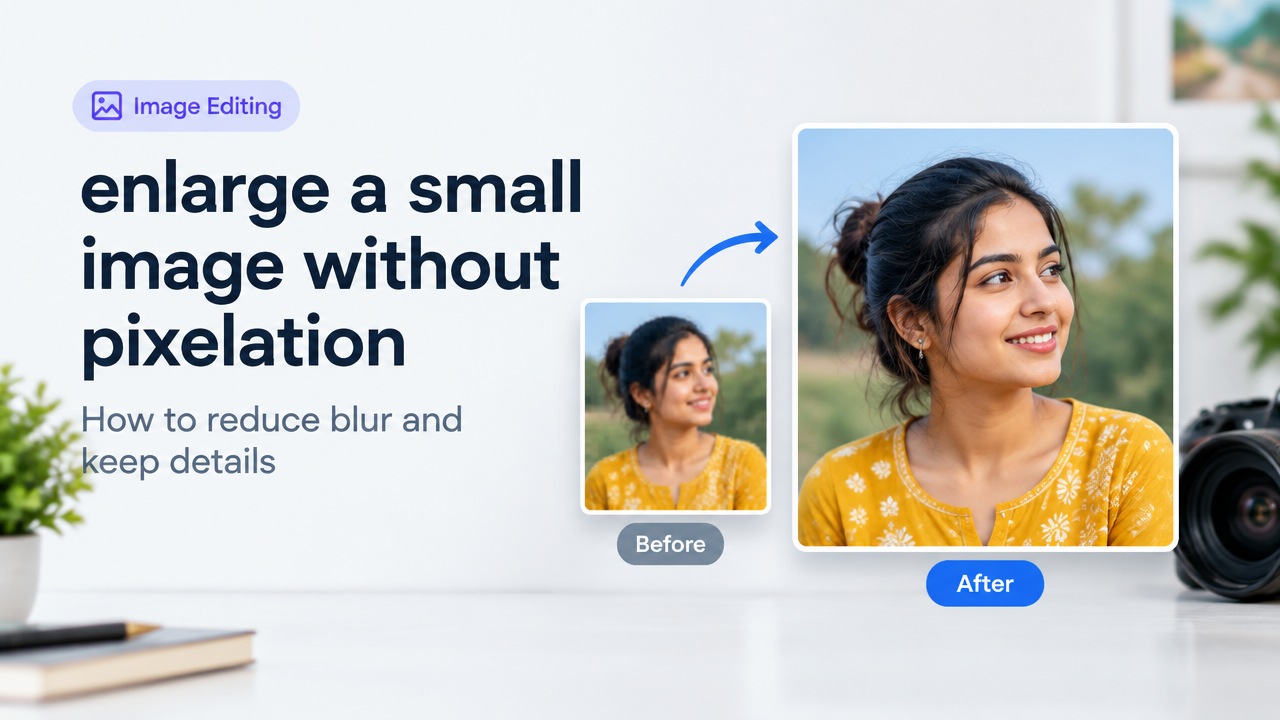
Answer first: To enlarge a small image without visible pixelation, upscale in controlled steps using a high-quality interpolation or AI upscaler, remove noise carefully, and apply subtle sharpening. Start by checking pixel dimensions and intended use (print vs web), then pick an upscaling method (bicubic for mild enlargements, AI upscalers for strong upscales), denoise, and finally export in an appropriate format and quality level.
Why simple resizing causes blur and pixelation
Images are made of pixels. When you increase the pixel count, the software must create new pixels that weren’t in the original. Basic interpolation (nearest neighbour, bilinear, bicubic) guesses colors from neighbouring pixels — at modest enlargements this looks fine, but large jumps cause visible softness or blocky artifacts. AI upscalers use learned patterns to reconstruct likely details, which can preserve perceived sharpness, but they also risk creating artificial textures if misused.
Quick decision: print or screen? How big do you need it?
- Screen (web, social): target pixel dimensions (width x height) and file size (KB) matter. 2x to 3x original dimensions is often enough.
- Print: target DPI (usually 300 DPI for good quality). To print a 6×4 inch photo at 300 DPI you need ~1800×1200 pixels. If your original is much smaller, expect softness unless using strong AI upscaling plus retouching.
- Forms and uploads: check the destination’s pixel and KB limits before enlarging to avoid rejections.
Before you start: checklist
| Item | Why it matters |
|---|---|
| Original image (keep a copy) | Non-destructive editing lets you retry different methods. |
| Target dimensions and use | Defines how much upscaling you need and which approach to use. |
| Tool choice (interpolation or AI) | AI gives better results for big enlargements, interpolation is fast for small ones. |
| Noise and compression artifacts | Pre-cleaning improves final quality—especially JPEG artifacts. |
| Output format (JPG/PNG/WebP) | Choose lossless for editing (PNG) or efficient lossy for final web use (WebP/JPG). |
Step-by-step workflow: practical and repeatable
- Inspect the original: open at 100% and note pixel dimensions, visible compression blocks, noise, or blur. If it’s a heavily compressed JPG, try initial artifact reduction.
- Decide target size: pick final pixel dimensions based on use. Avoid huge jumps in a single step (e.g., 4x+ at once) unless using an AI upscaler built for strong enlargements.
- Pre-process: reduce compression artifacts and noise: run a light deblocking/denoise pass. This improves AI and interpolation results. Be conservative—over-smoothing removes detail.
- Upscale:
- For mild enlargement (up to ~150–200%): use bicubic (preserve details) or bicubic sharper in photo editors.
- For strong enlargement (2x–8x): use a modern AI upscaler (ESRGAN-style, EDSR, or other neural upscalers). Many online and desktop tools use these models to reconstruct plausible detail.
- Post-process: denoise & sharpen: After upscaling, apply targeted noise reduction if artifacts appear, then use subtle unsharp mask or high-pass sharpening. Keep preview at 100% while tuning.
- Local retouching (optional): fix eyes, hair, text or edges with cloning/healing or frequency separation if you need high fidelity in specific areas.
- Export: save a working master (PNG or lossless TIFF) and an optimized final (WebP or high-quality JPG) sized and compressed for the destination.
Tools and approaches: which to choose
- Built-in editor interpolation (Photoshop, GIMP, many online editors): fast, reliable for small changes. Use bicubic or Lanczos if available.
- AI upscalers: best for large upscales. They generate new detail and reduce jagged edges. Use conservative strength at first and inspect for hallucinated textures.
- Hybrid approach: interpolation first, light denoise, then AI enhancer for finer detail control.
- SmartImageResize tools: try our general resizer or the enlarge/crop guide to follow a stepwise workflow and preserve composition: Crop Rotate Flip Enlarge Image Without Losing Quality and our main tool page Smart Image Resizer, Converter & Compressor — Free Online Tool.
Dimensions vs KB vs quality: what to watch
Pixel dimensions determine visible size and basic detail; file size (KB) is a function of dimensions, format, and compression settings. Increasing dimensions raises the uncompressed data, so to keep file size small you may use stronger compression—this can reintroduce artifacts or blur. For final web images, aim to balance visual fidelity and file size: try 70–85% JPG quality for photographs or WebP with similar quality settings if supported. Always keep a high-quality master for future edits.
Common mistakes that make enlargements worse
- Sharp scaling in one big jump with nearest-neighbour: creates jagged edges and pixel blocks.
- Skipping denoise before upscale: compression blocks and noise magnify and distract after enlarging.
- Over-sharpening: leads to haloing and unnatural edges.
- Trusting AI blindly: some models insert textures that look plausible but are not faithful to the original.
- Exporting directly to low-quality JPG: losing a master copy removes any chance to improve later.
Practical tips for better results
- Work non-destructively: keep the original and a lossless master.
- Enlarge in smaller steps when not using an AI model—e.g., two 1.4x steps often yield better bicubic results than one 2x step.
- Mask sharpening to important areas (eyes, subject edges, text) and avoid background noise sharpening.
- If the subject includes text or logos, consider recreating them at vector scale rather than upscaling bitmap text.
- For web use, test different export qualities and formats (WebP often gives a smaller file at similar quality vs JPG).
Quick checklist before uploading
| Check | Pass/Fail |
|---|---|
| Pixel dimensions match the destination or print DPI | |
| Image looks sharp at 100% | |
| No visible blocky compression artifacts | |
| File size within upload limits (KB/MB) | |
| Master file saved |
When to accept limitations
Very small originals (for example, selfies reduced to <300 px on the long edge) will never become perfect when enlarged to big print sizes. If the image is crucial (ID photo, publication), consider re-shooting if possible, or provide the highest resolution original available. For many web and document uses, a carefully upscaled image will be more than acceptable.
Frequently Asked Questions
Conclusion
Enlarging a small image without pixelation is a balancing act: choose the right tool for how far you need to scale, clean noise before upscaling, and use subtle sharpening after. Keep a lossless master, test different methods (interpolation vs AI), and prefer smaller incremental changes if you don’t use AI. When in doubt, re-capture the image at higher resolution for the best long-term result.
Further reading and related guides: Why an Image Becomes Blurry After Compression, JPG PNG WebP Quality vs File Size.
Try the matching Smart Image Resize tool
Use the closest live SmartImageResize tool for the task in this guide. For government or platform uploads, verify the latest official requirement before final submission.


