
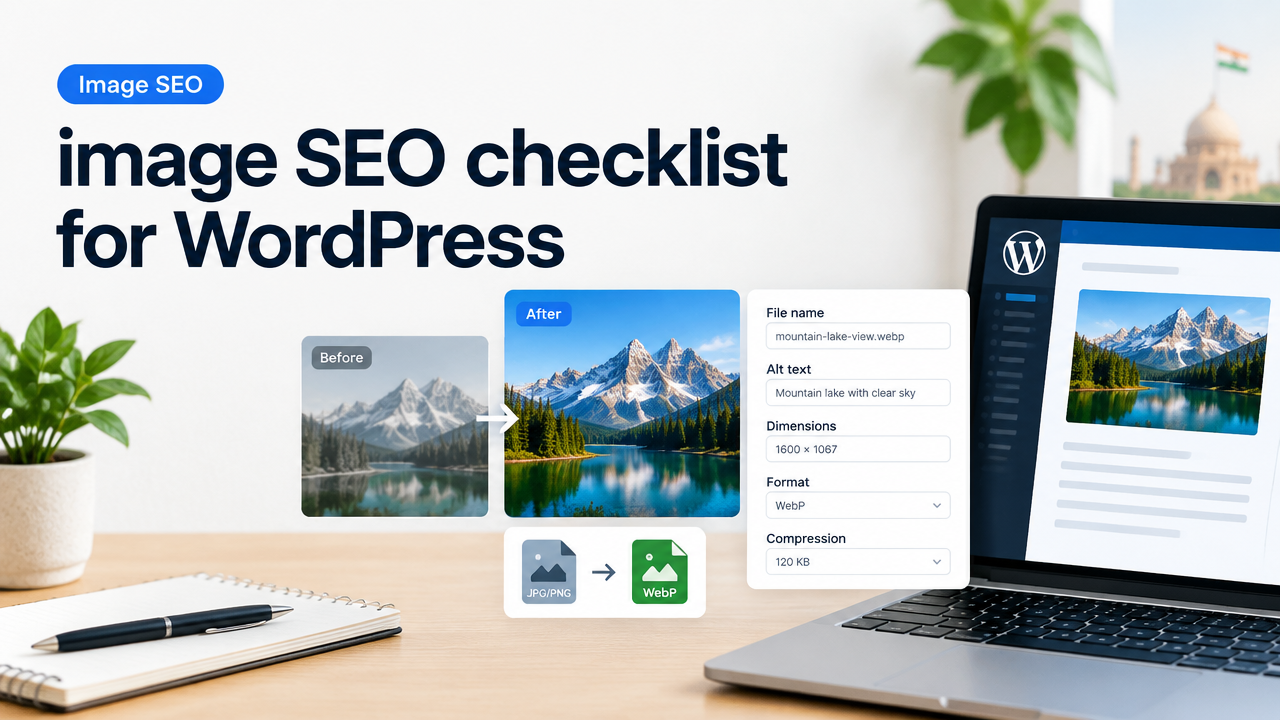
Image SEO checklist for WordPress: alt text, filenames, dimensions, compression & WebP
Answer-first: To improve search visibility and page speed on WordPress, give every image a descriptive filename and alt text, resize to the right pixel dimensions for its use (hero, content, thumbnail), compress to target KB ranges, and serve WebP with a fallback. Follow the step-by-step workflow below and use the checklist table to audit images fast.
Why image SEO matters for WordPress
Images affect SEO three ways: crawlability and context (alt text and filenames), user experience (fast loading and correct dimensions), and page performance (file size, WebP support and serving strategy). Search engines use alt text and surrounding content to understand images; slow or oversized images hurt Core Web Vitals and rankings. This checklist is focused on practical steps you can apply now, without needing developer-level access.
Quick checklist — at a glance
| Task | Why | Quick target |
|---|---|---|
| Filename | Helps search & CMS sorting | kebab-case descriptive (e.g., apple-tart-recipe.jpg) |
| Alt text | Accessibility & SEO | Short descriptive phrase, include keyword naturally |
| Dimensions | Correct display, avoid layout shift | Use pixel widths by placement (see table below) |
| Compression | Reduce KB while keeping quality | Content images: 60–200 KB; thumbnails: 20–80 KB |
| Format | Smaller files, modern support | Generate WebP + keep JPG/PNG fallback |
| Responsive | Serve right size per device | Provide srcset and sizes attributes |
| Test | Verify speed & accessibility | PageSpeed, Lighthouse, manual check |
Recommended pixel dimensions (practical rules)
Use dimensions that match how the image will display on the site. Oversized originals waste bandwidth; undersized images look blurry on large screens. These are common targets you can use as a starting point for most WordPress themes:
- Hero / full-width banners: 1600–2000 px wide (export at 140–200 KB with careful compression)
- Content/article images: 800–1200 px wide (typically 60–200 KB)
- Small inline images/icons: 200–400 px (20–60 KB)
- Thumbnails / cards: 300–500 px (20–80 KB)
These are guidelines—always preview on your theme and check Retina/2x needs. For very image-heavy sites, consider smaller widths and rely on high-quality compression.
Step-by-step workflow: from original to optimized on WordPress
- Start with a good master file. Keep an editable original for future edits (PSD/HEIC/large JPG).
- Crop and choose final composition. Crop for the intended use (hero, square thumbnail, portrait). This reduces unnecessary pixels and focuses the subject.
- Export the right pixel size. Resize to the target width for the placement (see recommended dimensions).
- Compress smartly. Use a tool to reduce file size while checking image quality visually. Aim for the KB targets above. Try progressive JPG for photos and PNG only for necessary transparency.
- Generate WebP. Convert to WebP (lossy or lossless depending on content) and keep a JPG/PNG fallback for older browsers.
- Name and add metadata. Save a descriptive, hyphenated filename and write clear alt text and image title before upload.
- Upload to WordPress. Use the Media Library or upload via your editor. Add alt, title, caption as needed and select the correct image size in blocks.
- Provide srcset/sizes or let WP generate them. WordPress creates multiple sizes—ensure your theme prints the sizes attribute or use responsive image settings.
- Lazy-load non-critical images. Keep above-the-fold images eager. WordPress has native lazy-loading; verify behavior with your theme.
- Test page speed and visual quality. Use PageSpeed Insights or Lighthouse and adjust if a single image dominates loading time.
File naming and alt text: exact wording that helps
Filenames and alt text are simple but often missed. Follow these rules:
- Filename: lowercase, words separated by hyphens (kebab-case). Avoid underscores and spaces. Include a short descriptive phrase—no stuffing.
- Alt text: describe the image purpose. If decorative, leave alt empty (alt=””) so screen readers ignore it. If the image conveys content, include the object and context in 5–15 words: e.g., “mango-lassi-recipe-glass-with-straw” or alt=”Doctor checking patient’s blood pressure at clinic”.
- Title/caption: optional. Use captions for images that need explanatory text visible on the page.
Compression and WebP: practical trade-offs
Compression reduces bytes but can introduce artifacts. Balance these principles:
- For photographs, use lossy JPG compression but preview at 70–85% quality to start. Adjust until details (faces, product textures) look acceptable.
- For graphics with flat colors and transparency, use PNG or lossless WebP. WebP often reduces size more than PNG while keeping transparency.
- Always create a WebP version and keep a fallback JPG/PNG. Many WordPress plugins or server setups can serve WebP when supported.
- Measure after compression: aim for content images under ~200 KB, thumbnails under ~80 KB unless you need extreme quality.
For more on format choice and WebP, see our detailed guide: JPG PNG WebP HEIC Converter Guide and quality vs file size trade-offs at JPG PNG Webp Quality vs File Size.
WordPress tips: srcset, lazy-load, and plugin-free options
WordPress auto-generates multiple sizes and adds srcset. To make sure this helps:
- Confirm your theme outputs the sizes attribute correctly (inspect the
<img>tag). - Use native lazy-loading for below-the-fold images. For above-the-fold, ensure the LCP image is not lazy-loaded.
- If you cannot change server settings, upload WebP and fallback images as separate files or use a plugin that serves WebP automatically.
- For bulk updates, use a bulk resize or compressor workflow before upload. See our bulk resize guide: Bulk Image Resize Workflow for Many Photos and Web Uploads.
Common mistakes and how to avoid them
- Uploading huge originals: Causes slow pages. Resize before uploading.
- Missing alt or poor alt text: Alt must be descriptive for SEO and accessibility.
- Using PNG for photographs: PNGs are larger—use JPG or WebP.
- Not providing srcset: Mobile devices download oversized images unnecessarily.
- Compressing blindly: Check visual quality—over-compression causes banding, ugly edges.
Practical checklist you can run in 5 minutes (audit)
- Open a page and list all images that affect LCP and CLS.
- For each image: check filename, alt text, final displayed pixel width, file size, and format.
- If any image is >500 KB, resize and recompress; aim for the targets above.
- Confirm WebP versions exist or your server/plugin serves modern formats.
- Run a Lighthouse audit and fix the top two image-related issues.
Tools and SmartImageResize links
Use an image resizer/converter to export correct dimensions and WebP quickly. Our free tool can help: Smart Image Resizer, Converter & Compressor — Free Online Tool. For format decisions and quality trade-offs see: JPG PNG Webp Quality vs File Size and the converter guide above.
Frequently Asked Questions
Conclusion
Following this image SEO checklist for WordPress—good filenames, clear alt text, correct pixel dimensions, balanced compression and WebP—improves both accessibility and page speed. Start by auditing the images on your highest-traffic pages and apply the step-by-step workflow. Use tools like Smart Image Resizer for fast resizing and conversion, and re-test with PageSpeed Insights until your images no longer dominate load time.
Related reads: Which format should you choose? • Bulk Image Resize Workflow
Try the matching Smart Image Resize tool
Use the closest live SmartImageResize tool for the task in this guide. For government or platform uploads, verify the latest official requirement before final submission.


