
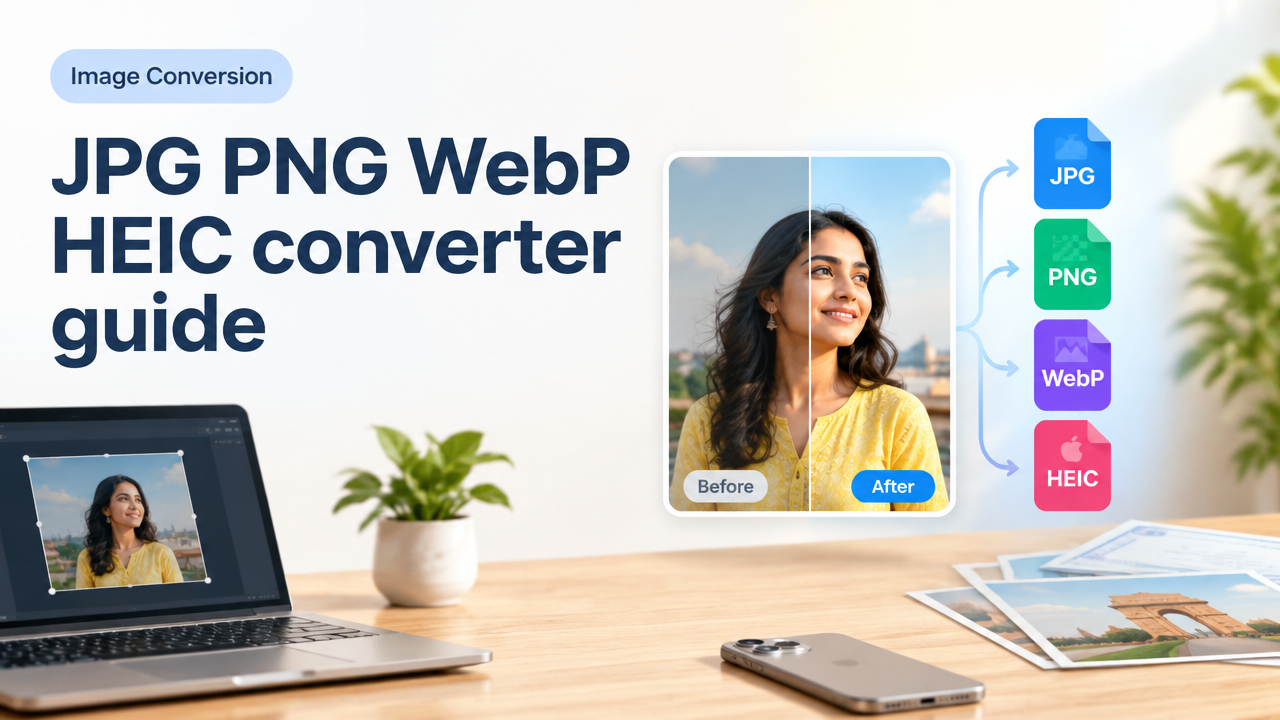
JPG PNG WebP HEIC converter guide: which format should you choose?
Quick answer: Choose WebP for best web size-to-quality balance, PNG for images needing transparency or exact pixels (logos/screenshots), JPG for maximum compatibility and small photo files, and HEIC only when keeping original iPhone quality or storing space on Apple devices. Convert carefully: check target platform requirements, resize to needed dimensions, and control quality/metadata during export.
Why format choice matters — size, compatibility and purpose
Image formats control three main things: file size (KB/MB), visual quality, and compatibility with browsers, apps or government portals. Picking the wrong format leads to slow pages, upload errors, or rejected ID photos. This guide explains practical trade-offs and gives step-by-step conversion workflows for common tasks.
At-a-glance format summary (short)
| Format | Best for | Transparency | Browser/App Support | Compression |
|---|---|---|---|---|
| JPG / JPEG | Photos, compatibility, small files | No | Universal | Lossy (adjustable quality) |
| PNG | Logos, screenshots, images needing transparency | Yes (alpha) | Universal | Lossless or lossless-like (larger files) |
| WebP | Web photos and graphics — best size/quality | Yes (alpha supported) | Modern browsers and apps (some older systems limited) | Both lossy and lossless |
| HEIC / HEIF | iPhone originals, smaller modern photo files | Yes (supports alpha in HEIF profiles) | Apple devices and some viewers; convert for wider use | Efficient lossy/lossless profiles |
How to choose: quick decision checklist
- If you need maximum browser compatibility and a small photo file: pick JPG.
- If you need transparency or pixel-perfect graphics (logos, icons): use PNG.
- If you’re publishing images on modern websites and want smallest size with quality: use WebP (but keep a fallback JPG/PNG for legacy systems if needed).
- If you’re working with iPhone originals (HEIC) and need to edit or upload to a web service that does not accept HEIC: convert to JPG or WebP depending on transparency and size requirements.
- For government forms or official uploads: verify the required format, dimension and file-size limits on the authority’s site before converting.
Key technical trade-offs explained (transparency, metadata, color, quality)
Transparency: Only PNG and WebP support true alpha transparency reliably. JPG does not. HEIC can support alpha in newer profiles but many viewers ignore it — convert to PNG/WebP if transparency matters.
Metadata (EXIF): JPG and HEIC can carry EXIF (camera, GPS, orientation). Converting to WebP or PNG may keep or strip metadata depending on your tool. If you need privacy (remove GPS), make sure to strip EXIF during conversion.
Color profiles: JPG/PNG/WebP may embed ICC profiles for accurate color. Some conversion tools strip profiles; if color accuracy for print matters, keep the profile or export in sRGB.
Lossy vs lossless: JPG is lossy and good for photos. PNG is lossless (or filtered) and better for flat-color graphics. WebP offers both lossy and lossless modes and often wins for web photos and graphics.
Step-by-step conversion workflows
1) Convert HEIC from iPhone to JPG for wide compatibility
- Copy the HEIC file to your computer or use a browser-based converter.
- If the destination requires a max size, resize the image to the required dimensions before converting.
- Choose JPG as output. Select a quality setting: 80–90% gives a good balance for photos; 60–75% reduces size further for web thumbnails.
- Decide whether to keep EXIF (camera/date) or strip it for privacy.
- Verify final dimensions and file size, then upload.
2) Convert PNG logo to WebP for faster websites (keep transparent background)
- Open the PNG; ensure the background is true alpha (not semi-transparent artifacts).
- Select WebP (lossless or lossy with alpha). Use lossless WebP if logo has flat colors and you need perfect fidelity; choose lossy WebP with moderate quality for smaller files.
- Check the result in browsers you target—older email clients may not support WebP; keep a PNG fallback for emails or legacy apps.
3) Prepare images for a government form or ID upload
Always verify the official upload instructions (format, pixels, KB limit) from the issuing authority before editing. Common workflow:
- Confirm required format and maximum file size on the official form page.
- Crop to the required aspect ratio and resize to target pixel dimensions.
- Export as the required format (JPG is common). If they accept only JPG, convert PNG/WebP/HEIC to JPG while retaining required visual criteria (face visibility, background).
- Check final file size; if too large, reduce JPG quality in small steps and recheck visual clarity.
Practical tips for quality vs file-size (KB vs dimensions vs quality)
- Dimensions matter more than quality for file size. If you only need a 800px-wide photo, resizing down from 4000px will reduce file size dramatically.
- For web, aim for 100–200 KB per hero image on content pages; smaller thumbnails can be 20–50 KB. Use WebP to hit these targets with higher visual quality.
- When compressing JPG, preview at the final display size. Artifacts are more visible at 100% zoom than at page size.
- Remove unnecessary metadata (EXIF) for smaller files and privacy, unless the metadata is needed.
Common mistakes and how to avoid them
- Uploading HEIC to a site that doesn’t accept it — convert to JPG or WebP first.
- Converting PNG logos to JPG — this removes transparency and adds background color; use PNG or WebP with alpha instead.
- Compressing too aggressively without previewing — results in visible artifacts. Always check at the final viewing size.
- Not resizing before uploading — many platforms only need a small display size, so uploading huge originals wastes space and time.
- Forgetting to verify official image rules for passports/forms — government requirements change; always confirm on the issuing authority’s site.
Tools and workflows — where to convert safely
Use a trusted converter that offers batch conversion, quality control, and metadata options. Smart Image Resize provides an online converter, resizer and compressor that can help with common tasks: cropping for ID photos, converting HEIC to JPG, generating WebP for web images, and compressing for upload. See the tool here: Smart Image Resizer, Converter & Compressor — Free Online Tool.
If you need to convert or resize many files at once, follow a bulk workflow — check our bulk image guide for tips: Bulk Image Resize Workflow for Many Photos and Web Uploads.
Privacy and metadata — what to check before sharing
EXIF data can include camera model, GPS coordinates and timestamps. If you share images publicly or upload to forms where location/privacy matters, strip EXIF during conversion. If you need EXIF for legal or archival reasons, retain it but be aware of the privacy implications.
Note: verify how your chosen tool handles metadata — many online tools let you keep or remove metadata at export.
Quick conversion checklist (copy-paste before upload)
- Confirm target format, pixel dimensions and max KB for the platform.
- Crop to the required aspect ratio and composition.
- Resize to the exact pixel dimensions needed — don’t upload larger than necessary.
- Choose format: JPG/WebP for photos, PNG/WebP for transparency, JPG for compatibility, HEIC only if supported.
- Set quality/compression and preview at final size.
- Decide whether to preserve or strip metadata.
- Save a copy of the original files (HEIC or RAW) before destructive compression.
Frequently Asked Questions
Conclusion
Choosing between JPG, PNG, WebP and HEIC depends on your priorities: compatibility, transparency, or smallest size. For most modern websites, WebP is the best balance. Use PNG for logos and transparency, JPG for widest compatibility, and convert HEIC only when you must. Follow the checklists and workflows above to convert safely, preserve privacy, and keep file sizes efficient. For hands-on conversion, resizing and compression, try the Smart Image Resize tool: Smart Image Resizer, Converter & Compressor — Free Online Tool. For batch resizing tips, see: Bulk Image Resize Workflow for Many Photos and Web Uploads.
Try the matching Smart Image Resize tool
Use the closest live SmartImageResize tool for the task in this guide. For government or platform uploads, verify the latest official requirement before final submission.
Open Free PDF to Image Converter Online – Convert PDF to JPG or PNG


