
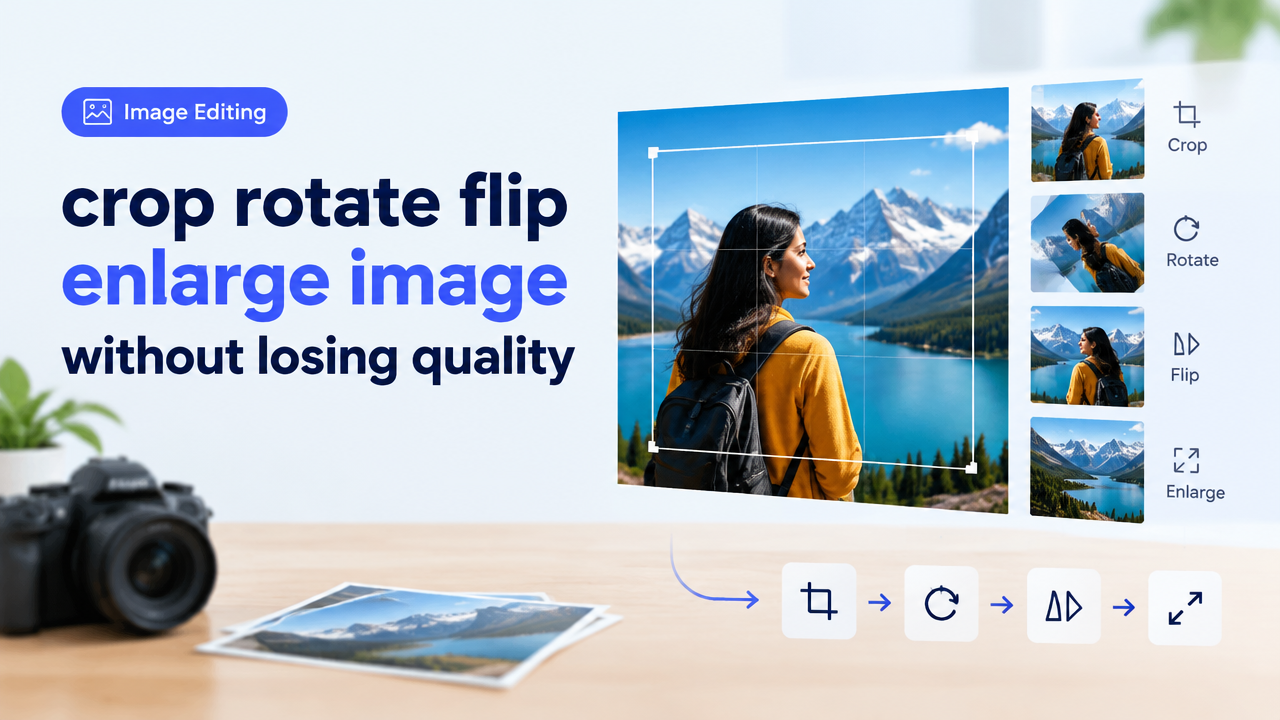
Family: Practical (Image Editing) — Mode: Step-by-step workflow & tool guide
Quick answer: Always work from a copy of the original, crop using composition guides (rule of thirds, safe area), rotate/flip before any heavy upscaling, then enlarge with quality-aware resampling (preferred: AI upscalers or gradual bicubic steps). Finish with gentle sharpening and appropriate export format to keep clarity. Below is a practical, checklist-driven workflow and the why/how for each decision.
Why composition and clarity break when you crop, rotate or enlarge
Two problems usually cause visible damage:
- Composition loss: Cropping or rotating without considering subject placement can cut important elements (eyes, text, logos) out of the frame.
- Image quality loss: Enlarging a small image without smart resampling produces pixelation and softness. Repeated lossy saves (JPEG) increase compression artifacts.
Fix both by planning edits, preserving sources, and choosing the right interpolation/upscaling method.
Understand dimensions vs KB vs quality — the basics
- Pixel dimensions (px): Width x height determine onscreen and print size. For web, pick the exact pixel size needed rather than huge originals.
- Resolution/DPI: Only relevant for print; 300 DPI is typical for photo prints, lower for large posters. DPI does not change visual quality on screens.
- File size (KB/MB): Depends on pixel dimensions, compression method and image complexity. Small file size with poor compression can hide artifacts.
- Format: JPEG for photos (lossy), PNG for transparency or high-contrast images, WebP for better compression on the web. See our guide on format trade-offs for details: JPG PNG Webp HEIC Converter Guide and Quality vs File Size.
Step-by-step workflow: crop, rotate, flip, then enlarge (recommended order)
- Always work on a copy: Keep the original file untouched. Save an editable version (TIFF, PSD) if possible.
- Check composition guides: Turn on rule-of-thirds, grid or safe-area overlays. Anchor faces, eyes, or key details 1/3 from the top or sides when possible.
- Crop carefully: Crop to your target aspect ratio. If you need a different framing later, keep the original or a less-cropped version. While cropping, avoid cutting through facial joints or important text.
- Rotate and flip: Rotate to correct horizon or straighten. Flip only when you intentionally want a mirrored composition (product images usually must not be flipped if text or logos appear).
- Decide final pixel dimensions: Choose the exact pixel size you need for the final use (web, print, social). For print or high-res demands, pick larger dimensions and use an upscaler.
- Enlarge with the best available resampling: Prefer AI upscalers/super-resolution for big enlargements (2x–4x). If AI isn’t available, use bicubic smoother or Lanczos for upsampling. Consider progressive upscaling (2x, then 2x) rather than a single huge jump.
- Denoise and sharpen carefully: Upscaling can amplify noise — apply mild denoise first if needed, then sharpen. Use mask-based sharpening (protect skin/sky areas).
- Export in the right format and quality: For web, export JPEG/WebP with quality that balances size and artifacts (use preview). For images with text or transparency, use PNG or WebP lossless.
Best resampling and tool choices — what to pick and when
Resampling methods matter:
- Bicubic (smoother): Good for enlargements when no AI option exists. Produces fewer hard edges than nearest-neighbour.
- Lanczos: A sharper interpolation; can look crisper but may produce ringing on high-contrast edges.
- AI Super-resolution / Deep learning upscalers: Best for large upsizes. They reconstruct detail and reduce blockiness; use when you need 2x–4x enlargements or to rescue old photos.
Where to run these steps:
- Desktop apps (Photoshop, GIMP + plugins) offer precise controls for professional work.
- Online tools can be faster for single images — our free tool supports resize, convert and compress basics: Smart Image Resizer. For guidance on choosing the right tool, see Resizer vs Compressor vs Cropper vs Converter.
Practical checklist (quick reference)
| Use case | Crop & composition | Enlarge method | Export format & settings |
|---|---|---|---|
| Web article image | Crop to target aspect (16:9/4:3), keep focal point left/center | Bicubic or AI (if small upsize) | JPEG 70–85% or WebP (preview file) |
| Social media post | Use platform safe-area; avoid cutting faces | AI or bicubic if >1.5× upsize | JPEG/WebP; check platform preview |
| Print crop or photo restoration | Keep extra canvas around subject to reframe | AI super-resolution, multiple passes | TIFF for master, then high-quality JPEG for print |
| Form or passport uploads | Follow official instructions and safe-area rules — verify requirements before editing | Minimal enlargement only; avoid composition changes | Use required file type and size; see guide to avoid rejections: Passport Photo Upload Rejection Reasons |
Common mistakes and how to avoid them
- Over-cropping: Removes compositional context and makes future edits difficult. Keep an original or a less-cropped master.
- Flipping images with text or logos: Mirrors text and branding; only flip when appropriate.
- One-step huge upscale: Avoid enlarging 4× or more in a single pass with basic interpolation; prefer AI upscalers or multiple smaller steps.
- Sharpening then compressing heavily: Hard sharpening makes compression artifacts worse. Apply sharpening after final size, then export with balanced quality.
- Forgetting safe areas: For social or print, remember platforms or printers can crop edges — leave additional margin.
Troubleshooting: fixes for typical problems
- Image looks soft after upscaling: Apply subtle unsharp mask (radius 0.8–1.5px, amount 50–120%) or use high-pass layering for more control.
- Ringing or halo after sharpening: Reduce radius and masking, or use edge-preserving sharpening tools.
- Noise amplified: Use selective denoise (preserve edges) before sharpening. AI denoisers work well for film grain.
- Composition feels wrong after crop: Try slight rotations, nudge crop edges, or restore some of the original canvas if available.
Frequently Asked Questions
Conclusion
Crop, rotate, flip and enlarge images safely by planning composition, working on copies, choosing the right resampling/upscaling method, and exporting in an appropriate format. Use AI upscalers for big enlargements, keep composition guides on while cropping, and always preview final output on the target device or print proof. For quick tool selection or to compare resizer vs compressor behavior, see our tool guide: Image Resizer vs Compressor vs Cropper vs Converter. For practical batch workflows, our bulk resize guide is useful: Bulk Image Resize Workflow.
Need a fast online resize or crop? Try the Smart Image Resizer tool to test sizes and formats: Smart Image Resizer.
Try the matching Smart Image Resize tool
Use the closest live SmartImageResize tool for the task in this guide. For government or platform uploads, verify the latest official requirement before final submission.
Open PDF to JPG Converter Free – Fast, Secure & High Quality


