
Family: Social Media Images — Mode: Practical tool workflow guide.
Quick answer
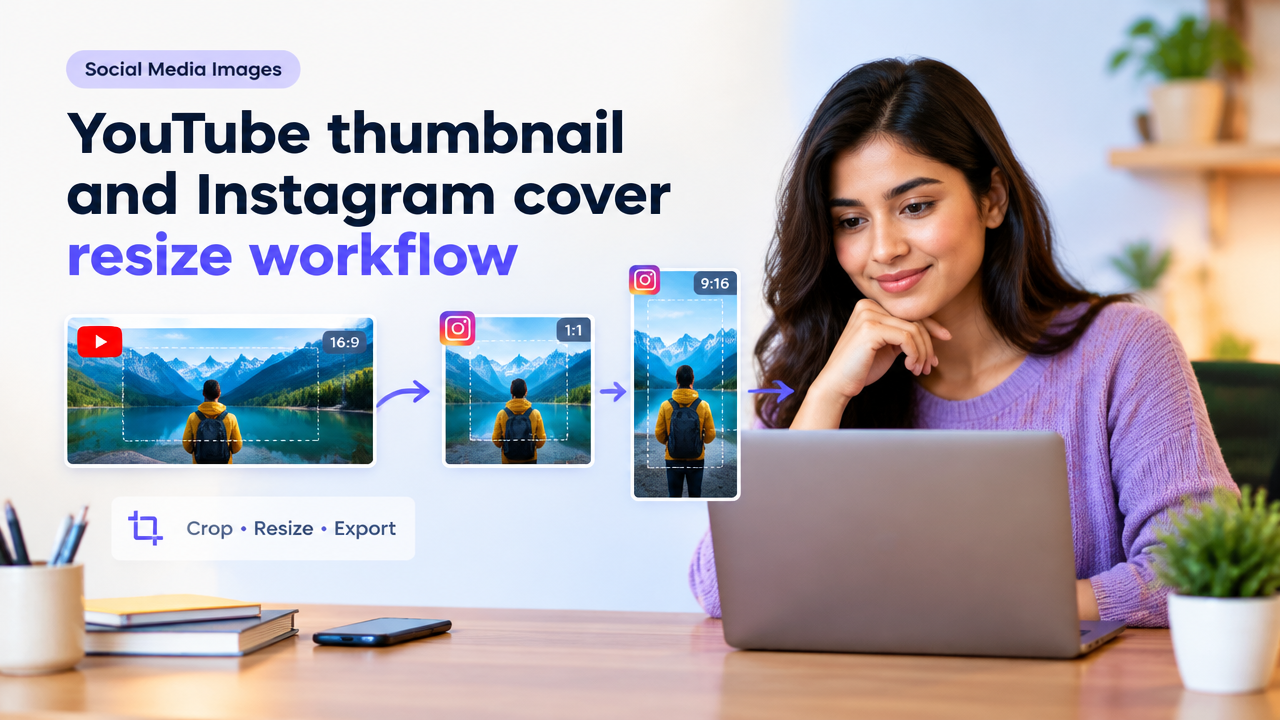
Use a high-resolution source image, set the canvas to the platform’s recommended aspect ratio (YouTube thumbs: 16:9; Instagram feed: 1:1; Reels/Stories: 9:16), keep all important elements inside a central safe area (about 10–15% margin from edges), then export as a high-quality JPG and compress for upload. This article gives a step-by-step workflow, safe-area templates, and tips using the Smart Image Resizer tool and batch options in the bulk resize workflow.
Why safe area matters (short)
Mobile apps, overlays and different aspect displays often crop or overlay UI on thumbnails and covers. A safe area keeps faces, logos, and headline text visible across devices. Rather than guessing pixels, use a proportional margin (10–15% on each side) so assets scale reliably on phones, tablets and desktop players.
Common recommended sizes and aspect ratios (use as starting points)
Platform specs change; always verify on the platform help pages or by previewing an upload. The table below lists commonly used canvas sizes and aspect ratios you can safely start with for design and export.
| Use | Common canvas (px) | Aspect ratio | Notes |
|---|---|---|---|
| YouTube thumbnail (default) | 1280 × 720 | 16:9 | Standard HD thumbnail. Keep titles and faces inside central safe area. |
| Instagram feed post | 1080 × 1080 | 1:1 | Square feed post thumbnail. Profile grid crops should avoid top/bottom extremes. |
| Instagram Reels / Story cover | 1080 × 1920 | 9:16 | Vertical covers; important center area should be visible on profile grid as a square crop. |
Note: These are practical starting canvases designers use. Always preview in-app because Instagram may display a square crop in the profile grid while the Reel itself is vertical.
Safe-area rules you can follow (no pixel guesswork)
- Apply a margin of 10–15% from each edge as your safe area. For example, on 1280×720 a 10% horizontal margin is 128px on left/right and 72px top/bottom — but working with percentages keeps this portable across sizes.
- Keep text, faces and logos inside the central safe box (center 70–80% of canvas).
- Avoid placing critical content where the platform shows overlays (play buttons, progress bars, captions). Test by previewing on mobile and desktop.
- If you have to place a call-to-action, keep it within the bottom 15% of the safe area so it’s visible in both vertical and horizontal crops.
Step-by-step resize & safe-area workflow (practical)
- Choose a high-resolution source. Start with an image at least twice the final pixel size if possible; this preserves detail after cropping and sharpening.
- Create a canvas with the correct aspect ratio. Use one of the recommended canvases above or set a custom aspect ratio matching your platform.
- Apply a safe-area overlay. Draw a centered rectangle covering 70–80% of width and height (or add a 10–15% margin from each edge). This is your working zone for faces and text.
- Compose for copy legibility. Place high-contrast text and avoid thin fonts. If background is busy, add a semi-transparent dark panel behind the headline to improve contrast.
- Crop carefully and test multiple crops. For vertical covers that may be displayed as squares in the profile grid, create a square crop preview to confirm nothing important is cut.
- Export for web. Export as JPG for thumbnails (smaller file size) and PNG if you need lossless areas or transparency (rare for thumbnails). When exporting, use sRGB colour profile to prevent colour shifts on the web.
- Compress and check file size. Aim for a balance between quality and size. Good visual quality usually appears around medium-high encoding levels; run a visual quality check after compression.
- Preview on devices. Check the image on an Android phone, iPhone and desktop browser if possible. Adjust if UI overlays hide important elements.
Quick workflow using Smart Image Resizer
Smart Image Resizer can resize, crop and compress images in your browser. A simple workflow is:
- Open Smart Image Resizer and upload your source image.
- Select a custom size or a preset (enter 1280×720 for a YouTube thumbnail or 1080×1080 for an Instagram feed image).
- Use the crop tool to position the subject inside the safe area. If designing a vertical cover, also preview a square crop for profile grid display.
- Choose output format (JPG for thumbnails). Set a visual quality target and export.
- If you have many images, follow the bulk image resize workflow to process them at scale.
Dimensions vs KB vs visual quality — how to balance
Pixel dimensions determine how the image appears on screen and control composition. File size (KB/MB) affects upload time and page performance. Compression level affects both file size and visible artefacts.
- Start with the correct pixel dimensions for your intended display.
- For thumbnails, prioritize sharpness and legible text. A slightly larger file with clear text is usually preferable to heavy compression that creates fuzziness.
- Use moderate JPEG quality (experiment around quality 75–85 in most tools) and compare visually. For very detailed stills, reduce chroma noise first before heavier compression.
- For batch exports, sample a few images at different quality levels and view on mobile to choose the best default.
Common mistakes and how to fix them
- Text too close to edges: Move it inward or increase safe-area margin so it’s not cropped on smaller screens.
- Poor contrast: Add a semi-opaque panel under text or switch to a bold, higher-contrast typeface.
- Low-res source: Use a higher-resolution image or re-shoot. Upscaling small images often looks blurry.
- Wrong colour profile: Export in sRGB to avoid colour shifts between editors and web browsers.
- Ignoring mobile preview: Always check on real devices — desktop previews can be misleading.
Checklist before uploading
- Canvas matches platform aspect ratio or custom requirement
- All important content inside safe area (10–15% margins)
- Text legible on small screens
- Export format and quality checked (JPG/PnG and sRGB)
- Compressed for reasonable file size and fast loading
- Previewed on both mobile and desktop
Frequently Asked Questions
How to verify platform specs (fast).
Open the platform’s Help/Support page (YouTube Help, Instagram Help Center) or inspect the uploader UI. Upload a test image and view it in the app on multiple devices. If you work for a brand, keep a short spec file (aspect ratios, preferred formats, compression targets) and review it every few months for updates.
Conclusion
Resizing thumbnails and covers is mostly about correct composition, a reliable safe area, and balancing pixel size with file size. Use proportion-based safe areas, preview on devices, export in sRGB JPEG for most thumbnails, and compress only after you confirm visual quality. For hands-on resizing, use the Smart Image Resizer and the bulk workflow when you have many images to process. Keep a short spec sheet for your channel or account and re-check platform help pages when in doubt.
If you need a template or a quick check for multiple thumbnails, follow our bulk image resize workflow to speed up consistent exports.
For editorial standards and policies related to this site, see the Editorial Policy and Privacy Policy.
Try the matching Smart Image Resize tool
Use the closest live SmartImageResize tool for the task in this guide. For government or platform uploads, verify the latest official requirement before final submission.
Open Reddit Photo Resizer – Resize Images for Reddit Posts & Banners


