
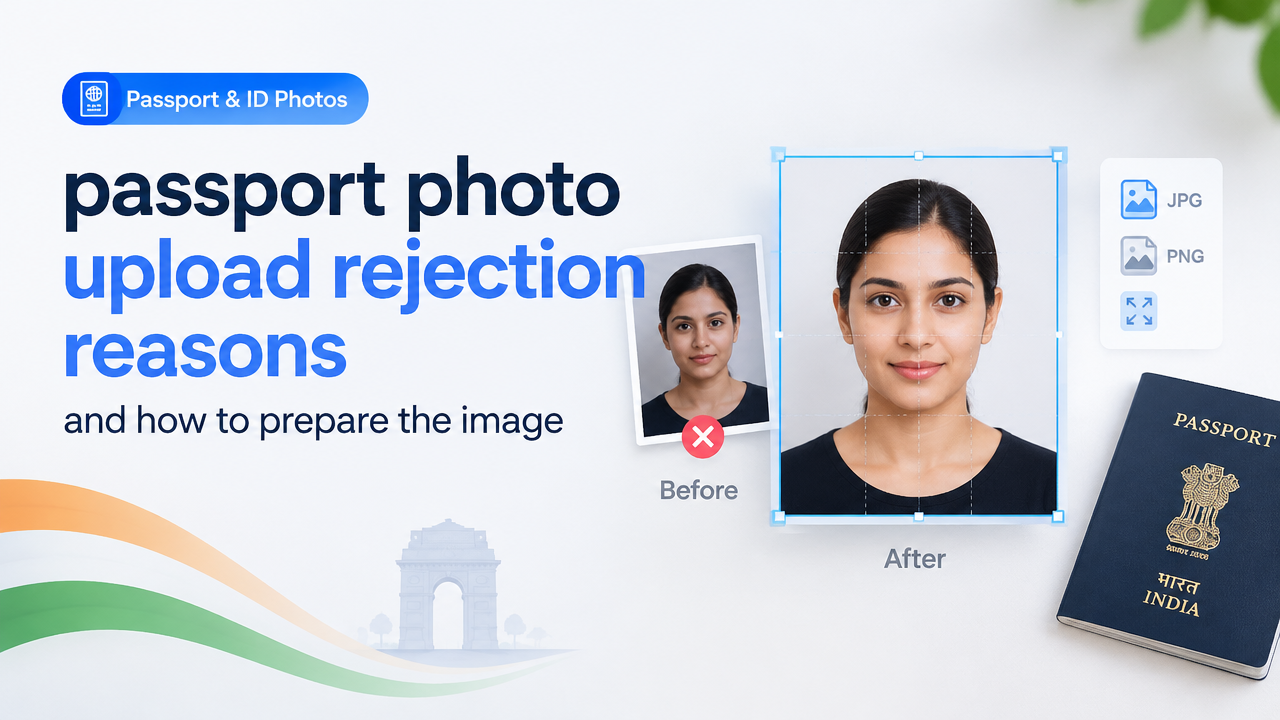
Passport Photo Upload Rejection Reasons and How to Prepare the Image
Quick answer: Most rejections come from wrong dimensions/aspect ratio, file type or size, poor background or lighting, and cropping or resolution problems. Verify the official spec, then crop to the required aspect ratio, keep the subject centred, compress without overdoing quality loss, and recheck before uploading.
1. Start by verifying the official requirements
Do not assume a standard size. Different government agencies, passport services, and private visa/ID portals often have different rules for dimensions (pixels or mm), aspect ratio, file size (KB), file format (JPG, PNG), and acceptable backgrounds. Always:
- Open the specific application portal or the authority’s photo guidelines page and find the section titled “photo requirements,” “image upload,” or similar.
- Note the required file format (for example JPG or PNG), exact pixel dimensions or aspect ratio, maximum file size, and any special composition rules (head size in frame, neutral background, no headwear, etc.).
- If the portal shows an example image or an overlay tool, use that as the visual target—many rejections happen because the face is too small or off-centre compared with the portal’s sample.
If you are unsure or the portal has conflicting information, contact the issuing authority or check their FAQ. Do not guess numeric values from memory.
2. How photos are commonly rejected — quick list of root causes
- Wrong aspect ratio or pixel dimensions (image cropped incorrectly).
- File size too large or too small relative to requirements.
- Unsupported file format (e.g., WebP or HEIC when JPG is required).
- Poor exposure, heavy shadows, or non-uniform background.
- Face off-centre, tilted head, hair or accessories covering the face.
- Low resolution or heavy compression artifacts (blurry or blocky image).
- Metadata or color profile issues sometimes cause portal validation to fail.
3. Practical shooting tips to avoid rejections
Before editing, capture the best possible original image. These low-effort improvements reduce editing mistakes later:
- Use a plain, light-coloured background and even lighting to avoid shadows behind the head.
- Stand about 1–2 metres from the background so shadows fall soft; keep the camera at eye level.
- Face the camera directly, with a neutral expression unless the instructions say otherwise.
- Remove hats, dark sunglasses, and anything that hides the face unless permitted for medical/religious reasons (have supporting documentation ready if needed).
- Shoot at the camera’s full resolution (not a screenshot or cropped social media image).
4. Step-by-step workflow to prepare the photo (crop, resize, compress, check)
Follow these steps after you confirm the official requirements.
- Open a reliable editor or online tool. Use a tool that lets you choose aspect ratio, pixels, and export quality. Smart Image Resize’s online tool can crop, resize and compress images — see the main tool here: Smart Image Resizer, Converter & Compressor.
- Crop to the correct aspect ratio first. If the portal gives exact pixel dimensions, crop to the same aspect ratio (width:height). This ensures the face placement matches portal overlays. If the portal provides a guide, match the face-to-frame proportions shown there.
- Resize to the required pixel dimensions. Resize (not just scale) to the official pixel size if specified. If the authority gives measurements in mm/inches, check whether they also provide pixel equivalents or an acceptable DPI—if not, follow the portal’s pixel requirement.
- Check resolution and detail. Zoom in to 100% and confirm the eyes, hairline and edges are clear. Avoid over-sharpening which creates halos and may be flagged as editing artifacts.
- Convert to the requested file format. Many portals accept JPG. If you shot in HEIC or WebP and the portal doesn’t accept them, convert to JPG. For format guidance, see our converter guide: JPG/PNG/WebP/HEIC Converter Guide.
- Compress to meet file-size limits while keeping quality. If there is a maximum KB limit, lower the JPG quality in small steps (e.g., 90 → 80 → 70) and inspect for artifacts. Use the compressor option on the SmartImageResize tool to preview results.
- Remove unnecessary metadata only if recommended. Some portals accept EXIF data; others fail validation if metadata is present. If the portal has an explicit requirement to strip metadata, remove EXIF before upload.
- Final check: Verify dimensions, file size, format and visual quality. If the portal provides a preview, upload a test image to see how it’s validated.
5. Quick checklist and comparison table
| Item | How to check/fix | Why it causes rejection |
|---|---|---|
| Aspect ratio / dimensions | Crop to the portal’s ratio; then resize to pixels | Validation compares geometry; mismatch fails |
| File format | Convert to accepted format (usually JPG) | Unsupported formats are automatically rejected |
| File size | Compress quality or crop more; use the compressor tool | Portals block files over max KB to save bandwidth |
| Background & lighting | Retake or use background removal then replace with plain background | Dark or patterned backgrounds hide facial edges |
| Face position | Crop to keep head centred and properly scaled to frame | Face too small or off-centre fails automated checks |
6. Common mistakes and tips for better results
- Doing a heavy global compression to reduce file size — this causes visible artifacts. Instead, reduce quality gradually and check 100% zoom.
- Uploading a screenshot or downloaded social-media image — these are often lower resolution or already cropped incorrectly.
- Removing small shadows by over-editing the hair/edges — excessive editing can be flagged as manipulation.
- Ignoring color profile: some portals expect sRGB. If you edit in a different color space, convert to sRGB before export.
- Not preserving an original copy. Always keep the original high-resolution file so you can re-edit without quality loss.
7. Troubleshooting common rejection messages
Here are troubleshooting steps for typical portal messages:
- “Invalid file type” — convert to the accepted format (usually JPG). Use the converter guide above if unsure.
- “File too large” — compress using a quality slider, or resize to smaller dimensions if allowed.
- “Face not detected” — ensure the face is fully visible, not covered, and occupies a reasonable portion of the frame. Crop so the head and chin are within the sample overlay provided by the portal.
- “Blurry image” — use the highest-resolution original; avoid digital zoom and do not upsize a small image.
- “Background not plain” — replace or retake against a plain background. If you edit background, keep edges natural and avoid haloing.
8. Privacy and submission notes
If you use an online editor, check its privacy policy before uploading identity photos. Smart Image Resize publishes site policies here: Privacy Policy. Keep a copy of the final image and any submission confirmation from the portal for your records.
9. When to get professional help
If you repeatedly get rejections despite following the guidelines, consider a professional passport-photo service (they know exact portal requirements), or contact the issuing authority’s support with the rejection screenshot—sometimes the portal has a bug or stricter validation than the written rules.
Frequently Asked Questions
Conclusion — final pre-upload checklist
Before you hit upload, confirm: you followed the portal’s official spec, the image is the correct format and dimensions, the file size is within limits, the face is centred with a plain background, and the image is sharp with minimal editing artifacts. Use a trusted resizing and compression tool to make these adjustments — for quick cropping, resizing and compression, try the Smart Image Resize tool: https://smartimageresize.com/. If in doubt, consult the issuing authority’s photo guidelines or their support team.
Good preparation saves time — a correctly prepared image reduces stress and speeds up your passport or ID application.
Try the matching Smart Image Resize tool
Use the closest live SmartImageResize tool for the task in this guide. For government or platform uploads, verify the latest official requirement before final submission.
Open Passport Size Photo Resizer Online – Official ID Photo Tool


