
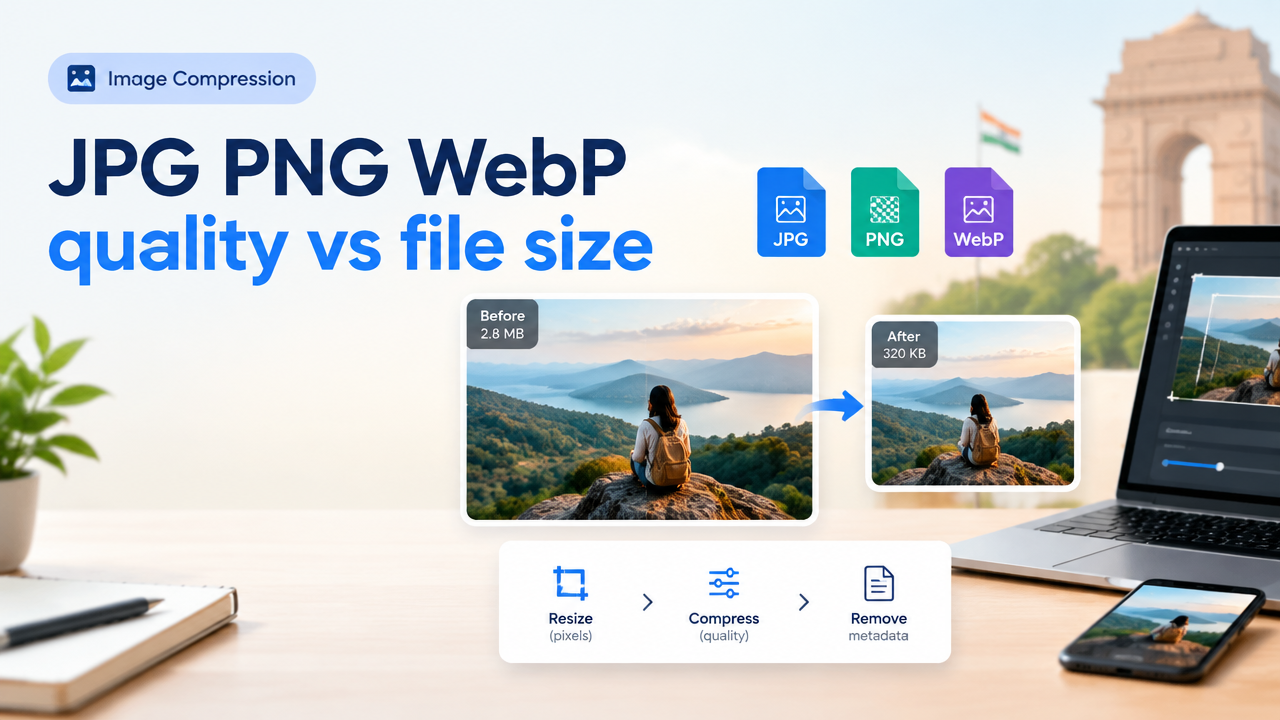
JPG PNG WebP quality vs file size: balanced compression guide for web, forms and creators
Short answer: For photos use JPG or WebP with lossy compression; for images needing exact sharp edges or transparency use PNG or WebP lossless. To hit a specific KB target, first reduce dimensions (pixels), then compress with an adjustable quality slider, and finally strip metadata. Test visually — smaller file size always involves a trade-off with visible detail.
Why format matters: basic differences at a glance
- JPG (JPEG) — lossy compression best for photos and gradients. Smaller files for natural images. No native transparency.
- PNG — lossless (or high-quality) for graphics, logos, screenshots, and images with transparency. Larger files for photos.
- WebP — modern format with both lossy and lossless modes. Typically gives smaller files than JPG or PNG at comparable quality. Broad browser and app support, but verify acceptance for official uploads.
Dimensions vs KB vs quality — how each factor affects final file size
Think of file size as being driven by three levers you can control:
- Pixel dimensions (width × height) — halving both width and height roughly quarters the pixel count and often reduces file size the most. Always start here if your image is larger than needed.
- Compression quality/settings — quality sliders (0–100) reduce data stored per pixel. Lower quality reduces size but can introduce artifacts (blocking, ringing, color banding).
- Format and encoding options — lossy WebP usually gives smaller files than JPG at similar perceptual quality; PNG stays large for photos but is ideal for graphics with text or transparency.
Order of operations to minimize quality loss: resize pixels first, then compress/convert, then remove metadata.
Quick decision checklist: which format to choose
| Use-case | Recommended format | Why |
|---|---|---|
| Website photos | WebP (lossy) or JPG | Best size-to-quality balance for photography; WebP smaller if accepted |
| Logos, icons, screenshots | PNG or WebP (lossless) | Preserve sharp edges and transparency |
| Social media (general) | JPG or WebP | Social platforms often re-encode; smaller upload reduces bandwidth and faster upload |
| Government form uploads / passport photos | JPG or PNG (check instructions) | Many official portals require JPG/PNG; verify exact rules before submitting |
| Archiving originals | PNG (for graphics) or original RAW/JPEG | Keep a high-quality master before compressing for delivery |
Step-by-step workflow to compress for a target file size (practical)
This workflow fits web pages, uploads and social images. For live compressing you can use the Smart Image Resizer and Compressor: Smart Image Resizer, Converter & Compressor — Free Online Tool.
- Open your original image and note dimensions (pixels) and format.
- Decide the target file size (for example: under 200 KB for a web hero thumbnail). If a government portal lists a KB limit, use that — always verify before uploading.
- If the pixel dimensions are larger than necessary, resize first. For web content, shrink to the display size (full width desktop hero vs thumbnail). For forms, follow any stated pixel or print-size guidance.
- Choose format: JPG/WebP (lossy) for photos; PNG/WebP (lossless) for graphics/transparency.
- Compress: use a quality slider and preview. Start around 80% quality for JPG/WebP and reduce until you approach the target KB. For PNG, try lossless compression tools or convert to WebP if transparency is not required.
- Strip metadata (EXIF) if not needed — this saves bytes and protects privacy.
- Export and re-check the final file visually on desktop and mobile. If visible artifacts appear, increase quality or reduce dimensions less aggressively.
Practical settings and when to use them
These are starting points — always eyeball the result:
- Web photos: quality 70–85 (JPG) or WebP lossy equivalent. Resize to display dimensions first.
- High-detail or large images (hero banners): quality 80–90 for JPG or high-quality WebP.
- Icons, logos, screenshots: PNG or WebP lossless. Consider PNG-8 where suitable to reduce size.
- When transparency is essential: PNG or WebP lossless. If file size is critical, attempt WebP with transparency and test acceptance on your target platform.
Tips to reach a small KB target without obvious quality loss
- Reduce image dimensions to exactly what you need on the page or form.
- Convert photos to WebP when the destination accepts it — it usually gives the best shrinkage for similar visual quality.
- Crop unnecessary areas — composition changes can keep perceived quality while lowering size.
- Remove or downsample color profile and EXIF metadata where not required.
- Use progressive JPEGs for perceived faster loading on slow networks (images render gradually).
Privacy and metadata: extra compression bonus
Camera EXIF (location, device, timestamp) adds bytes. Stripping metadata saves space and avoids leaking private information. If you need metadata (copyright, camera settings), keep a copy of the original file and strip only delivery copies.
Common mistakes and how to avoid them
- Over-compressing to hit a KB number. Result: ugly artifacts. Avoid by balancing dimension reduction and modest quality compression.
- Skipping resizing. Uploading 4000×3000 images and compressing only slightly wastes bandwidth — resize to display size first.
- Using PNG for photos. PNG retains more data and creates huge files; use JPG/WebP for photos instead.
- Resaving the same file repeatedly. Re-encoding lossy JPGs multiple times accumulates artifacts. Always keep a lossless or original master.
- Assuming WebP is accepted everywhere. Many modern browsers support WebP, but some older apps and government portals may require JPG/PNG — always check upload specs before converting.
Practical checklist before upload (copyable)
| Task | Completed? |
|---|---|
| Verify target format and KB limit (site/form documentation) | |
| Resize to required pixel dimensions | |
| Choose format (JPG/PNG/WebP) | |
| Compress with quality slider and preview | |
| Strip metadata (if not required) | |
| Keep a high-quality original copy | |
| Final visual check on mobile and desktop |
Tools and resources
Start with Smart Image Resize’s free tools to convert, compress or batch-process images. Helpful pages:
- Smart Image Resizer, Converter & Compressor — Free Online Tool
- JPG PNG Webp HEIC Converter Guide: Which Format Should You Choose? — deep-dive on format trade-offs.
- Bulk Image Resize Workflow for Many Photos and Web Uploads — when you need to compress many images consistently.
Frequently Asked Questions
Final checklist: keep originals and always test
Always keep a high-quality original file. When you compress, test the final image on the devices and pages where it will be used. If you maintain a website, serve WebP with JPG/PNG fallback for maximum compatibility, and use responsive image tags so the browser requests the right size.
Conclusion
Choosing between JPG, PNG and WebP is about matching the format to the image type and the delivery goal. Reduce dimensions first, then compress with an eye to visual quality, strip metadata when safe, and test on target devices. Use Smart Image Resize tools to convert and compress quickly: start here, and read the converter guide for more format details.
Try the matching Smart Image Resize tool
Use the closest live SmartImageResize tool for the task in this guide. For government or platform uploads, verify the latest official requirement before final submission.


