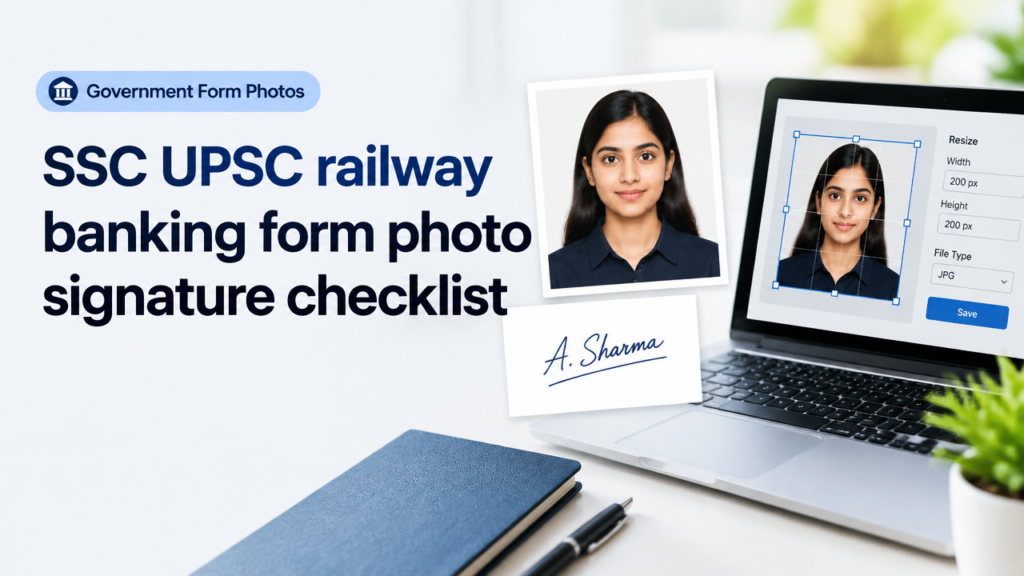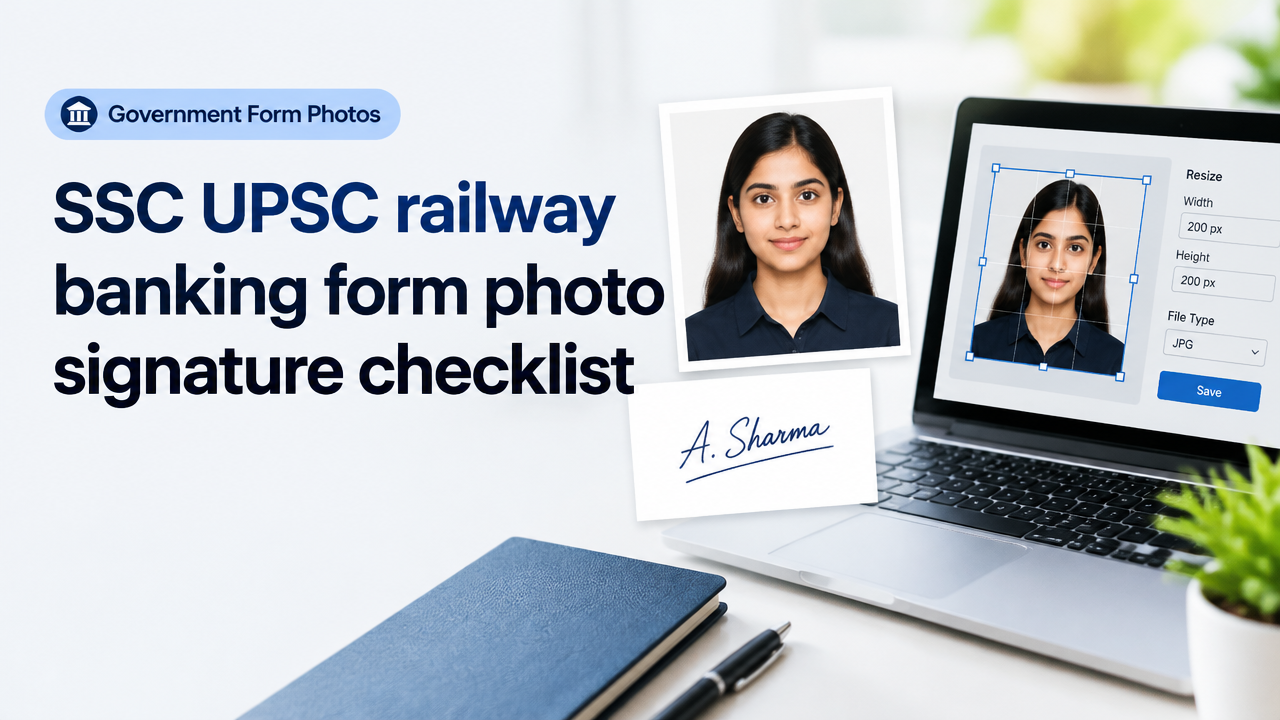
SSC UPSC railway banking form photo signature checklist: How to prepare, verify and resize safely
Short answer: Never guess official pixel or KB limits. First verify the current specification on the exam or bank portal (notification or upload page). Then follow a step-by-step capture → verify → edit workflow to crop, convert and compress your photo and signature so they meet both pixel and file-size rules without harming quality.
Why you must not guess size limits
Examination and banking portals (SSC, UPSC, Railway, IBPS, SBI, etc.) update rules across batches. Using a wrong size or file-type causes rejections — and you may miss the window to re-upload. Always check the specific form notification or the upload/help section on the official site before editing.
Use the portal’s latest PDF notification, the upload page’s instructions, or the help/FAQ link. If you cannot find a clear answer, treat the upload dialog’s file-type dropdown and example image as authoritative and follow the most conservative limits reported.
Quick capture checklist (phone or scanner)
- Photo lighting: even front light, no heavy shadows; neutral background if requested (plain white/cream/light grey often required but verify).
- Face rules: neutral expression, eyes open, no hats or sunglasses unless permitted; ears and face unobstructed for ID photos.
- Signature: sign in black or dark blue ink on plain white paper. Keep the signature size compact; leave a small white margin around it.
- Scanner vs phone camera: scanner gives clean edges; phone camera is fine if you hold steady and photograph from above to avoid perspective skew.
- File naming: use a clear filename as requested (often candidateID_photo.jpg or similar). Do not include personal details in meta data if not required.
How to verify the current official requirements (three practical methods)
- Read the official notification PDF on the exam/bank website. Search for terms like “upload”, “photograph” or “signature” within the PDF.
- Open the application portal upload page. Many portals display allowed formats (JPG/JPEG/PNG/PDF), max file size and recommended pixels near the upload button.
- Contact official helpdesk or helpline email if instructions are ambiguous. Keep screenshots of the page showing limits as proof if asked later.
Safe edit workflow: capture → prepare → verify → finalise
- Capture at high quality: Take a larger photo (e.g., full phone resolution). For signatures scan at 300 DPI or shoot a well-lit flat image from above.
- Crop and straighten: Crop to the face/shoulder area for photos, to the signature bounding box for signatures. Keep a small white margin for signatures to avoid clipping.
- Convert file type: Use JPEG for photographs; PNG is acceptable for signatures with sharp edges. If the portal accepts only JPG, convert the PNG signature to JPG carefully to avoid blurring the ink.
- Adjust pixels or aspect ratio: If officials require exact pixels, resize to those pixel dimensions. If they state a range (for example, minimum width), keep the longest side above the minimum while preserving aspect ratio.
- Compress to meet KB limits: Reduce file size without over-compressing. Aim for the highest quality setting that meets the portal’s KB limit.
- Check final image visually: Zoom to 100% and confirm the face is clear and the signature strokes are crisp and readable.
- Verify upload on the portal: Upload the prepared files in test mode if the portal lets you. Keep local copies of both original and final files.
Practical SmartImageResize tool guide links
For step-by-step resizing and exact KB adjustments, use the SmartImageResize tool guides below which walk through pixels and KB targets and signature-specific tips:
- Government Exam Form Photo Requirements — How to Verify the Current Notification and Resize Safely — start here to learn where to look on official portals.
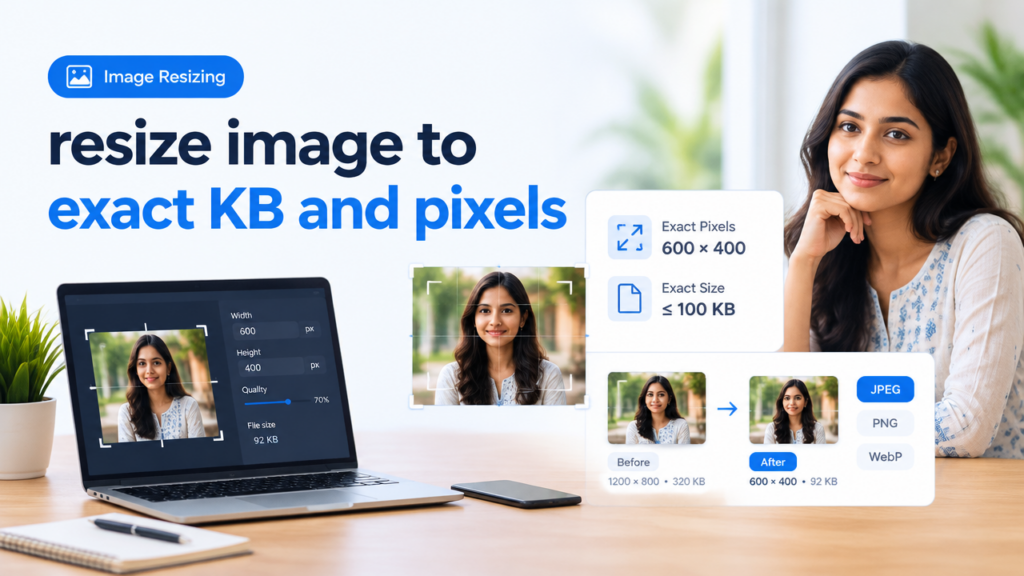
- Resize Image to Exact KB and Pixels for Online Upload — when the portal specifies exact pixels or KB limits.
- Signature Image Resize Crop Whitespace KB Reduction Guide for Online Forms — signature capture, whitespace and KB reduction workflow.
- Online Form Signature Photo Rejection Reasons — Clear Checklist to Prevent Rejections — common rejection causes and how to fix them.
Checklist table: What to check before final upload
| Item | Why it matters | How to verify |
|---|---|---|
| File type (JPG/PNG/PDF) | Portal accepts only specific formats | Read upload instruction on portal; test upload |
| Pixel dimensions | Affects crop, face framing and clarity | Resize to portal pixels or keep above minimum listed |
| File size in KB | Many portals reject files over the limit | Compress and re-check file size; keep original copy |
| Background and face visibility | Non-compliant backgrounds are common rejection reason | Compare with sample image or portal guidance |
| Signature clarity | Blurry or faint signatures may be rejected | Zoom at 100%: strokes should be solid and legible |
| Filename and metadata | Some portals require specific filenames | Rename file as per instructions; remove unnecessary metadata if concerned |
Common mistakes and how to avoid them
- Guessing sizes: Don’t. Always confirm on the official portal or notification.
- Over-compressing: Excessive compression reduces face/sharpness and may cause rejection. Compress in small steps and inspect quality at 100%.
- Clipping the signature: Avoid tight cropping that cuts off strokes. Leave a small margin around the signature.
- Wrong color space: Use RGB for web uploads. Converting from CMYK can change colours and brightness.
- Using automatic background removal for ID photos: Some portals require natural background; check before replacing backgrounds.
- Uploading a screenshot of the photo: Screenshots can add compression artifacts and wrong pixel sizes; upload the original image file.
Tips for better results (practical quick wins)
- Keep originals: Always retain the original high-resolution photo and signature scan in a safe folder for re-edits.
- Work non-destructively: Save edited files as new filenames (e.g., candidateID_photo_ready.jpg).
- Use small compression steps: If you need to reduce KB, lower JPEG quality in 5–10% increments and re-check sharpness.
- Preview at the portal after upload: Some portals show a preview of how the final printed/accepted image will look; use it.
- Document the rule source: Take a screenshot of the instruction page that shows the limits and keep it with your application files.
Frequently Asked Questions
Final checklist before clicking Upload
- Confirmed format, pixel limits and KB on the official portal or notification (screenshot saved).
- Photo cropped, face framed, background compliant and saved as a new filename.
- Signature scanned or photographed, cropped with a margin, high-contrast and saved at required file type.
- File sizes within portal limits after conservative compression; quality checked at 100% zoom.
- Test upload or preview checked where available; copies retained of originals and final files.
Conclusion
Preparing photos and signatures for SSC, UPSC, railway and banking forms is a two-step problem: (1) verify the official requirements on the portal or notification, and (2) follow a careful editing workflow to meet pixels/KB without degrading clarity. Use the linked SmartImageResize guides to resize to exact pixels and KB and to avoid common signature rejection reasons. When in doubt, prefer higher-resolution originals and conservative compression — and keep your originals safe in case you must re-edit.
Try the matching Smart Image Resize tool
Use the closest live SmartImageResize tool for the task in this guide. For government or platform uploads, verify the latest official requirement before final submission.
Open 10 KB to 20 KB Signature Size in Pixels | Online Signature Resizer