
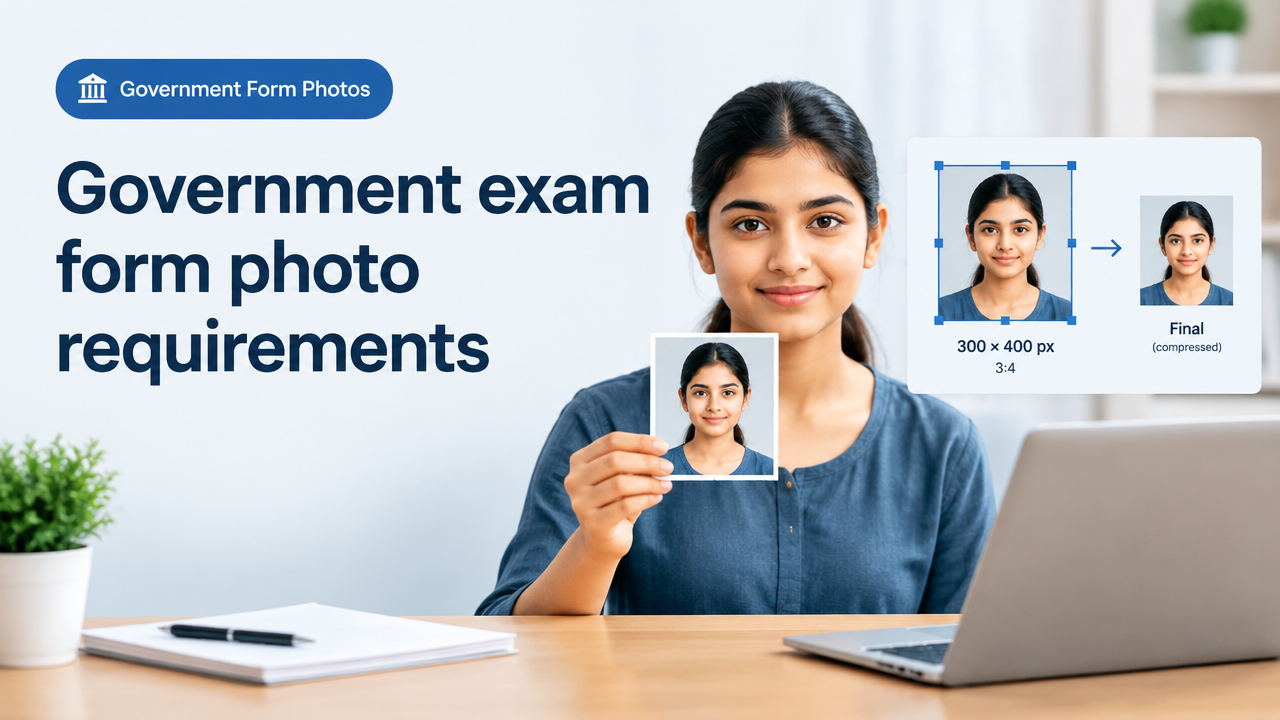
Government exam form photo requirements — how to verify the current notification and resize safely
Short answer: Always check the official exam notification or instruction PDF first (the only authoritative source). Then prepare a high-quality original and follow a safe workflow: crop to the required aspect ratio, set pixel dimensions (not just percent), compress to the permitted file size while preserving face detail, and keep backups of both the original and the final file.
Why you must verify the official notification first
Exam authorities (central/state boards, UPSC, SSC, NTA, state PSCs and university exam cells) publish photo requirements in the official notification or a dedicated instructions PDF for candidates. These documents override blogs, forums or third-party guides. Requirements that can change include file format, pixel dimensions, aspect ratio, maximum file size (KB), background colour, face proportions and whether signature and photo must be combined or separate.
How to find the official instruction quickly:
- Open the exam’s official website and look for links labelled “Notification”, “Instructions for Candidates”, “Application Form” or “Help/FAQs”.
- Download and read the candidate instruction PDF — often a short section covers photo & signature rules.
- Use site search: in Google type site:exam-portal.gov “notification” “instructions” if you know the portal URL.
- If unsure, use the helpline or email listed on the official portal — keep screenshots of any official replies.
Understanding pixels vs KB vs visual quality (the important differences)
When a form asks for a photo it typically means three separate constraints:
- Pixel dimensions (width × height, e.g. 300×400 px): control image resolution and cropping. This decides how much detail remains after resizing.
- Aspect ratio (e.g. 3:4): determines the shape your crop must have so faces are not squashed. Always match the required ratio before exporting.
- File size in KB: the portal often enforces a maximum size. Smaller KB is often achieved by higher compression (lower JPEG quality) or downscaling pixels. Too much compression creates visible artifacts and can trigger rejections.
Also note format (JPEG/JPG is most common for photos; some portals accept PNG) and colour space (sRGB is the safe default for web uploads).
Safe, step-by-step workflow to verify and resize a photo
- Confirm official rules: Read the exact phrasing in the notification for format, pixel dimensions, aspect ratio and maximum KB. If multiple documents conflict, trust the latest publication date or official corrigendum.
- Keep originals: Save the original camera/phone file. Never repeatedly edit the same file—always edit a copy.
- Crop to the required aspect ratio: Use a crop tool to frame head and shoulders according to the guidance in the notification (face position, eye line, margins). If your tool supports safe-area grid overlays, use them.
- Set pixel dimensions: Resize to exact pixel dimensions required by the portal. If the notification lists only aspect ratio and maximum KB, choose pixel dimensions that preserve face detail while making it easy to hit the KB cap.
- Export format and colour: Export as JPG (recommended) in sRGB. If the portal explicitly asks for PNG or another format, follow that instruction.
- Compress to the file-size limit: Use a quality slider to reduce KB without introducing visible artifacts. Check the image at 100% zoom to confirm face clarity.
- Remove or keep metadata per instructions: Some portals prefer no EXIF metadata; others do not mention it. If unsure, export without metadata to be safe.
- Name the file correctly: Use the filename format the portal requests (example: yourname_rollnumber.jpg). Follow case/underscore rules exactly.
- Test upload on the portal: Upload the prepared file and preview if the portal provides one. Take screenshot of the successful upload confirmation.
- Keep backups: Save the final exported image and the original. If the portal rejects later, you can re-edit without loss.
Practical example tools and how to use them
Smart Image Resize offers simple online tools to crop, resize, convert and compress images. Use a resizer/cropper to set exact aspect ratio and pixel size, then use a compressor to reduce KB while previewing quality. Read our guide to choose the right tool for each step: Image Resizer vs Compressor vs Cropper vs Converter: Which Tool Should You Use. For a free all-in-one option try the site’s main tool: Smart Image Resizer, Converter & Compressor — Free Online Tool.
If you need to fix composition before resizing, see: Crop Rotate Flip Enlarge Image Without Losing Quality — Preserve Composition and Clarity. If you face common upload rejections similar to passport photos, this guide helps: Passport Photo Upload Rejection Reasons and How to Prepare the Image.
Quick verification checklist (copy and use)
| What to check | Why it matters | How to check |
|---|---|---|
| Official instruction PDF | Authoritative source | Download from the exam portal and note dates/versions |
| File format | Portals accept only specific formats | Look for “JPEG/JPG” or “PNG” in the rules |
| Pixel dimensions & aspect ratio | Affects cropping and clarity | Crop to ratio then set pixel dimensions on export |
| Maximum KB | Portal may block larger files | Compress and check file properties before upload |
| Background & face position | Common cause of rejection | Follow the sample photos and measurement instructions |
Common mistakes and tips for better results
- Common mistake: Reducing KB by only lowering pixel dimensions. Tip: First crop to the correct aspect ratio and pixel size, then apply light compression to meet KB limits while keeping facial detail.
- Common mistake: Ignoring preview after upload. Tip: Always use the portal preview and check clarity at 100% zoom.
- Common mistake: Over-compressing JPEG (visible blockiness). Tip: Use progressive JPEG cautiously or slightly higher quality if facial detail matters.
- Common mistake: Wrong file name or extension. Tip: Follow the exact naming format requested in the notification.
- Tip: If the portal allows multiple attempts, upload a test file early and check the preview. This leaves time to fix problems before the deadline.
What to do if your upload is rejected
- Read any rejection message carefully — it often states why the file failed (size, format, dimensions).
- Return to your saved original and re-run the crop/resize/compress steps; do not re-edit the exported file repeatedly.
- If the portal gives no reason, contact the exam helpline and attach screenshots and the file you tried to upload. Keep a copy of their response.
Privacy and metadata—what to consider
Some candidates worry about EXIF metadata (location, phone model). Most portals do not check EXIF, but if you prefer privacy, export an image without metadata. If the official instructions mention metadata, follow that explicitly. Before using any third-party tool, read its privacy policy and data-handling statements — see our site policies for reference: Privacy Policy.
Frequently Asked Questions
Further reading and tools
For step-by-step tool selection and workflows see our tool guide: Image Resizer vs Compressor vs Cropper vs Converter, and for quick fixes to composition and orientation use: Crop Rotate Flip Enlarge Image Without Losing Quality. To avoid issues similar to passport uploads, read: Passport Photo Upload Rejection Reasons and How to Prepare the Image.
Conclusion
Never rely on memorised numbers — always verify the current official notification for the specific exam. Keep the original photo safe, crop to the required aspect ratio, set pixel dimensions accurately, then compress carefully to meet KB limits without losing facial detail. Test uploads early and save screenshots and backups. Use trusted tools and read privacy statements when using third-party services.
Try the matching Smart Image Resize tool
Use the closest live SmartImageResize tool for the task in this guide. For government or platform uploads, verify the latest official requirement before final submission.
Open Signature Resizer Online – Resize Photos for Sarkari Exams


