
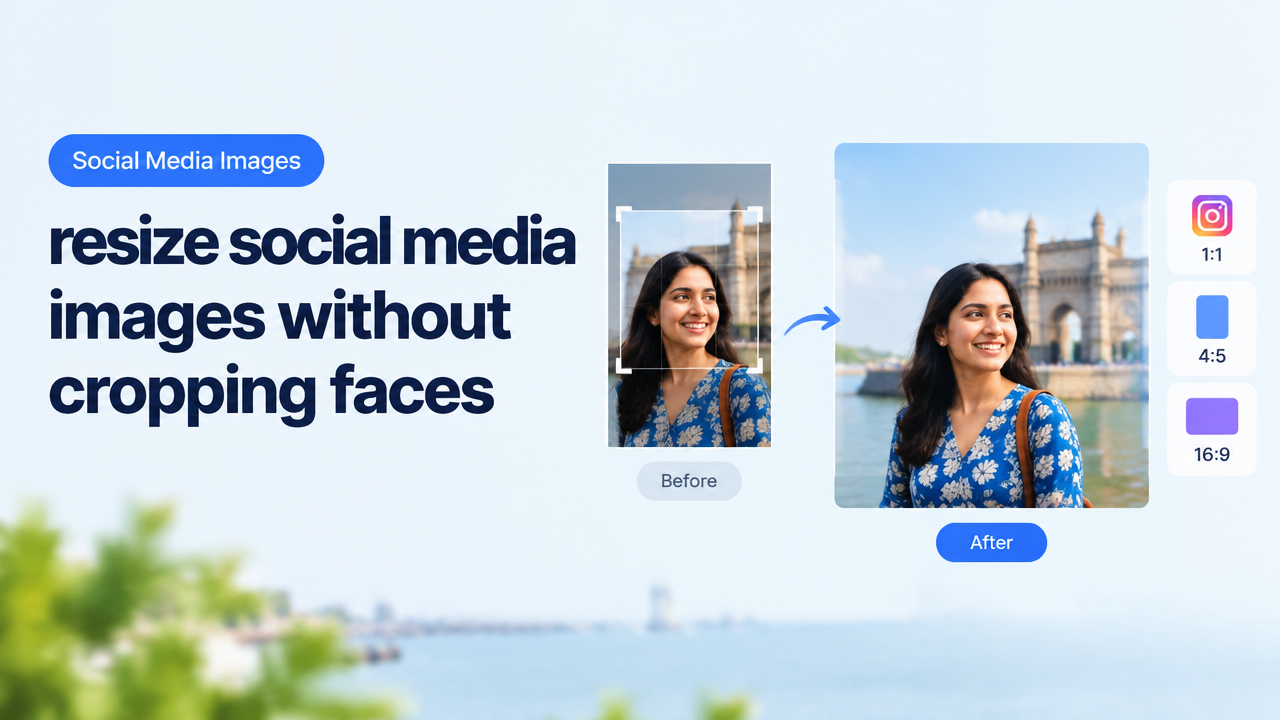
Resize Social Media Images Without Cropping Faces, Logos or Important Text
Family: Smart Image Resize — Mode: Core Tool Guide (tool workflow & practical guidance)
Quick answer: Use safe-area planning, padding/letterboxing, content-aware extension or face/object-aware cropping so people, logos and essential text are not cut. When using Smart Image Resize or any editor: mark the important areas, choose padding or intelligent fill before hard-cropping, and preview on the target platform.
Why faces, logos and text get cropped
Social platforms adapt images to different devices and frames. Many feeds will zoom, crop or letterbox to fill available space; others prioritize center or detected subjects. If faces, logos or text sit too close to edges, the platform’s automatic crop can cut them off. Instead of guessing exact pixel behaviour, design around an invisible safe area so critical elements remain visible across cropping modes.
Dimensions vs KB vs quality: what matters and why
When preparing images for social media you balance three variables:
- Pixel dimensions (width × height) — Control display size and level of detail. Higher pixel counts keep faces and small text readable at large view sizes but increase file size.
- File size (KB/MB) — Affects upload speed and platform compression. Platforms often recompress uploads; keeping a reasonable file size reduces additional artifacts while staying within platform limits.
- Visual quality (compression settings) — Adjust JPEG/WebP quality and format to balance visible detail versus size. Aggressive compression blurs faces and text; moderate compression often looks fine on mobile.
Practical rules: for web/social, prefer pixel dimensions sufficient to display clearly on phones (e.g., several hundred to a few thousand pixels wide depending on use), export JPEG quality in the ~70–85% range as a starting point, and check final file size. Use WebP where supported for smaller files at similar quality. Always preview the exported image at the expected display size (mobile/thumbnail) to confirm faces/logo legibility.
Key concept: Safe area and composition-first resizing
Treat each target frame as having an inner safe area where content remains visible when platforms crop differently. Two practical rules:
- Keep faces, logos and small text at least 8–15% away from edges (use larger margins for banners and thumbnails).
- If an aspect ratio change is required, prefer padding (canvas extension with background) or content-aware extension rather than cropping into the subject.
Four reliable methods to resize without losing important content
Choose the method that fits the image and platform:
- Padding (canvas resize) — Add space to the canvas to reach the target aspect ratio. Fill the added area with a solid colour (brand colour), a blurred version of the image, or a pattern. This preserves the subject unchanged.
- Content-aware extension / intelligent fill — Use background-aware tools to extend edges organically (sky, walls, textures). Works best when backgrounds are simple or continuous.
- Face-/object-aware crop — Use a crop tool that detects faces/objects and adjusts the crop box to contain them. If the crop would still cut a face, apply padding instead.
- Recomposition (re-frame) — Slightly scale down and reposition the subject using surrounding negative space or move non-critical elements outward. Good when the image has spare space to borrow.
Step-by-step workflow (general, desktop or web tools)
- Keep the original file safe; work on a copy.
- Identify the destination (platform and type: feed, story, thumbnail) and whether upload will crop or letterbox. When unsure, use the platform preview or developer docs.
- Open the image in your editor or Smart Image Resize. Use guides or a translucent overlay to mark faces, logos, and important text.
- If any marked elements fall outside your safe margins, decide: pad (canvas extension) or perform content-aware expansion to preserve them. Avoid hard-cropping critical areas.
- If you must crop, use face/object-aware cropping to protect people and logos. Combine small uniform padding with a smart crop where needed.
- Export using an appropriate format: JPEG for photos, PNG for images with transparency or sharp text, WebP for smaller files if the platform supports it. Adjust compression and test visual clarity at final display size.
- Upload a preview to the platform’s draft or scheduled post area and inspect on a real phone and desktop to validate the safe-area approach. Make adjustments and re-export if anything looks clipped or unreadable.
Using Smart Image Resize: practical user actions
Smart Image Resize provides quick actions for canvas resize, padding, crop and convert. A typical user workflow in the tool is:
- Upload the image to the Smart Image Resizer tool at smartimageresize.com.
- Choose a target aspect ratio or custom pixel dimensions matching your platform’s requirements (or the display area you want to simulate).
- Select Keep aspect to avoid distortion. If the tool has padding options, choose background colour, blur, or pattern that complements the image and brand.
- Use the crop preview or face-detection toggle, if available, to check whether faces/logos are contained within the safe area. If not, enable padding or use content-aware extension before cropping.
- Export and download in JPG, PNG, or WebP. If the tool offers a quality slider, begin with JPG quality ~75–85% and preview the result at actual size.
If you process sensitive photos and prefer not to upload them to an online service, use an offline editor (Photoshop, Affinity Photo, GIMP) or a local script to perform canvas extension and cropping. Check the tool’s privacy and terms pages before uploading private images.
Decision table: when to use content-aware fill vs padding
| Situation | Recommended method | Why |
|---|---|---|
| Simple, continuous background (sky, wall) | Content-aware fill / extension | Produces natural-looking extensions by cloning textures |
| Complex scene with people or patterns | Padding with blurred/solid background | Avoids artifacts and unnatural repeats |
| Need exact brand surrounding a logo | Padding with brand colour | Guaranteed brand consistency |
| Image must remain unchanged | Canvas resize + padding | No reconstruction; original pixels untouched |
Common mistakes and how to avoid them
- Assuming platform crops are fixed — Always preview on the platform and device. Platforms change how they display images and may recrop server-side.
- Aggressive compression to hit file size targets — This can blur faces and make small text unreadable. Test legibility after compression and prefer WebP when supported for better size/quality.
- Placing logos/text too close to edges — Keep them inside the safe margin or into a padded area to avoid accidental cropping.
- Not checking mobile — Most social users are on phones; always check the final appearance on mobile to catch cropping or scaling problems.
- Blindly trusting automatic face detection — Detection can miss faces or misplace boxes in obscure angles. Spot-check results and add manual padding where detection is uncertain.
Bulk processing and privacy considerations
For many images, build a reproducible batch workflow: detect faces/objects, compute safe crop boxes, and apply padding where faces are near edges. Use a batch resizing tool that keeps originals and creates preview outputs so you can spot-check results before publishing.
If privacy is a concern, verify the tool’s privacy policy or process images locally. Smart Image Resize links and guidance pages include documentation and workflow help: Bulk Image Resize Workflow.
Quick checklist before uploading (practical)
| Action | When to do it | Tool or option |
|---|---|---|
| Backup original | Always | Local copy or cloud archive |
| Mark faces/logos/text | Before editing | Guides/overlays in editor |
| Decide pad vs crop | After marking | Canvas resize / content-aware |
| Export preview | Before final upload | Low-res preview on mobile |
| Final export with reasonable compression | Last step | JPEG 70–85%, WebP if supported, PNG for transparency |
Frequently Asked Questions
Conclusion
Protecting faces, logos and important text when resizing for social media is primarily a planning exercise: mark important elements, choose padding or content-aware extension instead of hard cropping when needed, and verify results using platform previews and mobile checks. Smart Image Resize and similar tools make padding and canvas adjustments quick; combine them with face/object-aware crop checks for efficient, reliable outputs. With a reproducible workflow and reasonable export settings, you can keep subjects intact across platforms while keeping files optimized for web delivery.
Related reading: YouTube & Instagram safe-area workflow, Crop, rotate and enlarge guidance, and the main tool: Smart Image Resizer.
Try the matching Smart Image Resize tool
Use the closest live SmartImageResize tool for the task in this guide. For government or platform uploads, verify the latest official requirement before final submission.
Open Reddit Photo Resizer – Resize Images for Reddit Posts & Banners



1 Comment
[…] Need to crop or resize after editing? Follow the Resize Social Media workflow to protect safe areas: Resize Social Media Images Without Cropping Faces. […]