
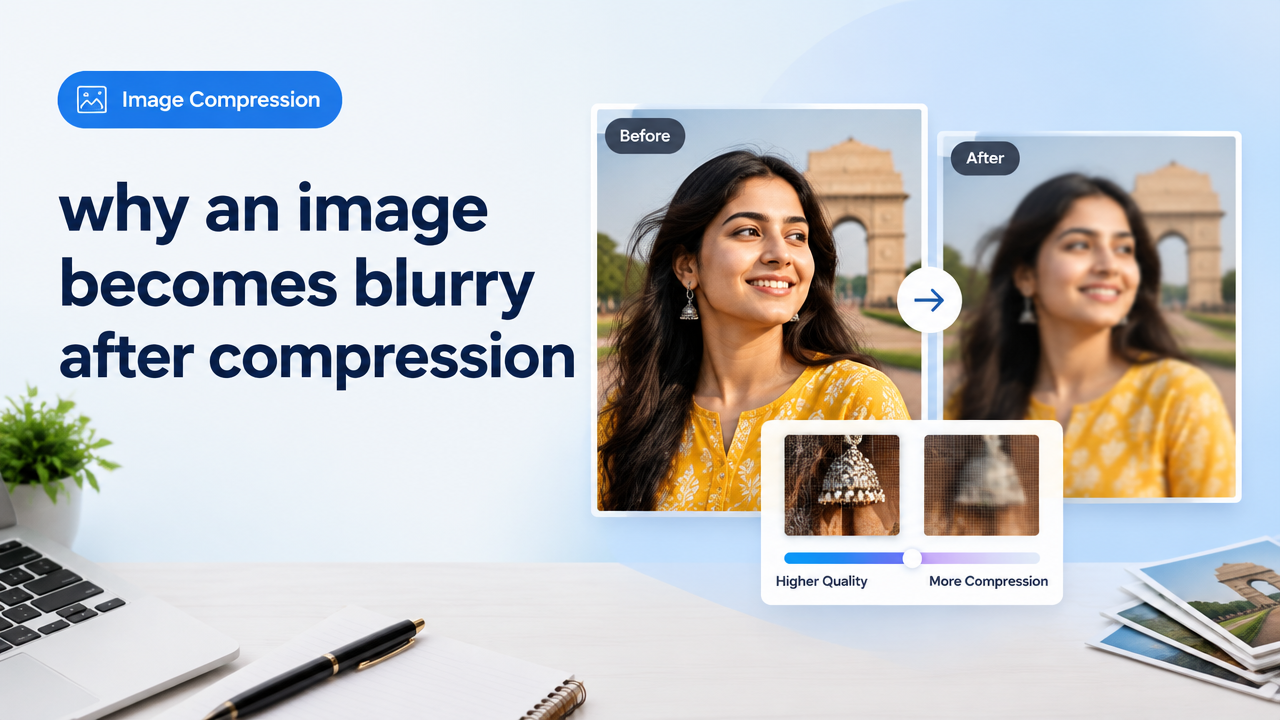
Why an Image Becomes Blurry After Compression — How to Reduce Quality Loss
Short answer: Images go blurry after compression because lossy algorithms remove detail and change pixel data; poor resampling, repeated saves, wrong format, or compressing images that are later upscaled makes blur worse. The solution is a careful workflow: resize to final dimensions first, choose the right format, use conservative quality settings or WebP, preview the result, and avoid multiple lossy saves.
How compression actually causes blur
- Lossy quantization: JPEG and similar lossy formats reduce high-frequency data (fine detail and texture). Aggressive quantization smooths or “melts” tiny details, causing a soft or blurry look.
- Chroma subsampling: Many JPEG encoders store colour at lower resolution than luminance (brightness). This reduces colour detail and can soften edges, especially around colourful text or small patterns.
- Resampling / resizing algorithms: If you downscale or upscale with a weak algorithm, edges become jagged or dull. Upscaling an already compressed image makes compression artifacts more visible as blur.
- Repeated saves: Saving the same JPEG multiple times applies compression repeatedly — each pass throws away more data and compounds blur and artifacts.
- Wrong format for subject: Using JPEG for screenshots, text, or logos loses sharp edges—PNG or lossless WebP would keep clarity.
Dimensions vs KB vs quality — the trade-offs explained
Many users think only in KB (file size). But sharpness is controlled by pixel information (dimensions) and how much of that information you keep (compression quality). Key points:
- Pixels = detail: A large image with many pixels holds more detail. Downscaling reduces needed file size and often improves perceived sharpness for the target display.
- Quality slider ≠ size target: Lower quality reduces file size but can destroy detail. A moderate quality with correct dimensions is often better than very low quality at higher dimensions.
- DPI matters only for print: For web and forms, focus on pixel dimensions and file size limits, not DPI.
Step-by-step workflow to compress images with minimal blur
- Keep an original master: Save a copy of the original (RAW or highest-quality JPEG/PNG) before any edits.
- Crop to the final composition: Remove unused background so you don’t waste pixels. Cropping before compression keeps the essential detail.
- Resize to target dimensions: Resize to the exact pixel size you need for web, social, or a form. Use a high-quality resampling algorithm (Lanczos, Bicubic Sharper for downscale).
- Choose the correct format: See the format section below. For photos, JPEG or WebP; for screenshots, text, graphics, or transparency, use PNG or lossless WebP.
- Set conservative compression: For JPEG try quality 75–85 for web photos; for WebP try 75–90. If you need very small KB, reduce dimensions first rather than quality alone.
- Use preview and compare: Always preview at 100% and the actual display size to check blur and artifacts before saving.
- One final export: Export once from your master copy; avoid repeatedly opening and saving the same compressed file.
- Optional sharpening: If the result looks slightly soft, apply a light unsharp mask (radius 0.5–1.0px, amount 50–80%) after resizing but before final save.
Practical settings table — starting points
| Use case | Format | Dimensions | Quality / Notes |
|---|---|---|---|
| Website hero/photo | WebP or JPEG | 1200–2000px wide (depends on layout) | WebP 80–90 / JPG 80–85. Resize first. |
| Social post | WebP or JPEG | Recommended by platform — resize to those pixels | Quality 78–85; check preview for faces and text. |
| Passport/Govt form upload | Follow provider format (usually JPG) | Exact dimensions required — crop and resize first | Keep quality high (85–95) to avoid rejection; verify rules. |
| Screenshots, logos, text | PNG or lossless WebP | Actual pixel size — no scaling | Use lossless to keep sharp edges. |
Format choices — when to use JPG, PNG, WebP or lossless
- JPEG (JPG): Excellent for photos with continuous tones. Use for most camera images. Beware of multiple saves.
- PNG: Best for screenshots, graphics, logos and images with hard edges and text. Files are larger but stay sharp.
- WebP: Modern choice — provides smaller files than JPEG at similar visual quality for photos, and supports lossless and transparency. Widely supported in browsers now and a great option for web.
- HEIC/HEIF: Efficient for mobile photos but less universal; convert to JPG/WebP for web or forms unless the service accepts HEIC.
Tools and features to look for (and what Smart Image Resize offers)
When choosing a compressor or converter, check these features:
- Preview at 100% and at display size
- Quality slider and numeric input (so you can test 78 vs 85)
- Target file-size option (compress to X KB) with good quality fallback
- Format choices including WebP and lossless options
- Batch processing if you have many images
- Metadata strip option (removes EXIF to save bytes)
Try Smart Image Resizer’s free compressor and converter tools for quick resizing and format switching: Smart Image Resizer, Converter & Compressor — Free Online Tool. For deeper format guidance see our comparison guide: JPG PNG WebP HEIC Converter Guide and a quality vs file size balance article: JPG PNG WebP Quality vs File Size. If you’re unsure whether to resize or compress first, read Image Resizer vs Compressor vs Cropper vs Converter.
Checklist before you upload (quick one-page guide)
| Step | Action |
|---|---|
| 1 | Keep a master original (do not overwrite) |
| 2 | Crop to final composition |
| 3 | Resize to target pixel dimensions |
| 4 | Choose appropriate format (WebP/JPEG/PNG) |
| 5 | Use conservative quality, preview at 100% |
| 6 | Sharpen lightly if needed, then export once |
| 7 | Check file size and re-export if necessary |
Common mistakes that make blur worse
- Saving the same JPEG again and again — each save adds compression artifacts.
- Compressing before resizing — compress after downscaling to final size to keep more perceived detail.
- Using JPEG for line-art, screenshots or text-heavy images — edges will soften.
- Over-reducing the quality slider to hit a KB target without changing dimensions.
- Upscaling a compressed image — always preserve the original and upscale raw before heavy editing if you must.
Tips for better results — quick wins
- Reduce dimensions first: halving width often cuts file size much more effectively than lowering quality.
- Use WebP for web photos when supported — it often gives better quality-per-byte than JPEG.
- After resizing, apply a subtle sharpen (not over-sharpen) to restore perceived detail.
- For forms and official uploads, verify exact dimension and KB rules on the provider site before compressing. See our government photo verification guide: Government Exam Form Photo Requirements.
- Automate batch work with a reliable tool if you process many images: consistent settings avoid surprises. See our bulk workflow: Bulk Image Resize Workflow.
Frequently Asked Questions
Privacy and verification notes
Different online tools handle images differently. If you use a web tool, verify its privacy and upload policies before submitting sensitive photos — consult the SmartImageResize Privacy Policy for how this site handles uploads. For government or official submissions, always double-check the current requirements on the issuing website before editing your image.
Conclusion
Blurriness after compression usually comes from lossy data removal, wrong format choice, or a poor workflow (resizing after compression, repeated saves). Follow a reliable order: keep an original, crop, resize to final pixels, choose an appropriate format, use conservative compression settings, preview at 100%, and export once. Using WebP or sensible JPEG settings and a light sharpening pass will give the best balance of clarity and small file size.
Need a quick, safe way to resize and compress images? Start with our free tool at Smart Image Resizer and refer to our format and quality guides linked above for more details.
Try the matching Smart Image Resize tool
Use the closest live SmartImageResize tool for the task in this guide. For government or platform uploads, verify the latest official requirement before final submission.


