
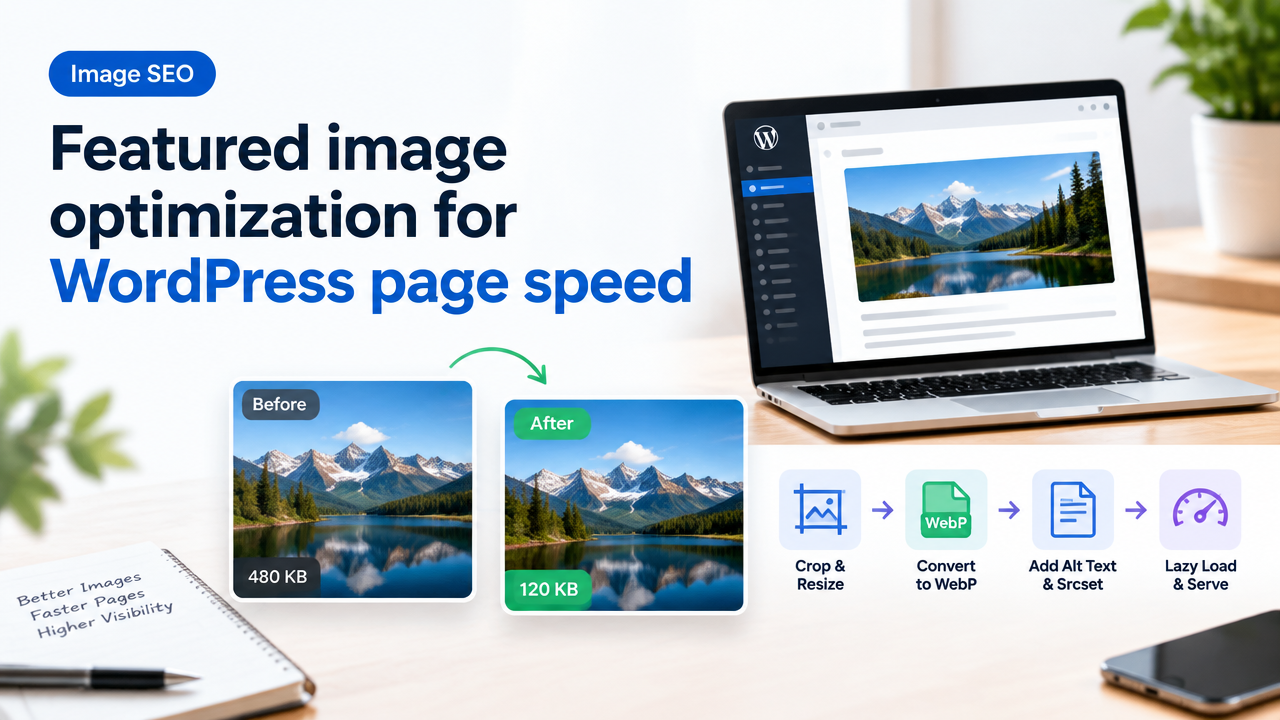
Focus answer: To improve page speed and search visibility, produce a featured image that is the right pixel dimensions for your theme, compressed to a small KB target without visible artifacts, served in WebP (where supported) with a clean filename and specific alt text, and delivered responsively via srcset or a CDN.
Why featured image optimization matters for WordPress page speed and SEO
Featured images are often the largest single image asset on a blog post and are loaded immediately in page lists, social previews, and the post itself. Large or unoptimized featured images slow initial page load, increase time to first meaningful paint, and can hurt Core Web Vitals — all signals that affect search visibility and user experience. Optimizing your featured image reduces bandwidth, speeds up mobile users on limited data, and helps Google and social platforms display a crisp preview.
Quick optimization checklist (targets you can use)
| Item | Recommended target | Notes |
|---|---|---|
| Desktop hero size | 1200–1600 px wide | Depends on theme; verify theme recommended width |
| List/preview thumbnails | 400–800 px wide | Generate smaller crops for index pages |
| File format | WebP (fallback JPG/PNG) | Use PNG for images needing transparency |
| File size | 60–200 KB per image | Aim lower for blog indexes — test visual quality |
| Compression | Quality 60–80 for JPG/WebP | Adjust by visual test |
| Responsive images | Provide multiple widths (srcset) | Let browser choose the best file |
| Alt text | Describe subject + context | Short, natural, include target keyword when relevant |
Step-by-step workflow: prepare an SEO-friendly featured image
- Check your theme’s recommended size. In the WordPress Customizer or theme docs, find the featured-image width your theme displays. If unsure, inspect using browser dev tools or check theme settings. Use that width as your maximum.
- Create or crop at the right aspect ratio. Crop to the aspect ratio your theme uses (for example 16:9 or 4:3). This avoids automatic resizing that can produce awkward crops. If your theme crops automatically, upload an image at a larger width and the correct ratio.
- Resize to target pixel width. Resize the image to the maximum pixel width needed (e.g., 1200 px). Don’t upload a 4000 px file if theme shows 1200 px — it wastes bandwidth.
- Compress visually. Use a dedicated compressor to reduce bytes while keeping visible quality. Aim for a balance: for photographic images, Quality 60–80 usually works. Try SmartImageResize tools or follow our compression guide: Compress Image to 20KB/50KB/100KB.
- Convert to WebP with fallback. WebP generally gives much smaller files for similar quality. Provide WebP plus a fallback JPG/PNG for older browsers or upload both and let WordPress or your CDN serve WebP when supported. See format guidance: JPG PNG WebP HEIC Converter Guide.
- Name the file for SEO. Use a descriptive, hyphenated filename: e.g., “mumbai-street-food-vada-pav-featured.jpg” rather than IMG_1234.jpg. Keep it short and include the post keyword if it describes the image naturally.
- Add effective alt text and title. Alt text should describe the image and why it’s there: “Vada pav vendor on Mumbai lane — street food guide”. Avoid keyword-stuffing; be user-focused and descriptive for accessibility and SEO.
- Upload and enable responsive sizes. When you upload, WordPress often creates multiple sizes. Ensure your theme outputs srcset and sizes attributes so the browser picks the right image for the device.
- Enable lazy-loading for below-the-fold images. Featured images above the fold should load normally, but on lists or long pages, lazy-loading reduces initial load. WordPress has native lazy-loading attributes you can control.
- Test with Lighthouse and real devices. Measure page speed and Largest Contentful Paint after changes. If the featured image is still a bottleneck, reduce the file size or use smaller dimensions for mobile.
Responsive images, srcset, and serving scaled images
Responsive loading reduces wasted bytes: provide several image widths (for example 320, 480, 768, 1024, 1200). Use the srcset and sizes attributes (WordPress adds these automatically for registered image sizes). This ensures mobile devices receive smaller files and desktop receives a larger one. Always verify your theme outputs proper srcset. If it doesn’t, add responsive support or use a plugin/CDN that rewrites image tags to include srcset.
Format choices: JPG, PNG, WebP and HEIC — trade-offs
– JPG: good for photographs, small file size with lossy compression. Best when you don’t need transparency.
– PNG: preserves crisp edges and transparency but larger files; use only when necessary (logos, overlays).
– WebP: modern, smaller for both photo and graphic images; provide fallback JPG/PNG where needed.
– HEIC: common on iPhones; convert to JPG/WebP for web use. See our conversion guide: HEIC to JPG Conversion Guide.
Alt text, filenames and structured data for search visibility
Alt text helps accessibility and gives context to search engines. Follow these practical rules:
- Write clear, descriptive alt text including the subject and context (e.g., “homemade paneer recipe — final dish with garnish”).
- Use a hyphenated filename that mirrors the alt text phrase; avoid underscores or spaces.
- Include an image caption only when it adds value — captions are read more than body text on some pages.
- For important posts, ensure the featured image is included in the page schema (many SEO plugins support image markup).
Common mistakes and how to fix them
- Uploading huge originals: Fix by resizing to the theme’s maximum width before upload.
- Not providing WebP: Convert and serve WebP with fallbacks — your CDN or WordPress plugins can help.
- Poor compression settings: Test visual quality at lower quality levels; use SmartImageResize compression guidance: Why an Image Becomes Blurry After Compression.
- Missing srcset: Ensure WordPress generates responsive sizes or add srcset manually.
- Keyword stuffing in alt text: Keep alt text natural; prioritize description and accessibility.
Tools and workflows (quick options)
For single images: use an online resizer/compressor to set pixel width, choose quality, and convert to WebP. Smart Image Resize provides a free resizer/compressor tool you can use: Smart Image Resizer Tool.
For batch uploads or many posts: prepare multiple sizes and convert to WebP in bulk, or use a WordPress plugin/CDN that automatically creates responsive WebP versions and serves them. For conversion and format guidance, see: JPG PNG WebP HEIC Converter Guide.
Tips for better results — quick wins
- Keep featured images visually consistent across posts (same aspect ratio) so list pages look neat.
- When possible, crop for subject focus — the smallest meaningful crop often compresses better.
- Use overlays, subtle text or gradient fades as separate layers — export flattened images for smaller files.
- Test mobile network speeds (3G/4G) to ensure images load quickly for readers in India and similar markets.
- Use a CDN to cache and deliver images from nearby edge servers for faster load times.
Practical checklist before publishing
- Image matches theme width/aspect ratio
- Resized to target pixel width
- Compressed visually (test at final size)
- Converted to WebP with fallback
- Filename is descriptive and hyphenated
- Alt text is descriptive and context-aware
- Srcset/sizes available for responsive delivery
- Lazy-loading enabled for non-critical images
Frequently Asked Questions
Try the matching Smart Image Resize tool
Use the closest live SmartImageResize tool for the task in this guide. For government or platform uploads, verify the latest official requirement before final submission.
Open PNG to WebP Converter | Ultimate Solution for Modern Image Optimization


