
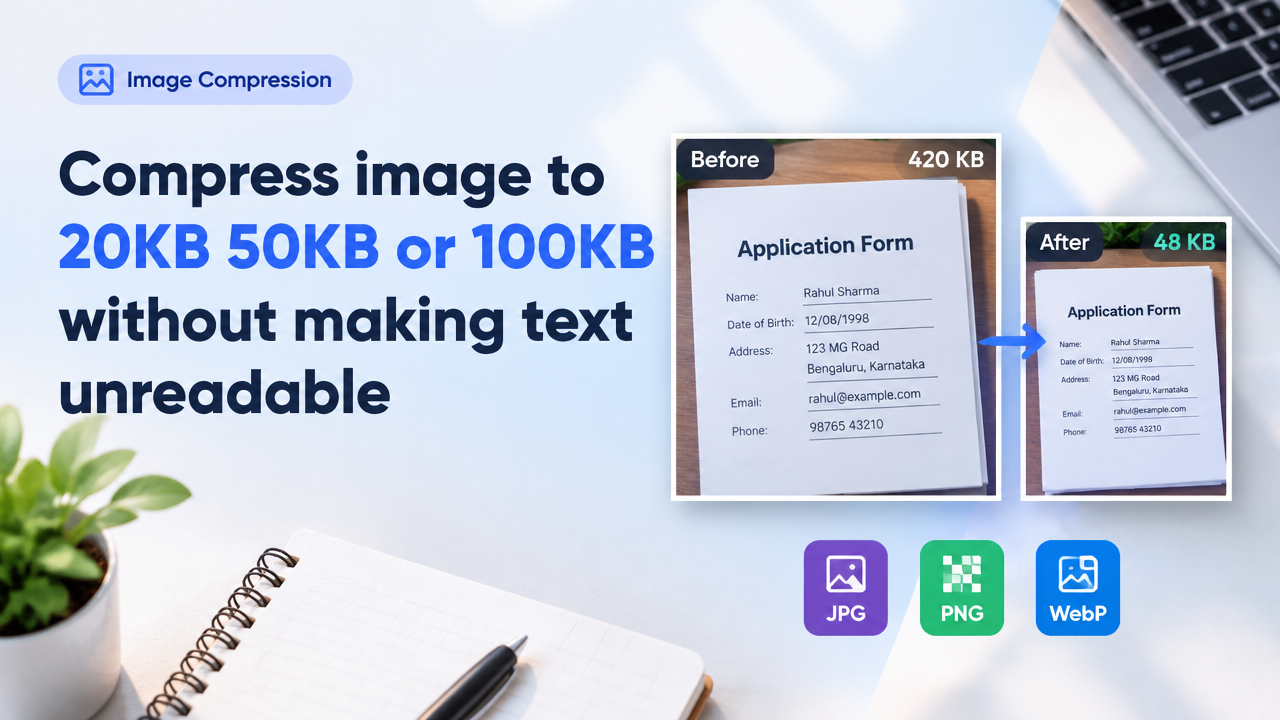
Short answer: Yes — you can often compress a photo or scanned form to 100KB, 50KB or even 20KB and keep text readable by choosing the right format, sizing, mild sharpening and iterative quality settings. Below are clear steps, settings and troubleshooting for images that contain text (forms, receipts, signatures) and photos with overlay text.
How file size, dimensions and quality interact
File size (KB) depends on three main things:
- Image dimensions (width × height in pixels): bigger pictures = larger files.
- File format and compression type: JPG (lossy), PNG (lossless for simple graphics), WebP (modern lossy/lossless) behave differently for text and photos.
- Compression quality and filters: lower quality, stronger chroma subsampling, or higher jpeg quantization reduces size but can blur small text.
Goal: reduce dimensions and compress just enough to meet the KB target while keeping characters sharp and readable.
Best formats when you need readable text
- PNG — good for screenshots, digital forms, graphics with flat colours and sharp text (lossless). Files can be large but are crisp.
- JPG — best for photographs. For text-containing photos, careful JPG compression (quality 60–85) plus mild sharpening can work. Beware blocking artefacts around small text.
- WebP — often gives smaller files than JPG at similar visual quality and preserves text better in many cases; check target site compatibility before uploading.
- Grayscale — if colour is not needed (black text on white), converting to grayscale or 1-bit/8-bit can drastically reduce size.
Quick checklist: before you compress
| Action | Why it matters |
|---|---|
| Crop tightly around text | Reduces pixels to compress, keeps focus on text |
| Use appropriate format (PNG/JPG/WebP) | Matches image type for best quality-to-size |
| Resize to reasonable dimensions | Avoid huge pixel sizes you don’t need for the target (web/form) |
| Sharpen slightly after resize | Restores edge clarity lost during downscaling/compression |
| Iterate quality settings | Try steps until you hit target KB but keep text readable |
Recommended starting dimensions for readable text (guideline)
These are general starting points — increase if the receiving system requires higher resolution:
- Small screenshots or signatures: 600–800 px on the long side
- Form photos or scanned page with small printed text: 1200–1600 px on the long side
- High-detail documents for OCR: 1600–2400 px (but file size will rise)
Step-by-step workflows for 100KB, 50KB and 20KB targets
Common initial steps (do these first)
- Open your image in an editor or the Smart Image Resizer compressor/resize tool: Smart Image Resizer, Converter & Compressor.
- Crop to remove margins and unimportant background.
- Decide the long-side pixel size based on the ‘Recommended’ table above.
- If colour isn’t necessary, convert to grayscale.
Workflow: compress to ~100KB (easy, best text retention)
- Resize to 1200–1600 px on the long side for most scanned pages or phone photos.
- Save as WebP or JPG. Try WebP quality 70–80, or JPG quality 70–80 (progressive JPG if available).
- Apply a small amount of sharpening (0.5–1.0 radius, low amount) after resize and before saving.
- If resulting file >100KB, reduce long side to 1000–1200 px or lower quality in 5-point steps until under 100KB. Check text legibility at each step.
Workflow: compress to ~50KB (moderate)
- Crop tightly around text. Aim for 800–1200 px long side depending on original.
- Try WebP at quality 60–72 first — often better than JPG for mixed content.
- If JPG is required, use quality 60–70 and enable chroma subsampling (4:2:0 usually okay for photos but may soften small-colour text; for colourful logos avoid heavy subsampling).
- Sharpen lightly after resizing and before final save.
- Check at full zoom for any illegible characters. If unreadable, increase resolution slightly and re-compress.
Workflow: compress to ~20KB (challenging for text-heavy images)
20KB is tight for images containing small printed text. Use this only when small display size or simple signatures are acceptable.
- Crop as much as possible — only the essential text region should remain.
- Set long-side pixels to 600–800 px (or smaller for single-line signatures).
- Convert to grayscale if colour is unnecessary.
- Save as WebP (quality 50–65) first. If WebP not supported, try JPG at quality 45–60 and progressive option off/on to test which gives better text clarity.
- If text becomes unreadable, increase resolution slightly; sometimes a larger image with slightly higher KB is better than a tiny unreadable file.
Practical tips and tools
- Always view the compressed image at native (100%) scale — what looks OK when zoomed out may be unreadable zoomed in.
- Sharpen after resize: downscaling softens edges, a small unsharp mask can recover letter clarity.
- Try both WebP and JPG and compare; WebP often gives smaller files with better text fidelity.
- For OCR or official forms, keep a high-resolution master copy and create compressed copies only for upload.
- Use Smart Image Resize online tool for quick iterate-and-test: smartimageresize.com.
Common mistakes and how to avoid them
- Over-compressing too soon: reducing quality to hit a KB target without resizing or cropping first. Crop then resize, then compress.
- Sharpening before compression: sharpen after resizing and right before saving because compression can soften edges.
- Using PNG for photographs: PNG can create very large files for photos — use JPG or WebP instead.
- Not checking at 100%: small text may look fine scaled down, but at actual pixel size it can be unreadable.
- Uploading wrong format to forms: many government or official portals expect JPG; always verify the required format — see our guide on verifying government form photo requirements: Government Exam Form Photo Requirements.
Privacy and processing note
If you are compressing sensitive documents (IDs, exam forms, bank statements), avoid public sharing. Use the browser-based tools on our site or offline apps where the image does not leave your device. Check the tool’s privacy statement for server-side uploads. For OCR or image-to-text guidance, see our detailed OCR guide: Image to Text OCR Guide.
Troubleshooting: why text still looks blurry
Possible reasons and fixes:
- Too low resolution: increase long-side pixel count slightly.
- Compression artefacts: try WebP or a slightly higher JPG quality.
- Colour subsampling softened edges: disable subsampling if your tool supports it or use PNG for very small text.
- Incorrect sharpening: oversharpening creates halos; use gentle unsharp mask.
For more on why images become blurry after compression and how to reduce quality loss, read: Why an Image Becomes Blurry After Compression.
Frequently Asked Questions
Tools and further reading
Try iterating with online tools such as our Smart Image Resizer compressor: smartimageresize.com. For choices between formats and quality trade-offs consult: JPG PNG WebP Quality vs File Size and for when to use a resizer vs compressor: Image Resizer vs Compressor vs Cropper vs Converter.
Conclusion
Compressing images to 100KB, 50KB or 20KB while keeping text readable is a practical balancing act: crop tightly, choose the right format (WebP or JPG), resize sensibly, sharpen after scaling, and iterate quality settings. For sensitive documents, keep a high-quality master and verify portal format rules before upload. Use the step-by-step workflows above as a checklist and test at 100% zoom to confirm legibility before submitting.
Try the matching Smart Image Resize tool
Use the closest live SmartImageResize tool for the task in this guide. For government or platform uploads, verify the latest official requirement before final submission.
Open Image Resizer Online in KB – Resize to 20KB, 50KB & More Free


