
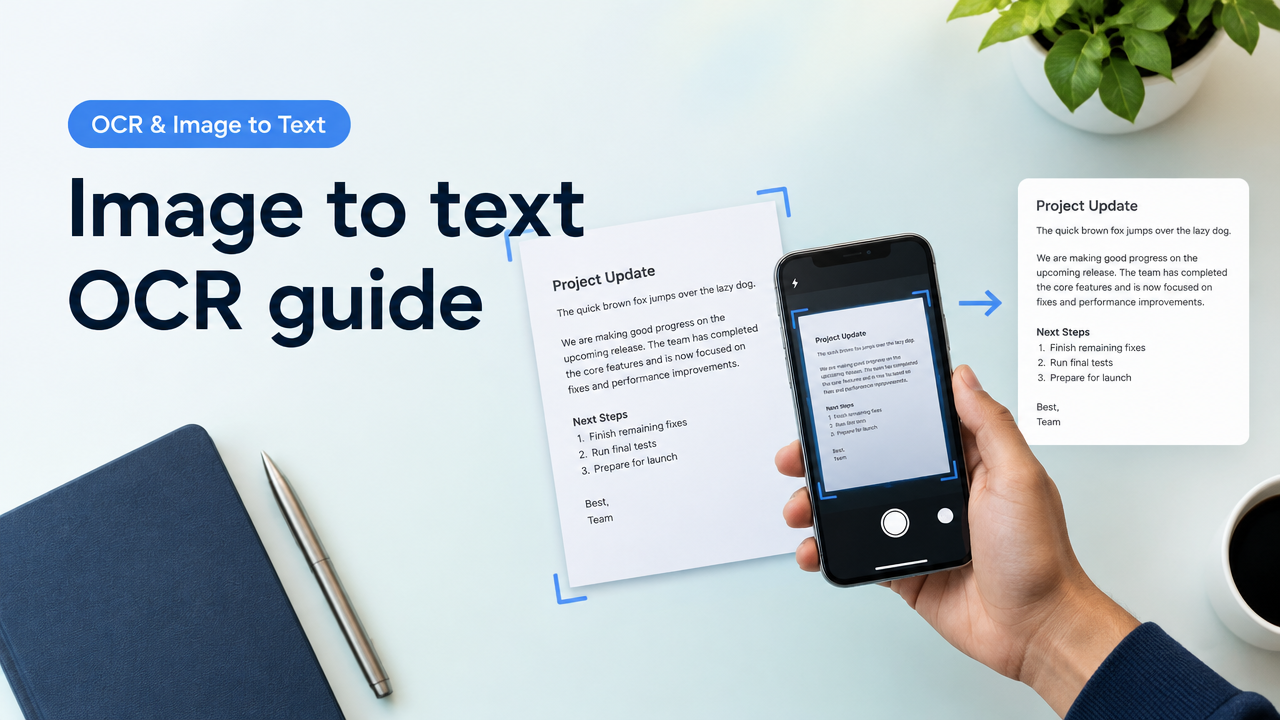
Family: Practical — OCR & Image to Text. This guide shows how to capture or clean an image so OCR can extract readable text reliably, then how to choose tools and post-edit results.
Answer first — the short workflow
Capture a sharp, flat, high-contrast image (aim for 200–300 DPI for scanned pages or a high-resolution phone photo). Crop and deskew, increase contrast and reduce noise, then run OCR with a tool that supports your language and layout. Proofread and export. Follow the checklist below for the fastest path to usable text.
Quick capture and preprocessing checklist
| Step | Why it matters | Practical tip |
|---|---|---|
| Use a scanner or flat camera | Reduces perspective distortion and blur | Place document on a dark, flat surface; use scanner app if available |
| High resolution | More pixels = cleaner character shapes | Phone photo: use the rear camera, tap to focus, avoid digital zoom |
| Avoid glare | Glare hides strokes and causes recognition errors | Indirect daylight or diffuse lamp; tilt to remove reflections |
| Crop tightly | Removes background and speeds OCR | Crop only the page area; leave small margins if layout must be preserved |
| Deskew | Straight lines help OCR segment lines and words | Rotate so text baselines are horizontal before OCR |
| Improve contrast | Separates ink from paper | Increase brightness/contrast; convert to grayscale if colour isn’t needed |
| Remove noise | Speckle and compression artifacts confuse OCR | Use denoise or unsharp mask moderately |
Step-by-step OCR workflow (detailed)
- Capture or open the image — Use a document scanner app, flatbed scanner, or a steady phone photo. For HEIC photos from iPhones, convert to JPG if your OCR tool has trouble (see HEIC to JPG guide linked below).
- Crop and deskew — Remove extraneous background and rotate so text lines are horizontal. Most scanner apps include an auto-crop and perspective correction.
- Enhance — Boost contrast, desaturate to grayscale for printed text, and remove shadows. Avoid over-sharpening — it can create artifacts.
- Save in a compatible format — Common inputs are JPG, PNG, or searchable PDF (image-only PDF also works). If the image is heavily compressed, recompressing isn’t helpful; always keep a high-quality original for OCR.
- Run OCR — Pick a tool that supports your language and layout (single column, multi-column, tables). Test one page first to check accuracy.
- Proofread and correct — OCR is rarely perfect; verify numbers, names, and alignment. Use find-and-replace or spreadsheet tools for bulk corrections.
- Export and save — Choose plain text for editing, a searchable PDF for archiving, or rich text/Word if preserving formatting matters.
Preprocessing techniques that improve accuracy
Good input is the single biggest factor for OCR success. Here are widely useful preprocessing steps and how they help:
- Grayscale conversion: Removes colour noise so the OCR focuses on character shapes.
- Contrast and brightness: Increase contrast to separate ink from paper; lower brightness slightly if the background is bright.
- Gaussian blur + binarization: For some printed pages, a small blur followed by adaptive thresholding (binarization) can improve character edges. Avoid extreme thresholding on shaded pages.
- Despeckle/denoise: Removes small dots and compression artifacts that OCR can misread as punctuation.
- Deskew and straighten: OCR engines assume horizontal baselines — rotate images to align text horizontally.
If your image becomes blurry after editing or compression, see our troubleshooting page on why images go blurry after compression for safe workflows and preserving quality.
Choosing the right OCR tool & privacy considerations
Tool choice depends on document sensitivity, layout complexity and language support:
- Mobile apps: Google Lens, Microsoft Lens and Apple Live Text are quick for single pages or screenshots. They’re convenient but may upload data depending on your settings.
- Online OCR services: Fast and often good at layout retention. Check service privacy and data retention policies before uploading sensitive IDs, bank statements or government documents.
- Offline/desktop OCR: Tesseract (free) and commercial desktop tools keep data local and are preferable for confidential documents. They may require more setup but give better privacy control.
For uploads to government portals (admissions, tax, passport), verify allowed formats and file-size limits on the issuing authority’s site before OCR and submission. Our government exam form photo requirements guide explains how to verify current notifications and resize safely.
Handling common OCR limitations
OCR is not magic. Expect trouble in these cases and use these fixes:
- Handwritten text: Most OCRs struggle with cursive. Try specialized handwriting OCR or manual transcription.
- Low contrast or faded ink: Use contrast boosts and histogram equalization. If characters are too faint, manual correction may be required.
- Complex layouts (tables, multi-column): Use an OCR that supports layout detection or export to a format that preserves columns; then clean up in a spreadsheet or Word processor.
- Stamps, signatures, watermarks: These can obstruct characters; cropping or masking non-text regions helps. See our guide on signature photo rejection reasons for upload tips when dealing with signatures.
- Different languages or fonts: Ensure your OCR tool has the correct language pack or engine selected.
For more detail on blurred handwriting and low-contrast problems, consult our OCR mistakes page that explains common failure modes and fixes.
Export, filenames and image SEO for searchable archives
Choose the export that fits your use:
- Plain text (.txt): Best for quick editing and search indexing.
- Searchable PDF: Keeps the original page image and overlays selectable text; good for archives and official records.
- DOCX / RTF: Useful if you need preserved formatting but expect imperfect layout conversion.
When saving files for websites or record-keeping, use descriptive filenames and compress images without losing legibility. Our guide on JPG/PNG/WebP quality vs file size explains compression trade-offs and best formats for web or forms.
Practical examples: screenshots vs photographed documents vs scanned PDFs
- Screenshots (chat, code, receipts): Typically high contrast and already cropped. Run OCR directly after cropping; ensure the screenshot contains full lines (avoid cut-off text).
- Phone photos of pages: Watch perspective distortion — use a scanner app with perspective correction. Crop and deskew before OCR.
- Scanned PDFs: If the PDF is image-only, extract pages as images or run OCR in a tool that produces searchable PDF. Keep original scans in case you need to reprocess with different settings.
Common mistakes & tips for better results
- Uploading compressed, low-resolution images — always keep a higher-resolution original for OCR.
- Skipping proofreading — numbers (IDs, amounts) are frequent OCR errors; always manually verify.
- Relying on default language — explicitly set the OCR language to match the document.
- Over-editing images — extreme thresholding or heavy sharpening can create artifacts that reduce accuracy.
- Ignoring privacy — do not upload sensitive documents to unknown or untrusted online OCR services. Prefer offline tools for confidential material.
Frequently Asked Questions
Useful SmartImageResize links
- HEIC to JPG Conversion Guide for iPhone Photos and Web Uploads
- OCR Mistakes with Blurred Handwriting and Low Contrast — How to Improve Input
- Why an Image Becomes Blurry After Compression — How to Reduce Quality Loss
- JPG PNG WebP Quality vs File Size: Balanced Compression Guide
Conclusion
Good OCR starts with a good image: sharp, well-lit, straight and high-contrast. Spend time on capture and preprocessing — it saves hours of correction later. Choose an OCR tool that meets your privacy, language and layout needs, then proofread carefully. Follow the checklist above for reliable results whether you’re extracting text from screenshots, scans or photographed documents.
Need a quick conversion or resize before OCR? Start with our Smart Image Resizer tool on the homepage to crop, convert or compress without losing legibility.
Try the matching Smart Image Resize tool
Use the closest live SmartImageResize tool for the task in this guide. For government or platform uploads, verify the latest official requirement before final submission.


