
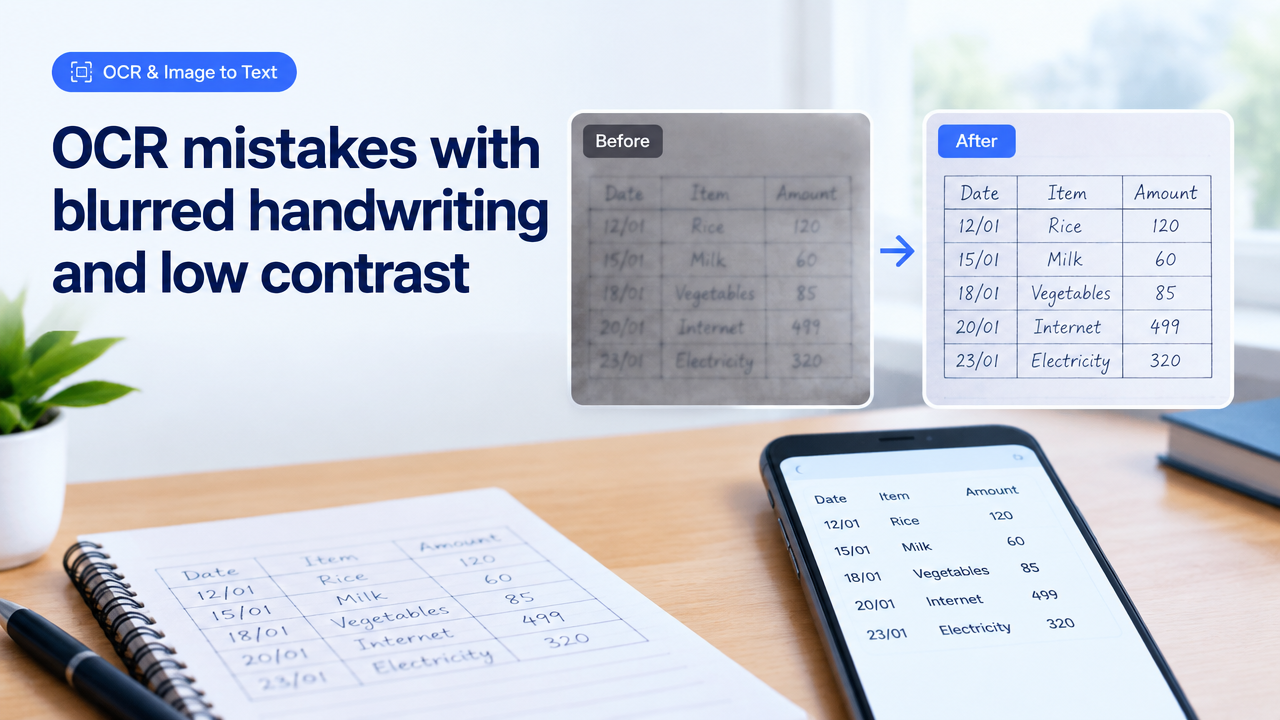
OCR mistakes with blurred handwriting and low contrast — how to improve input for better OCR
Short answer: OCR fails on blurred handwriting and low-contrast table photos because the characters lose sharp edges and contrast needed for segmentation. Improve results by recapturing with steady focus and good lighting, increasing resolution (150–300 DPI for printed-like text), deskewing/cropping, enhancing contrast and denoising, then use an OCR engine suited for handwriting or manual transcription for messy handwriting.
Why blurred handwriting and low contrast break OCR
- OCR algorithms rely on clear strokes and contrast differences between ink and paper. Blur softens stroke edges and merges adjacent marks, so characters look like blobs.
- Low contrast (pale ink, yellowed paper, shadows) reduces the signal-to-noise ratio; OCR can’t separate text from background or table lines.
- Tables introduce vertical/horizontal lines, merged cells, and small cell text; blur and low contrast make cell borders and separators ambiguous.
- Handwriting adds variability in shape, spacing and slant — so even small image quality problems magnify OCR errors.
Quick checklist: what to do before OCR (one-page)
| Problem | Why it hurts OCR | Fix before OCR |
|---|---|---|
| Blurred photo | Edges lost, characters merge | Retake with steady hands, tripod, faster shutter, use scanner or macro mode |
| Low contrast | Ink blends with paper or shadows | Improve lighting, adjust exposure, increase contrast in editor |
| Skewed/rotated page | OCR misreads lines and table structure | Deskew or rotate so text lines are horizontal |
| Small text/cells | Insufficient resolution | Increase DPI or crop to each cell and upscale if needed |
| Noise (dust/texture) | False positives in character detection | Denoise or use binarization carefully |
Step-by-step workflow to improve images before OCR
- Decide capture method: Use a flatbed scanner for forms and tables when possible. If using a smartphone, use a scanner app or the camera with a flat lay setup.
- Recapture best-practice:
- Use even, diffuse lighting. Avoid glare or uneven shadows across the page.
- Hold the camera parallel to the page; use a ruler, tripod, or rest your elbows to avoid blur.
- Use macro/close focus or scanner mode so the camera autofocuses correctly on handwriting.
- Make sure the camera focuses — tap the screen to focus before shooting.
- Set resolution: Aim for an image where text height is at least 20–30 pixels high at OCR time for small printed text; for handwriting, capture higher — 300 DPI where possible. (These are practical guidelines; check your OCR provider for recommended DPI.)
- Crop and deskew: Crop to the table or form area. Rotate or deskew so rows are horizontal — most scanning apps and image editors offer automatic deskew.
- Enhance contrast / exposure: Increase contrast and exposure only enough to make ink darker than background. Avoid clipping highlights if there are printed box lines or stamps.
- Denoise and sharpen carefully: Remove camera noise and apply light sharpening to restore stroke edges. Over-sharpening creates artifacts that also confuse OCR.
- Binarize or use adaptive thresholding: For many OCR tasks, converting to a clean black-and-white (binarization) using adaptive thresholding helps separate ink from background, especially with uneven lighting.
- Split complex tables: If the table has many small cells, crop and export each row or column block separately before running OCR to improve detection.
- Choose the right OCR engine: Use OCR engines that support handwriting if text is handwritten (e.g., modern cloud OCR services or specialized handwriting recognition models). For printed forms, standard OCR performs well but will still need good input.
- Review and correct: Expect errors for messy handwriting; review OCR output and correct with a lightweight editor or by comparing against the image.
Preprocessing techniques explained (what they do and how to apply)
- Deskew: Straightens the page so baselines are horizontal. Most OCR tools have a deskew option; image editors like the Smart Image Resizer site tools can help you crop and rotate precisely. See crop/rotate tool: Crop, Rotate & Enlarge.
- Adaptive thresholding / Binarization: Converts the image to black-and-white while handling uneven lighting. Use adaptive methods (local threshold) instead of global threshold for shadows or stained paper.
- Denoise: Reduces camera/grain noise. Use mild denoise filters to avoid blurring strokes; median or non-local means filters are good choices.
- Sharpen: Small unsharp mask or high-pass sharpening can restore clarity to faded strokes; test with OCR to make sure sharpening improves rather than adds artifacts.
- Upscale with caution: If the text is too small, moderate upscaling with AI upscalers can help OCR by making strokes larger. Prefer retained-edge upscalers and avoid extreme enlargements.
Handwritten tables: special tips
- Isolate cells: Crop each cell or small rows before OCR if handwriting varies a lot between cells — this reduces context confusion and improves segmentation.
- Flatten lines: If table borders are faint and cause confusion, create a cleaned copy with darker cell lines (so OCR can find the grid), or remove lines if they interfere with handwriting detection.
- Use handwriting-capable OCR: Ordinary OCR tuned for printed text will struggle. Try cloud services or specialized handwriting recognition engines; they still may not reach 100% accuracy.
- If accuracy is critical: Consider manual transcription or hybrid workflows: OCR first, then human review. For government forms and IDs, human review is often necessary to avoid rejection.
Common mistakes people make (and how to avoid them)
- Taking photos at an angle — always deskew or retake straight above the page.
- Relying on aggressive auto-enhance — automatic filters can add halos or remove faint strokes. Make conservative edits.
- Using heavy JPEG compression — saves space but introduces artifacts that look like text to OCR. Save as high-quality JPEG or PNG for OCR input (see quality guidance below).
- Not checking sample output — run a small test and inspect errors. Iteration is faster than processing many images poorly.
- Expecting perfect handwriting OCR — set realistic expectations and budget time for manual correction.
File format and compression guidance
For OCR input, prefer lossless or high-quality lossy formats. PNG preserves edge clarity and is safe for binarized images; high-quality JPG (quality 85–95) keeps file sizes moderate while preserving strokes. Avoid heavy compression and repeated re-saves. For web-upload forms that enforce KB limits, balance resolution and quality: crop tightly to the table area, then compress just enough to meet the limit without creating visible artifacts. For help choosing conversion/compression tools and strategies, see our converter and quality guide: JPG PNG WebP Quality vs File Size and the tools comparison: Resizer vs Compressor vs Cropper vs Converter.
Tool recommendations and SmartImageResize workflow
Use a scanner or a dedicated scanning app when possible. For quick fixes and cropping, SmartImageResize tools can help you deskew, crop and export at the right size and quality. Start with cropping and rotation (see Crop tool), then resize or compress as needed while preserving quality. If you need to process many pages, use a bulk workflow and then run OCR on the cleaned images: Crop & Rotate, Bulk Image Resize Workflow, and our home tool hub: Smart Image Resizer.
If your documents are government forms, always verify the accepting agency’s upload requirements before resizing or compressing. For example, some e-services list max KB or pixel dimensions and will reject poor-quality captures — see our guidance on common upload rejection reasons: Passport photo upload rejections (the same principles apply to file clarity).
When to use manual transcription or a service
Use manual transcription when:
- Handwriting is highly stylized, inconsistent, or very faint.
- Accuracy is essential (legal, financial, government submission).
- OCR yields too many errors and manual correction would be faster than repeated preprocessing attempts.
For large volumes, consider hybrid services: OCR + human review. For occasional forms, a short manual check and correction step after OCR is usually enough.
Frequently Asked Questions
Conclusion
Most OCR mistakes from blurred handwriting and low contrast are preventable with better capture and careful preprocessing: recapture with steady focus and good lighting, crop and deskew, raise contrast, denoise lightly, and choose an OCR engine suited to handwriting. For repetitive or critical tasks, adopt a hybrid OCR + human review workflow. Use image tools to crop, rotate and export at the right quality, then iterate on a few sample pages before processing the whole batch.
Need a fast way to crop, deskew and export OCR-ready images? Start with our crop and rotate tools and quality guide: Crop & Rotate and JPG/PNG quality guide. If you have many pages, see our bulk workflow tips: Bulk Image Resize Workflow.
Good input makes OCR accurate and fast—spend a few minutes improving image quality and you’ll save time correcting errors later.
Try the matching Smart Image Resize tool
Use the closest live SmartImageResize tool for the task in this guide. For government or platform uploads, verify the latest official requirement before final submission.


