
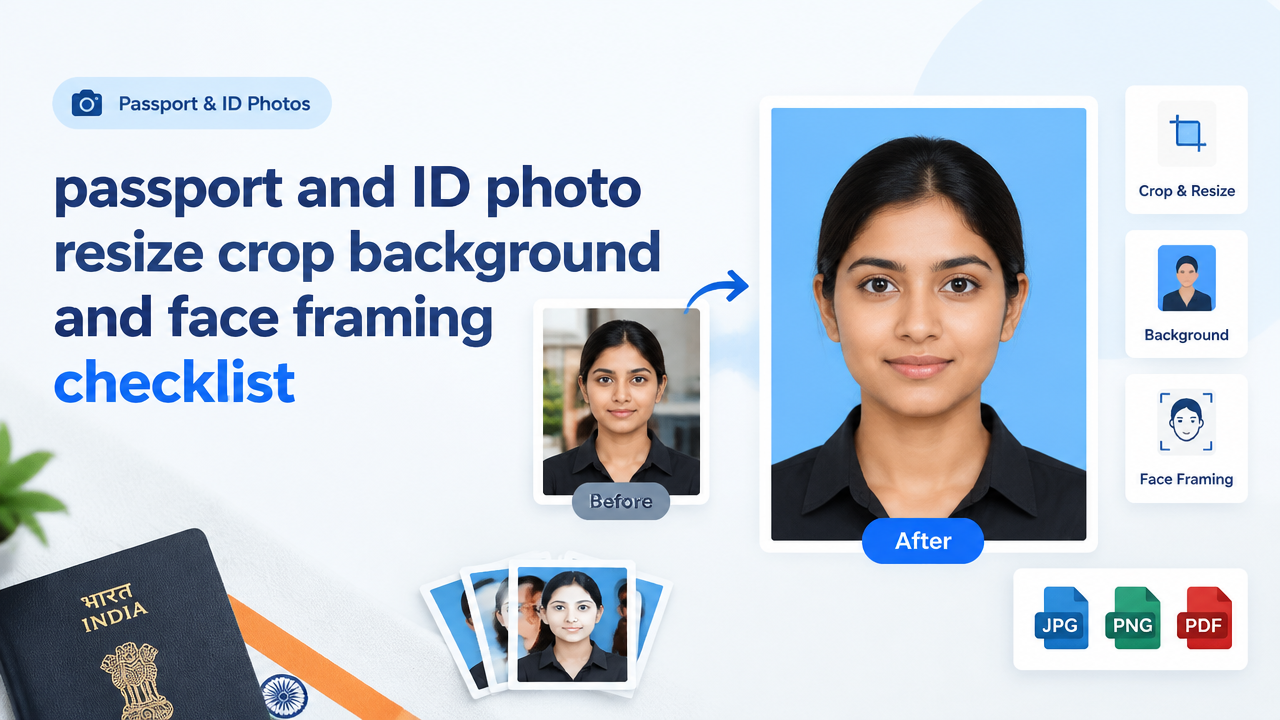
Passport and ID Photo Resize, Crop, Background & Face-Framing Checklist
Quick answer: Always verify the official photo dimensions and file rules from the issuing authority first, then use a controlled workflow: check image clarity, crop to the correct aspect ratio, centre the head with recommended clear space, replace or clean the background if needed, and compress without introducing blur. Below is a practical checklist and a step-by-step guide to get an acceptable upload-ready image.
1. Before you edit — verify the official requirements
Different authorities and forms (passport office, government exams, Aadhaar, visa, college ID, employer cards) have different rules for size, aspect ratio, head size, background colour and file type. Do not assume a single standard.
- Open the official form or issuing authority website and find the photo/upload instructions. Look for exact dimensions, aspect ratio, background colour, file type (JPG/PNG/PDF) and maximum file size in KB/MB.
- If the instruction is in a PDF or notice, download and save it so you can follow the same spec while editing.
- If you see any conflicting notes (for example a dimension and a separate head-size rule), follow the most recent official notification or contact the authority for clarification.
2. Quick checklist (at-a-glance)
| Item | What to confirm or fix |
|---|---|
| Official dimensions & file type | Verify on the issuing authority’s instruction page |
| Face & head framing | Head centred, eyes level, required clear space above and around head |
| Background | Plain, even colour with no shadows or objects |
| Clarity & exposure | No blur, even lighting, neutral expression (or as required) |
| Glasses/Headgear | Follow the authority guidance — remove glasses if required; religious headgear allowed if it doesn’t hide the face |
| File size | Compress only after meeting dimensions; verify maximum KB limit and quality |
3. Step-by-step resize, crop and background workflow
- Start with the best source image. Use the highest quality original photo you have — smartphone original or a high-res scan. Avoid screenshots or heavily compressed copies.
- Check resolution and clarity. Zoom in to confirm there is no motion blur or strong JPEG artefacts. If the image is noisy or soft, retake if possible.
- Crop to the required aspect ratio first. Use the aspect ratio specified by the authority. If only final physical dimensions are given, convert them to an aspect ratio before cropping. Keep the camera level so eyes are horizontal.
- Frame the face. Centre the head horizontally. Ensure required head clearance above the hairline and margin on sides — many forms require visible shoulders or a little space around the head. Do not crop too tightly.
- Fix the background. If the background is not plain, replace or retouch it to a uniform colour (as specified). Use feathering of about 1–2 pixels at the hair edge to avoid a hard cutout; avoid halo effects.
- Adjust exposure and colour balance. Correct for under/over exposure, ensure natural skin tones, and remove harsh shadows. Do not oversharpen or over-saturate — keep the look natural.
- Resize to the required pixel dimensions last. Scale the image to the final pixel width and height required. When reducing size, use a high-quality resampling method (bicubic or Lanczos) to preserve detail.
- Save as the required file type, then compress if needed. If a KB limit exists, use lossless-first edits and then controlled lossy compression to reach the limit without creating visible artefacts.
- Validate visually and with the form uploader. Open the final file at native size and confirm no blurring or cropping issues. If the website shows a preview, check there too.
4. Face framing and composition rules (practical guidance)
Most authorities expect the full head and upper shoulders visible, with the face occupying a prescribed portion of the frame. Follow these practical steps:
- Place the eyes approximately one third from the top edge of the image to avoid cutting the hairline or appearing too low.
- Keep shoulders visible if the instruction expects showing clothes; this helps automatic cropping tools center the face correctly.
- Look straight at the camera with a neutral expression if the authority requires; avoid extreme tilts of the head.
- Ensure both ears are visible if required; don’t hide parts of the face with hair or accessories unless medical or religious exceptions apply.
5. Background: replacement and cleanup tips
Background problems cause many rejections. Use these steps when editing:
- Use manual selection tools (lasso, pen) or reliable automatic subject selection. After removing the background, fill with the required plain colour and match exposure/lighting so the subject doesn’t look cut-and-pasted.
- Soften the hair edges slightly to avoid a halo. Avoid extreme smoothing that blurs hair detail.
- Avoid gradients or textures — the background should be even and free from objects or shadows.
6. Compressing and file-size tips without losing necessary detail
Compression rules vary — never compress until the image is cropped and adjusted to the required dimensions.
- Save a master copy in high quality (e.g., high-quality JPG or PNG) before compression.
- When compressing JPG, reduce quality in small steps and inspect at 100% zoom for artefacts around edges and in facial detail.
- If the authority accepts WebP and your uploader supports it, WebP often gives smaller files at similar quality, but confirm compatibility first.
- Use Smart Image Resize’s compressor or follow our guide to balance quality vs file size: Compress Image to 20KB/50KB/100KB — Step-By-Step Guide.
7. Common mistakes and how to fix them
- Too-tight crop: Leaves no margin around the head. Fix by recropping to include shoulders or add canvas before final resize.
- Visible shadows or uneven background: Remove or smooth the background and retouch shadows in the midtones.
- Over-compression: Causes blocky artefacts on skin and hair. Reduce compression level or use WebP if allowed.
- Incorrect aspect ratio: Causes automatic upload rejection or auto-cropping that chops the face. Always crop to the official aspect ratio before resizing.
- Hard selection edges after background replacement: Feather selections slightly and match colour/lighting to blend subject and background.
8. When to retake the photo instead of editing
Edit when defects are correctable (minor shadows, slight exposure issues). Retake if:
- The image is blurred or out of focus.
- Facial features are blocked (hair, sunglasses, masks) and the authority requires them visible.
- There are severe lighting colour casts that cannot be safely corrected without altering natural skin tones.
9. Tools and SmartImageResize resources
Use a controlled online tool or a local editor and always keep a high-quality master copy:
- Smart Image Resize, Converter & Compressor — use the site to resize, convert and compress images after you’re satisfied with crop and background: Smart Image Resizer, Converter & Compressor.
- Read the common upload rejection reasons and fix specific issues: Passport Photo Upload Rejection Reasons.
- For exam and government form advice on verifying requirements before editing: Government Exam Form Photo Requirements — How to Verify.
- If compression causes blur, see how to reduce quality loss: Why an Image Becomes Blurry After Compression.
10. Quick final verification checklist before upload
- The image matches the official aspect ratio and pixel dimensions.
- The face is centred, eyes level, and required margins are present.
- The background is plain, even and correct colour.
- The file type and final size respect the upload limits.
- Image is clear at native size with no compression artefacts on facial detail.
Frequently Asked Questions
Conclusion
Preparing a passport or ID photo for upload is a predictable workflow: verify the official requirements first, then follow a clear edit order — crop to ratio, frame the face, fix the background, adjust exposure, resize to final pixels, and compress carefully. Use the checklist above before uploading to reduce the chance of rejection. When in doubt, retake the photo to avoid artificial edits that change the subject’s appearance.
Try the matching Smart Image Resize tool
Use the closest live SmartImageResize tool for the task in this guide. For government or platform uploads, verify the latest official requirement before final submission.
Open Passport Size Photo Resizer Online – Official ID Photo Tool


