Resize image to exact KB and pixels for online upload
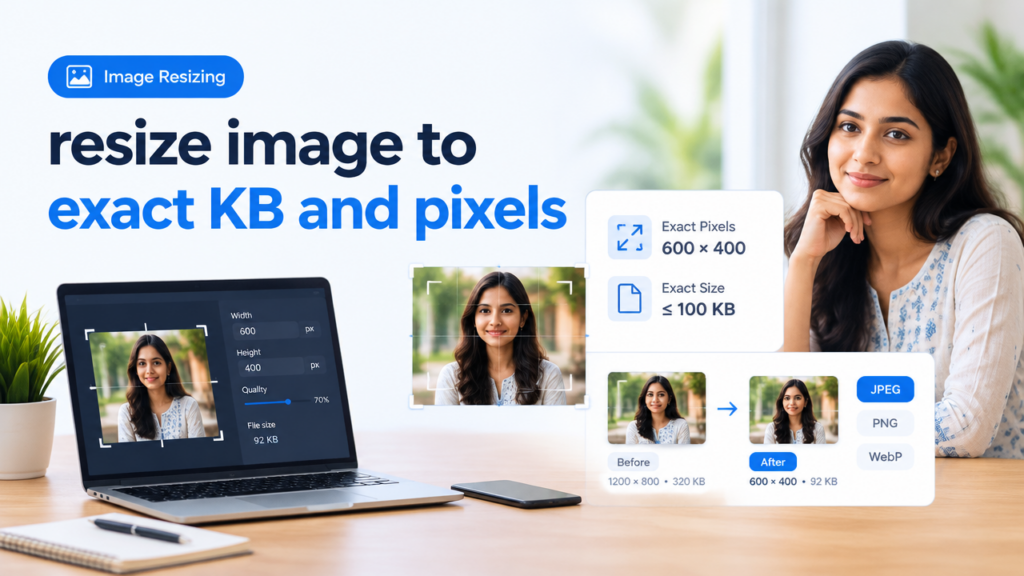
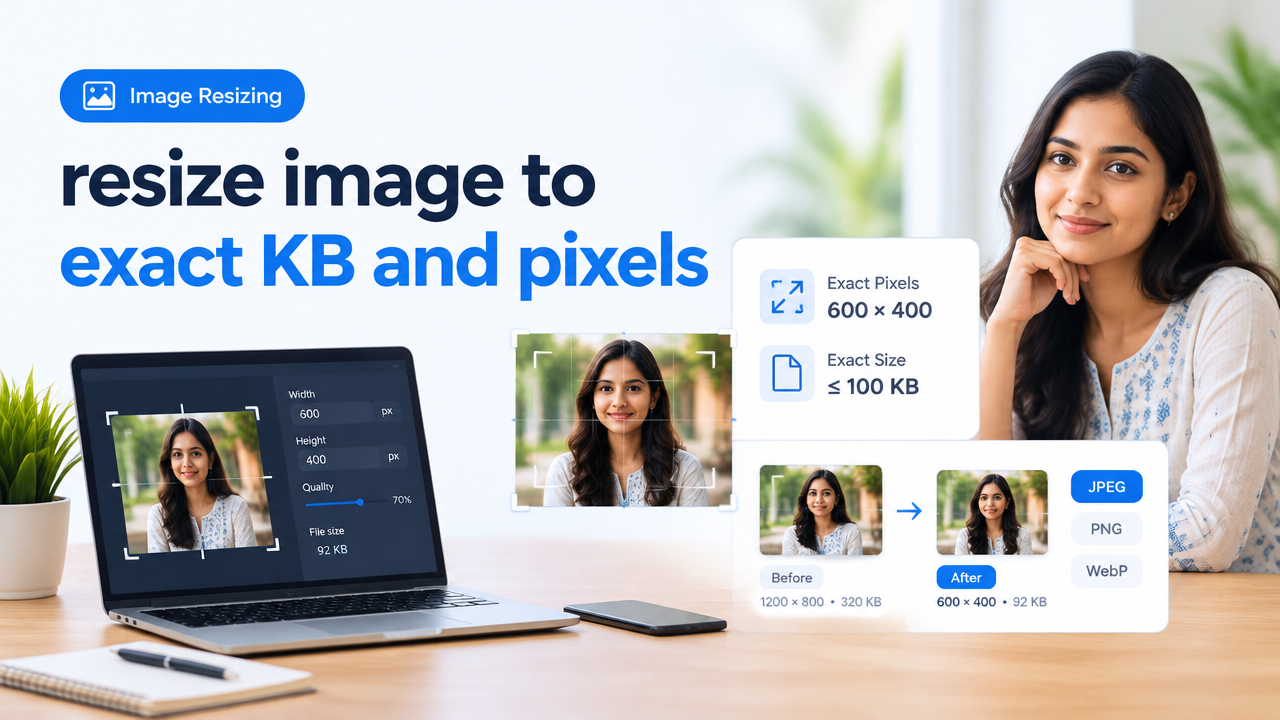
Quick answer: Decide the required pixel dimensions first, then use format + quality adjustments (or an iterative/binary-search save) to meet the KB limit while keeping readable text and detail. If the site gives both a pixel and KB rule, resize to pixels first, then compress to meet the KB using quality, format switches (JPEG/WebP/PNG), and small crops or metadata removal.
Why pixels, KB and quality are different—and why order matters
Pixels (width × height) control how large the image appears on screen. KB (file size) is the compressed storage size. Visual quality depends on resolution, compression algorithm and how much detail (sharp edges, text) your image contains. Always meet pixel dimension requirements first—many upload checks reject images on dimensions even if file size is OK. Once dimensions are set, reduce file size carefully to keep important parts readable.
Overview: a practical 6-step workflow
- Verify the current official requirement (pixel dimensions and KB limit) on the target site to avoid rejection.
- Crop and frame to remove empty margins—reduce pixels to the exact required dimensions if given.
- Choose the best format for the content (see format guidance below).
- Perform a quality/size adjustment using an online tool, editor or command-line. Aim for just under the KB limit.
- Check readability at 100% zoom (text, signatures, ID numbers). If unreadable, increase quality slightly or crop more tightly and repeat.
- Strip metadata and re-check file size. If you still need a precise KB target, use iterative quality adjustments or a tool that targets exact size.
Which format should you choose?
| Content type | Best formats | Why |
|---|---|---|
| Photograph / face / ID photo | JPEG or WebP | Good balance of quality vs size; WebP tends to be smaller at same quality if supported. |
| Screenshots, text, signatures, line-art | PNG (lossless) or high-quality WebP | Preserves sharp edges and text clarity better than heavy JPEG compression. |
| Transparent images / logos | PNG or WebP (with alpha) | Retains transparency; JPEG cannot. |
Two common approaches to hit a KB target
1) Simple — use an online compressor with a target size
Many online tools (and some desktop apps) let you set a target KB and will compress until the file is under that size. This is fast for most users. After compressing, open the image at 100% and confirm any text or faces are readable. If not, try a slightly larger KB target or crop to remove non-essential pixels and repeat.
2) Precise — iterative (binary search) quality saves
For exact control, use an editor that lets you set JPEG/WebP quality and re-save repeatedly. Start with a quality of 85. If file size is higher than the limit, lower quality to 70; if lower than the limit by a lot, raise quality. Use binary search (halve the step each time) to converge quickly to the desired file size. This preserves as much quality as possible while hitting the KB goal.
Advanced: a command-line shortcut with ImageMagick
If you are comfortable with the command-line and have ImageMagick installed, ImageMagick provides a fast way to target a JPEG size:
convert input.jpg -resize 600x600> -strip -define jpeg:extent=100KB output.jpg
Notes: -resize 600×600> ensures you don’t enlarge small images; -strip removes metadata; jpeg:extent asks ImageMagick to attempt to make the file under the specified size. Always open the result to check readability. (If you don’t have ImageMagick or prefer a GUI, use an online tool or your image editor.)
Practical checklist: actions and when to use them
| Problem | Action | Why it helps |
|---|---|---|
| File too large after resizing | Lower JPEG/WebP quality in steps or switch to WebP | Compression reduces bytes while often keeping acceptable look |
| Text or signature blurred | Use PNG or higher-quality WebP, crop tightly around text | Lossless or milder compression keeps edge detail sharp |
| Dimensions wrong | Resize to exact required pixels before compression | Many uploaders reject wrong pixel sizes regardless of KB |
| Still over KB limit | Remove metadata, crop, reduce color variety, or lower quality again | Metadata and excessive color/detail increase file size |
Step-by-step example: ID photo upload with 200 KB limit and 600×600 px requirement
- Open the original photo in an editor. Crop to face area and set canvas to 600×600 px. Use Bicubic or Lanczos resampling to preserve detail.
- Save as JPEG at quality 90 and check file size. If ≤200 KB, you’re done. If not, continue.
- Try WebP export at quality 80 and check size — often smaller than JPEG at similar visible quality.
- If still >200 KB, reduce JPEG/WebP quality in 5–10 point steps, checking readability at 100% after each save.
- If text or fine detail degrades, undo last step, crop slightly tighter around the head, and repeat saves to bring size down without hurting the important area.
- Finally, remove EXIF/metadata (there is usually a checkbox in the export dialog) and re-check file size.
Common mistakes and how to avoid them
- Compressing before resizing: compressing a large image then scaling up or down can cause unexpected quality loss. Resize first to target pixels.
- Relying on a single preview: always view the final image at 100% zoom or the uploader’s preview zoom—some compression artifacts only appear at full scale.
- Using JPEG for text/signature images: JPEG can blur edges; use PNG or high-quality WebP when text sharpness matters.
- Not checking file metadata: metadata can add many KBs. Use the export option to remove it when not needed.
- Assuming exact KB checks are impossible: some servers expect ‘less-than or equal’ not exact bytes. If a strict exact byte count is required, consult the uploader’s instructions—some validators test binary length and may reject modified files.
Useful related SmartImageResize resources
- Compress Image to 20KB 50KB or 100KB Without Making Text Unreadable — Step-By-Step Guide — great when readability matters.
- Image Resizer vs Compressor vs Cropper vs Converter: Which Tool Should You Use — to pick the correct tool for each step.
- Signature Image Resize Crop Whitespace KB Reduction Guide for Online Forms — specific tips when a signature must stay legible under a KB limit.
- JPG PNG WebP Quality vs File Size — comparison to help format choice.
Frequently Asked Questions
Final tips for reliable uploads
- Always keep a copy of the original image before aggressive edits.
- Test uploads on the target site where possible—local previews can differ from server-side checks.
- If you get a rejection, check both pixel dimensions and KB in the rejection message; adjust only the part that caused failure.
- When in doubt, crop tighter around the essential subject rather than over-compressing; fewer pixels often give more room to preserve quality at the KB limit.
Need step-by-step help for a specific form, signature or photo type? Use our tailored guides: Passport and ID Photo Checklist and the Signature KB Reduction Guide linked above.
Bottom line: Resize to required pixels first, pick the right format, then use careful compression or iterative quality saves (or ImageMagick target-size) to meet the KB limit without losing readability.
Try the matching Smart Image Resize tool
Use the closest live SmartImageResize tool for the task in this guide. For government or platform uploads, verify the latest official requirement before final submission.
Open 10 KB to 20 KB Signature Size in Pixels | Online Signature Resizer