
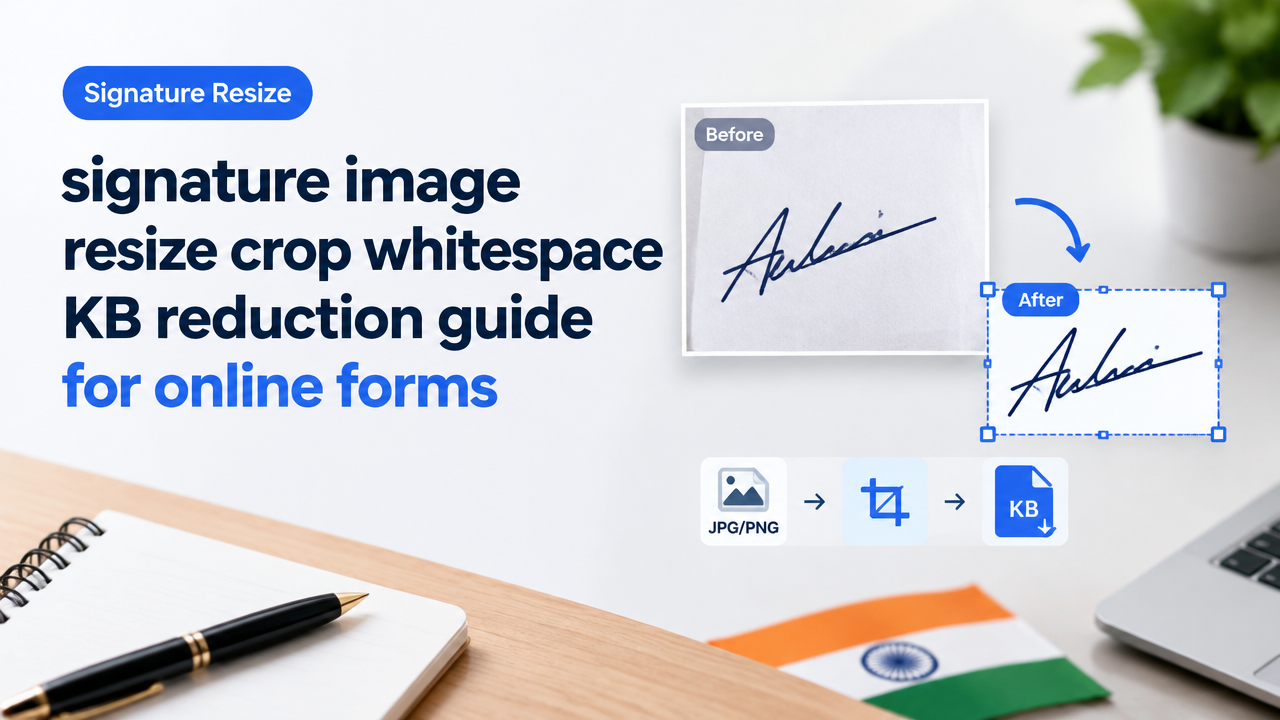
Signature image resize crop whitespace KB reduction guide for online forms
Short answer: crop tightly to the signature, keep a small margin (5–10% padding), convert to the required file type (usually JPG or PNG), then compress until the image size is within the form limit while checking legibility. Always verify the latest instructions on the form provider before upload.
Why this matters
Many Indian government or corporate online forms reject signature uploads because the image is too large (KB), has excessive whitespace, wrong file format, or the signature becomes unreadable after compression. This guide gives a reliable, privacy-conscious workflow and troubleshooting steps so your signature is accepted without losing shape or ink strokes.
How to verify official upload rules (don’t guess)
- Check the form page or PDF instructions for: required file type (JPG/PNG/PDF), maximum KB, exact pixel/dimension limits, or aspect ratio.
- If the notice is absent, look for an FAQ or contact support on the issuing site. For government exams and ID sites, the notification page is the reference—don’t rely on older instructions.
- When in doubt, use conservative settings: save a clear JPG under the stated KB limit, and keep a lossless PNG copy for your records.
Quick workflow — from paper signature to upload-ready file
- Capture: Photograph the signature on plain white paper with a steady hand and diffuse light (no shadows).
- Crop: Crop close to the signature, keeping a 5–10% margin so parts of letters aren’t clipped.
- Remove whitespace: Use an auto-crop/trim or background removal tool to eliminate extra margins while preserving stroke edges.
- Choose format: Use PNG for transparent background or crisp black ink; use JPG if the form requires it or if you need smaller file size.
- Resize: If the form lists pixel dimensions (e.g., max width/height), resize while keeping aspect ratio. If only KB limit is given, focus on compression and small dimension reduction.
- Compress: Reduce quality progressively until under the KB limit without losing signature detail.
- Validate: Zoom to 200% to check strokes; upload a test if the form lets you preview before final submission.
Detailed step-by-step: Crop, remove whitespace and compress (browser tools)
Use a trusted online tool like Smart Image Resizer, Converter & Compressor to handle the common tasks in one place. Link: Smart Image Resizer.
- Open your image in the tool and choose Crop. Draw a box close to the signature, leaving a small margin (5–10%). Apply.
- If the background is textured, use background removal or convert to high-contrast black-on-white by increasing contrast and threshold (many online crop/trim tools offer auto-trim). Keep the ink edges smooth—don’t over-threshold.
- If a transparent background is allowed, export as PNG with transparency. If not, flatten on white and export as JPG.
- For KB reduction: use the compressor. Start at high quality (90–85%), then step down (80, 70) until under the KB limit. Try resizing image dimensions down by 10–20% before heavy compression—smaller pixels often keep strokes clearer at the same KB.
Format choices and trade-offs (PNG vs JPG vs WebP)
- PNG: Best for signatures with solid ink and when transparency is required. Quality remains high, but file size can be larger than JPG for complex scans.
- JPG: Produces smaller files with lossy compression. Good when the form mandates JPG or strict KB limits. Avoid extreme JPG compression—artifacts blur thin strokes.
- WebP: Often gives the smallest file with better quality, but many Indian government portals still expect JPG/PNG. Verify acceptance before using WebP.
- When to choose which: If transparency is needed (e.g., overlay signature), use PNG. If the strict KB limit forces a choice and the portal accepts JPG, use a carefully compressed JPG.
Practical checklist before you upload (table)
| Check | Why it matters | Action |
|---|---|---|
| File type | Portal may accept only specific formats | Confirm and export accordingly |
| File size (KB) | Exceeds portal limit → rejection | Compress/resize until under limit |
| Legibility | Excess compression blurs strokes | Zoom at 200% to check clarity |
| Whitespace/padding | Too much margin may look wrong or exceed dimensions | Crop with 5–10% margin |
| Aspect ratio | Portal may distort if forced into box | Keep original ratio; use centre alignment |
Quick tips for specific problems
- Signature faint or light ink: Increase contrast or scan at higher exposure. Avoid over-contrast that clips thin strokes.
- Large KB but clear: Try converting to PNG and then to JPG with moderate quality (80%), or downscale dimensions slightly.
- Background texture (paper grain): Use a background removal or threshold tool to produce a clean white background.
- Signature cropped by portal: Keep a small margin; if portal auto-crops, start with more margin and then compress or resize.
Common mistakes and how to avoid them
- Over-compressing to meet KB → makes signature blurry. Fix: reduce image dimensions first, then compress gradually and check at 200% zoom.
- Removing too much margin → parts of signature clipped. Fix: leave 5–10% margin when cropping.
- Using wrong file format → rejection. Fix: double-check portal requirements before exporting.
- Assuming government rules haven’t changed. Fix: always verify the current notification on the issuing site.
Tools and workflows: mobile, desktop and browser
Mobile (Android/iPhone): Use the phone camera in good light, then use the built-in crop (Photos app) and a compressor app or an online compressor. On iPhone, export as HEIC by default—convert to JPG/PNG in the Files app or an online converter. See our HEIC conversion guide: HEIC to JPG Conversion Guide.
Desktop: Scan or photograph, open in Paint/Preview for quick crop, then use an online compressor. If you use Photoshop/GIMP, use ‘Save for Web’ or ‘Export As’ with quality settings and preview the size.
Browser-based: Use all-in-one tools like our main tool to crop, remove background and compress in one session: Smart Image Resizer. For aggressive KB reduction on text-containing images, see: Compress Image to 20KB/50KB/100KB.
Before you hit Submit: final validation steps
- Open the final image at 200% and inspect strokes for gaps or artifacts.
- Confirm file type and size meet the portal’s exact values.
- If the portal lets you preview the uploaded image, use it—some portals show how they will crop on the final document.
- Keep an original uncompressed copy in case you need to repeat the process.
For related checks and reasons forms reject signature photos, see our rejection checklist: Online Form Signature Photo Rejection Reasons — Clear Checklist to Prevent Rejections. If you also need to prepare an ID photo or passport image, our passport checklist can help: Passport and ID Photo Resize, Crop, Background & Face-Framing Checklist.
Frequently Asked Questions
Conclusion
Good signature uploads are a combination of correct cropping, conservative padding, the right file type, and careful compression. Always check the portal’s current requirements and keep an original high-quality copy before you compress. Use stepwise resizing and compression, check legibility at 200%, and consult the rejection checklist if a portal rejects your file.
Need a one-stop browser workflow? Try the Smart Image Resizer tool to crop, trim whitespace and compress your signature image: Smart Image Resizer. For tight KB jobs with readable text, our compress guide is helpful: Compress Image to 20KB/50KB/100KB.
Try the matching Smart Image Resize tool
Use the closest live SmartImageResize tool for the task in this guide. For government or platform uploads, verify the latest official requirement before final submission.
Open 10 KB to 20 KB Signature Size in Pixels | Online Signature Resizer


