
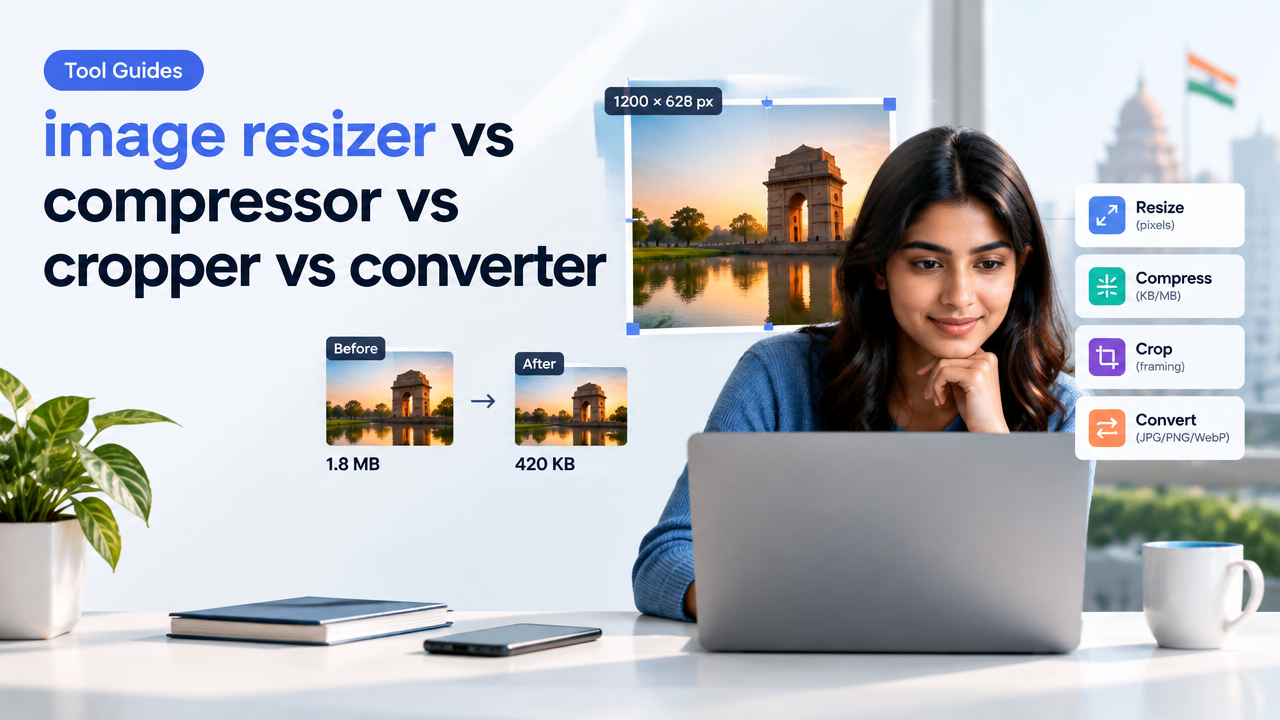
Image resizer vs compressor vs cropper vs converter: which tool should you use
Short answer: choose the tool by your goal. Resize if you need specific pixel dimensions for uploads or prints, compress when a file is too large (KB/MB) for web or forms, crop to change framing or remove background clutter, and convert when format compatibility, transparency or metadata matters. Often you’ll use two tools in sequence—resize first (pixels), then compress (file size).
What each tool does — quick definitions
- Resizer — changes pixel dimensions (width × height). Use when a site asks for exact pixels (for example a banner 1200×628 px) or you need predictable display size for web or print.
- Compressor — reduces file size (KB/MB) by applying lossy or lossless compression and quality tuning. Useful when uploads fail due to size limits or to speed up a webpage.
- Cropper — removes parts of the image to change composition or aspect ratio (e.g., square for Instagram profile). Cropping does not change overall file format or necessarily reduce file size much unless you also resize or compress.
- Converter — changes file format (JPG ↔ PNG ↔ WebP ↔ HEIC). Use when you need transparency (PNG), smaller web-friendly files (WebP), or compatibility with legacy apps (JPG).
Dimensions vs KB vs Quality — understand the trade-offs
These three terms are related but distinct:
- Dimensions (pixels): The count of pixels horizontally and vertically (e.g., 1024×768 px). Controls the displayed sharpness and physical print size (with DPI).
- File size (KB/MB): How many bytes the file uses on disk. Affects upload limits, page speed and email attachments.
- Quality: A perception affected by resolution, compression artifacts, and format. High quality requires sufficient pixels plus gentle compression.
Rule of thumb: reduce dimensions to shrink files without heavy artifacts. If dimensions are already correct, use compression/format conversion to lower KB. Converting to WebP often reduces size while keeping visual quality, but verify compatibility where you upload.
Decision checklist — which tool to use for common tasks
| Goal | Primary tool | Follow-up |
|---|---|---|
| Upload to government form or passport portal | Resize to required pixels or aspect ratio | Then compress to meet KB limit; always verify official specs on the portal |
| Speed up website pages | Resize to display size + convert to WebP | Compress lightly and serve responsive sizes |
| Social media post framing | Crop to safe area/aspect ratio | Resize to recommended pixels, then compress |
| Send by email or WhatsApp | Compress (or resize if huge) | Convert to JPG if sender needs universal format |
| Preserve transparency or vector export | Convert (to PNG or SVG where possible) | Optimize with lossless compression if needed |
Step-by-step workflows (fast, practical)
1. Resize for an exact pixel requirement (web/form)
- Open your image in the resizer tool (for example use Smart Image Resizer — SmartImageResize main tool).
- Enter target pixels (width × height). If the portal gives aspect ratio only, pick the closest size that matches ratio.
- Choose an interpolation mode if available: Bicubic for photos, Nearest for pixel art.
- Export as JPG/PNG depending on need—JPG for photos, PNG for images needing transparency.
2. Compress to meet KB limits (uploads or web)
- Start with an image already at the right pixel size—don’t compress a huge image and expect great results.
- Use a compressor that shows live preview and target size. Reduce quality in steps (e.g., 90 → 80 → 70) until you hit the KB limit while checking for visible artifacts.
- If artifacts appear, try converting to WebP and repeating—WebP is often smaller at the same perceived quality. See our converter guide for format trade-offs: JPG PNG WebP HEIC Converter Guide.
3. Crop to change framing or aspect ratio
- Choose an aspect ratio preset (square, 4:5, 16:9) or custom crop and drag to include the subject.
- Use safe-area guides for social thumbnails (avoid cutting faces or logos).
- After cropping, resize to the final pixel dimensions and compress if needed.
4. Convert formats (JPG, PNG, WebP, HEIC)
- Decide why you’re converting: transparency (PNG), smaller web files (WebP), compatibility (JPG), or retain phone originals (HEIC).
- Convert and inspect metadata and color profile. If you need to keep EXIF data for photography, ensure your converter preserves it.
- Test the converted file on the target platform—some older sites don’t accept WebP.
If you have many images, follow a bulk process: batch-resize to required pixel sizes, then batch-compress. See our bulk workflow: Bulk Image Resize Workflow for Many Photos.
Practical note for government forms and passport photos (India)
Government portals often enforce both pixel size and maximum KB. Never assume numbers—always verify the latest requirements on the official portal (e.g., passport or Aadhaar upload page). Typical safe approach:
- Start with a high-resolution master. Crop to composition and the required aspect ratio.
- Resize to the exact pixels requested (if given). If the portal only gives a size range, pick a middle value.
- Compress carefully to meet KB limits—test-upload before final submission.
For common upload problems and remedies, our guide on passport photo rejections is useful: Passport Photo Upload Rejection Reasons and How to Prepare the Image.
When to resize first, when to compress first
Best order for most workflows:
- Crop to get the framing/aspect ratio you need.
- Resize to the exact pixel dimensions the platform requires.
- Convert format if compatibility or transparency is needed.
- Compress to reduce file size to limits or to speed up page load.
This order preserves visual quality while meeting file-size and format constraints.
Common mistakes and tips for better results
- Mistake: Compressing a large image without resizing. Tip: Resize first—reducing pixels reduces file size more predictably.
- Mistake: Cropping after compressing. Tip: Crop first, then compress to avoid recompressing artifacts in the final crop.
- Tip: Keep a high-resolution original (master). Always work on a copy so you can revert if quality drops.
- Tip: For web, serve responsive images: produce multiple pixel sizes and use the smallest needed for each breakpoint. See our Image SEO checklist for practical image-size and alt-text tips: Image SEO Checklist for WordPress.
- Tip: When converting to WebP, keep a JPG/PNG fallback if the target system may not accept WebP.
Frequently Asked Questions
Tools and further reading
Use SmartImageResize’s combined tools to resize, compress and convert in a single workflow: Smart Image Resizer, Converter & Compressor — Free Online Tool. For format trade-offs and quality-vs-size guidance, see: JPG PNG WebP Quality vs File Size and the converter guide: JPG PNG WebP HEIC Converter Guide.
Conclusion
Choose the tool based on your immediate goal: pixels (resize), file size (compress), framing (crop) or compatibility/feature (convert). Most real-world tasks combine steps—crop, then resize, then convert, then compress. Keep an editable master, verify official upload specs for government forms, and test the final file on the target platform before submitting.
Try the matching Smart Image Resize tool
Use the closest live SmartImageResize tool for the task in this guide. For government or platform uploads, verify the latest official requirement before final submission.
Open Smart Image Resizer, Converter & Compressor — Free Online Tool


