
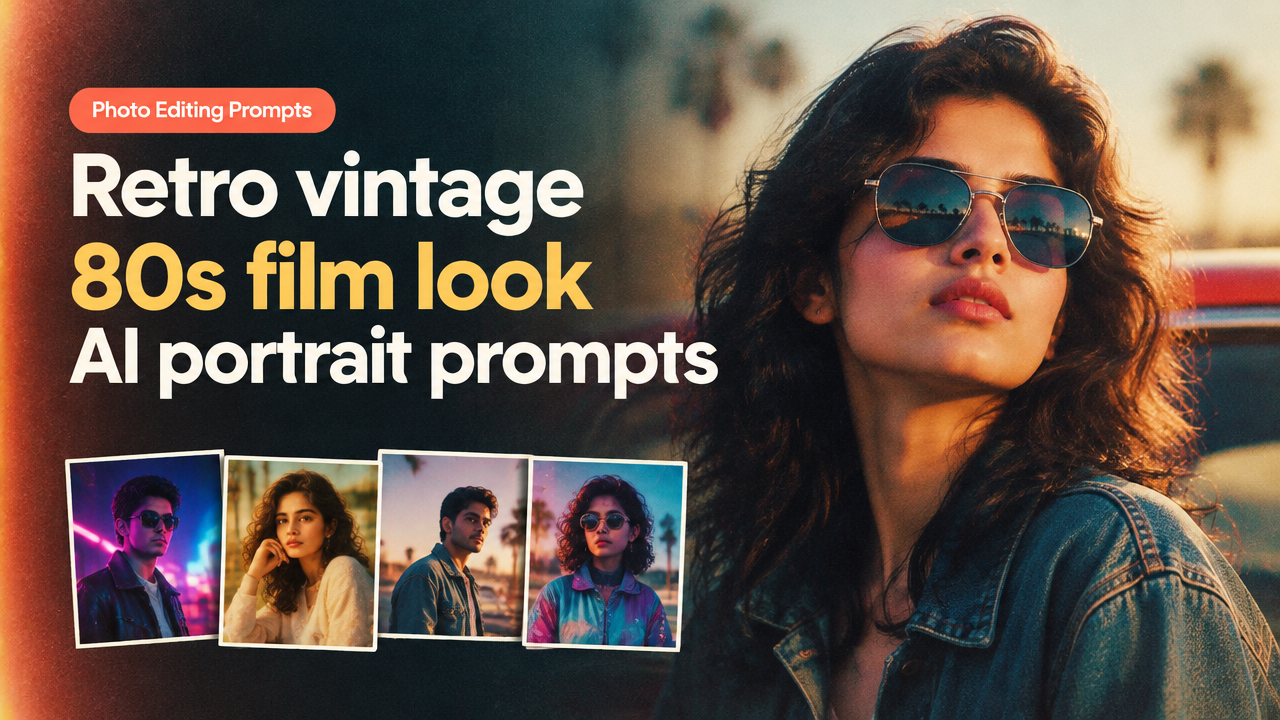
Quick answer: Use targeted prompts that combine film stock color notes, grain, light-leaks, lens and era-specific props—then refine tone and crop. Below are 30+ copy-ready retro vintage 80s film look AI portrait prompts grouped by style, plus a clear workflow, aspect/composition guidance, a resizing and compression checklist, and common mistakes to avoid.
Why use tailored 80s film prompts for portraits?
The 80s film look is more than a color grade: it’s grain structure, highlight roll-off, lens flare, and era styling. Generic “make it retro” prompts often yield inconsistent results. Focused prompts combine film stock references (e.g., warm portra-like tones), grain amount, and lighting directions so your AI editor interprets the look consistently across a series of portraits.
How to use this page
- Pick a style group below (neon, soft pastels, Polaroid, high-contrast Kodak-like).
- Copy a prompt and paste it into your AI image editor with your source portrait.
- Adjust strength, preserve identity settings where available, and refine with negative prompts to remove artifacts.
30+ copy-ready retro vintage 80s film look AI portrait prompts (grouped)
Each prompt is written to be copy-paste ready. Add your subject details (gender, age-range) and optionally the desired aspect ratio or crop instruction.
1) Classic warm film (Kodak/Portra-inspired)
- “Portrait of a young woman, warm Portra-like color palette, soft golden-hour skin tones, gentle grain, shallow depth of field, natural contrast, subtle vignette, 80s film emulation”
- “Close-up portrait, warm mid-tones and slightly muted highlights, 80s color film aesthetic, visible fine grain, natural skin texture, soft bokeh”
- “Three-quarter portrait, warm teal shadow tint, soft skin tones, film grain 20-30%, gentle film fade on highlights, nostalgic mood”
2) Neon-lit 80s synthwave
- “Portrait under neon lights, magenta and cyan rim light, cool blue shadows, heavy color contrast, subtle film grain, reflective sunglasses, 80s neon aesthetic”
- “Half-body portrait, saturated magenta rim light on left, cyan fill on right, visible grain, slight chromatic aberration, cinematic 80s studio style”
- “Close-up with neon signs out of focus in background, high saturation, film grain, soft highlight bloom, 80s retro-futuristic vibe”
3) Soft pastel 80s (dreamy, romantic)
- “Soft pastel 80s portrait, gentle pink and peach highlights, light film grain, dreamy haze and light leaks, low contrast, soft skin smoothing without plastic look”
- “Window-lit portrait, pastel color palette, faded film edges, warm midtones, light flare, soft-focus atmosphere, subtle film texture”
- “Close-up portrait with pastel color wash, subdued blacks, soft film grain and slight color shift towards warm magenta”
4) Polaroid / instant film frame
- “Polaroid-style portrait, white instant film border, slightly overexposed center, tactile film grain, warm cast, square crop, 80s casual snapshot feeling”
- “Vintage instant film look, slightly faded colors, visible film emulsion texture, vignetting and soft corner fade, casual mid-shot”
- “Polaroid portrait with handwritten name area, soft light leaks top-right, warm color bias, natural skin rendering”
5) High-contrast retro studio
- “High-contrast 80s studio portrait, rich blacks, slightly desaturated highlights, film grain, hair-light rim, dramatic look reminiscent of studio film portraits”
- “Three-quarter pose, dramatic side lighting, 80s film contrast curve, strong but natural shadows, visible grain and film texture”
6) Black-and-white grainy film
- “Black-and-white 80s film portrait, high grain, deep blacks, soft highlights, vintage silver-halide texture, classic timeless mood”
- “B&W close-up, gritty film grain 40-50%, high contrast, slight film scratches, authentic analog feel”
Customization tips (how to adapt prompts)
- Swap color references: replace “Portra-like” with “Kodak warm” for slightly different warmth and contrast.
- Add era props: “cassette player, retro sunglasses, high-waist jacket” to reinforce 80s styling.
- Control grain: add “fine grain” or “heavy grain 40%” depending on desired texture.
- Preserve identity: include “preserve facial features, no facial age change” if your tool supports identity-preservation controls.
- Negative prompts: include negatives like “no blur, no extra limbs, no artifacts” to reduce common AI errors.
Aspect ratio and composition guidance
- Square (1:1): Great for Polaroid and social-profile crops.
- Vertical (4:5 or 2:3): Ideal for portraits used on Instagram or prints—leave headroom for safe crop.
- Horizontal (16:9): Use for environmental portraits with neon backgrounds or wide studio setups.
- Composition tips: use headroom, keep important details inside a central safe area, and add prompts like “centered composition” or “rule of thirds, subject left” for precise framing.
Quick workflow (copy, edit, refine, export)
| Step | Action | Quick settings |
|---|---|---|
| 1. Source | Choose a clean, high-resolution portrait | Prefer 2–5 MP minimum |
| 2. Crop | Crop to intended aspect ratio; keep safe area | 4:5 for Instagram, 1:1 for Polaroid |
| 3. Prompt | Paste a copy-ready prompt and add subject details | Start 60–80% strength |
| 4. Refine | Adjust grain, color balance, and identity controls | Use negative prompts to remove artifacts |
| 5. Export | Resize and compress for web or upload | JPG 80–90% for web; keep master PNG or TIFF |
After editing, use the Smart Image Resizer, Converter & Compressor to batch-resize and compress output for web: Smart Image Resizer, Converter & Compressor — Free Online Tool. For guidance on format choice, see the JPG/PNG/WebP/HEIC guide: Which Format Should You Choose?
Practical checklist before upload (forms, social, web)
- Verify dimensions and file-size limits of the destination (government forms and passport portals can change rules—always check the official site).
- Keep a high-resolution master (>2000 px longer edge) and export web copies resized and compressed.
- Preserve face clarity—use conservative AI strength when identity is important.
- Add relevant metadata and optimized filename for Image SEO (see: Image SEO Checklist for WordPress).
Common mistakes and how to avoid them
- Too strong style strength: results look artificial—reduce intensity or apply in layers.
- Ignoring composition/safe-area: face or important details get cropped—plan aspect ratio first.
- Over-graining: heavy grain hides facial details—balance texture with clarity.
- Not using negatives: leave artifacts and extra limbs—use negative prompts like “no distortions, no extra fingers”.
- Exporting only one size: keep a master file and export specific sized copies for each platform.
Frequently Asked Questions
Final tips for consistent series and creator workflows
- Create a reference file: keep a master example of color, grain, and vignette to match other portraits.
- Use subtle props and consistent lighting across shoots to make AI stylization uniform.
- Document prompt variations that worked for each subject type so you can reproduce the look later.
With these copy-ready prompts, workflow and checks, you can reliably create retro vintage 80s film look portraits that are consistent across a portfolio. Experiment with the prompt parameters and always keep original masters for safe archiving and compliant uploads.
Related: AI Portrait Prompt Ideas for Social Media — customize without copying.
Editorial note: This article focuses on creative prompt techniques and practical export advice. For any official photo requirements (passports, government IDs), consult the issuing agency for the latest rules before submitting an edited image.
Try the matching Smart Image Resize tool
Use the closest live SmartImageResize tool for the task in this guide. For government or platform uploads, verify the latest official requirement before final submission.


