
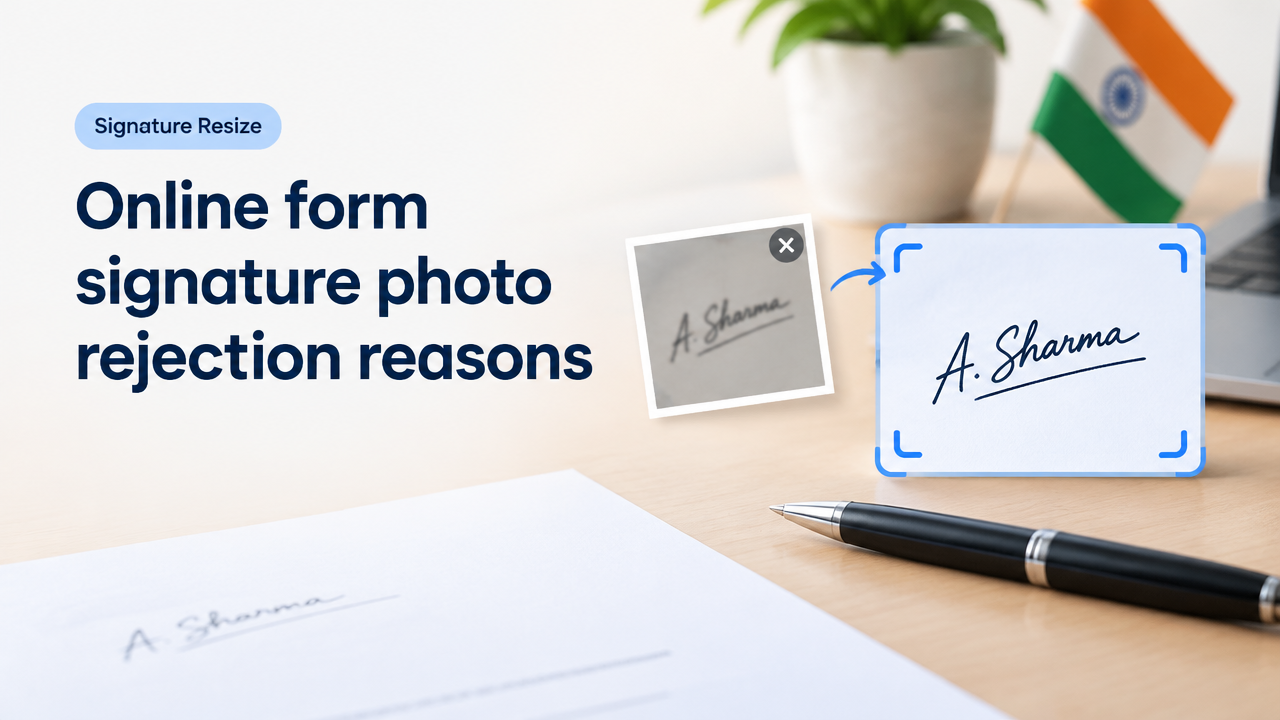
Online form signature photo rejection reasons — Clear checklist to prevent rejections
Quick answer: Signature photos are usually rejected because they are blurry, low-contrast, improperly cropped, too large or too small in file size, contain background noise, or use the wrong file format. Always check the form’s official instructions first, then follow a simple capture-and-edit workflow to meet the likely technical checks.
Why signature photos are rejected (short list)
- Blurry or out of focus — automated checks and humans cannot read the stroke details.
- Poor contrast — faint ink, coloured backgrounds, or shadows hide the signature.
- Wrong framing or cropping — signature partly cut off or too much surrounding area.
- File size, format or resolution mismatch — exceeds KB limit or wrong file type.
- Compression artifacts — aggressive compression can break thin strokes.
- Background noise or stamps — lines, seals or other marks confuse validators.
- Orientation issues — rotated or mirrored images can be rejected by automated checks.
How to verify the official requirement (don’t assume)
Form rules vary by department and platform. Never invent limits — always check the form page, PDF instructions, or the help/FAQ section of the service you are uploading to. If the page lists dimensions or KB limits, follow those exactly. If it doesn’t, look for these details:
- Allowed file types (JPG, JPEG, PNG, PDF) and maximum file size (KB/MB).
- Any required canvas size or minimum resolution in pixels or DPI.
- Colour or ink requirements (some forms prefer dark ink — verify on the form).
- Margins or safe area rules (signature fully visible inside a box).
For government exam or official forms see our guide on how to verify & resize safely: Government Exam Form Photo Requirements — How to Verify the Current Notification and Resize Safely.
Step-by-step workflow to prepare a signature photo that passes
- Write clearly: Use a steady surface and a dark pen (many forms commonly prefer black or blue ink — but confirm the instruction). Sign in the centre of a plain white sheet so the whole signature fits in a single bounding box.
- Capture the image: Use a smartphone camera or scanner. If using a phone, place the document on a flat surface with even daylight (avoid direct sunlight that creates harsh shadows). Hold the camera square above the signature to avoid perspective distortion.
- Crop tightly: Crop to a small margin around the signature so the signature is the main content. Avoid including stamps, stamps’ shadows or other handwriting nearby.
- Straighten and rotate: Make sure the baseline of the signature is horizontal. Rotate so the signature is upright.
- Adjust contrast/lightness: Increase contrast just enough to make strokes clear. Reduce background off-white by increasing brightness slightly or using a ‘levels’ adjustment to push paper to near-white without blowing out strokes.
- Convert to correct format: Save as the required file type (JPG/JPEG or PNG commonly requested). Use PNG if transparency matters or if you need lossless clarity for thin strokes; use high-quality JPG if the file must be smaller and photographic capture is clean.
- Compress carefully: Reduce file size while preserving thin strokes. If your tool offers quality percentage, test 85–92% JPG quality as a starting point and inspect the image closely for artifacts (see next section on quality vs size).
- Verify dimensions & size: Check the form’s KB limit and pixel size. If needed, resize image dimensions and recompress until within limits while keeping clarity.
- Final check: Zoom to 100% and ensure strokes are crisp, not jagged or blocky. Open the file on another device to confirm readability.
Dimensions vs KB vs quality — what to prioritise
Understand the three factors:
- Pixel dimensions (width x height): determine visual size and how readable the signature appears at screen or print scale.
- File size (KB/MB): forms often enforce a maximum KB size. You must compress or reduce dimensions to meet this.
- Compression/Quality: reducing file size with heavy compression can blur or create artifacts that obscure fine strokes.
Priority order for signature images: clarity (strokes readable) > allowed file type > file size. If you must lower KB, first reduce pixel dimensions moderately before applying heavy compression. For a deeper look at how compression causes blurriness and how to avoid it, read: Why an Image Becomes Blurry After Compression — How to Reduce Quality Loss and use the guidance in Image Resizer vs Compressor vs Cropper vs Converter: Which Tool Should You Use.
Practical checklist (copy this before you upload)
| Item | Pass/Fail | Notes |
|---|---|---|
| Signature fully visible (no cut-off) | Include small margins; do not crop off stroke ends. | |
| Sharp and in-focus | Zoom to 100% to inspect; rescan or retake if blurry. | |
| Good contrast (dark strokes, light background) | Adjust brightness/contrast if paper looks grey or stained. | |
| No stamps, other handwriting or marks overlapping | Remove or recapture on a clean page if needed. | |
| Correct file type allowed by form | JPG/JPEG vs PNG — choose per instructions. | |
| File size within limit | Compress or resize keeping clarity. | |
| Orientation upright | Rotate or flip so signature reads normally. | |
| Filename sensible (no special chars) | Use letters, numbers and hyphens/underscores. |
Common mistakes and quick fixes
- Blurry image: Retake with steadier hands, or use a scanner. If rescanning isn’t possible, slightly increase sharpness in an editor—but avoid over-sharpening which adds noise.
- Too much compression noise: Re-export at higher quality or reduce dimensions first, then compress. See our compression vs quality guide for methods: JPG PNG WebP Quality vs File Size: Balanced Compression Guide.
- Background not white: Use a levels/curves tool to push paper to white or use a quick background-whiten tool. Keep stroke contrast intact.
- Signature cropped off: Re-crop with a slightly larger margin; many platforms prefer some white space around signature.
- Wrong format: Convert to the accepted format using a reliable converter and recheck KB size.
Safe upload and privacy tips
If the form deals with sensitive documents (IDs, bank forms), check the site’s privacy policy before uploading images. Smart Image Resize provides online tools to resize, crop and compress images; always review the service terms and privacy statement on the target platform before sending sensitive material.
For general purpose editing and to avoid rejections during form uploads, use a simple sequence: capture > crop > adjust contrast > save as required format > compress to limit. If you need help cropping or rotating without losing quality, see our tool workflow: Crop Rotate Flip Enlarge Image Without Losing Quality.
Frequently Asked Questions
Conclusion
Most online form signature rejections are avoidable with a simple, repeatable workflow: write clearly, capture on a flat surface with even light, crop and straighten carefully, and compress only until file size limits are met while keeping strokes readable. Always verify the form’s exact requirements before you edit, and use conservative edits to protect signature clarity. If you follow the checklist above, your chance of passing automated and human checks improves dramatically.
For step-by-step resizing, cropping and compression help, start with our tool hub: Smart Image Resizer, Converter & Compressor — Free Online Tool.
Try the matching Smart Image Resize tool
Use the closest live SmartImageResize tool for the task in this guide. For government or platform uploads, verify the latest official requirement before final submission.
Open 10 KB to 20 KB Signature Size in Pixels | Online Signature Resizer


